At 100%, check whether Windows is downloading, installing, or waiting for a restart; those are different stages. Keep the PC powered and use Update history before deciding it is frozen.
On Windows 11, menu names vary by build. Use built-in Settings and Microsoft Support guidance before registry edits or third-party repair tools.
Why this can happen
The download can reach 100% before verification or installation finishes. If Windows is already installing, the screen may not update continuously; interrupting it can cause rollback or startup repair.
The practical troubleshooting sequence
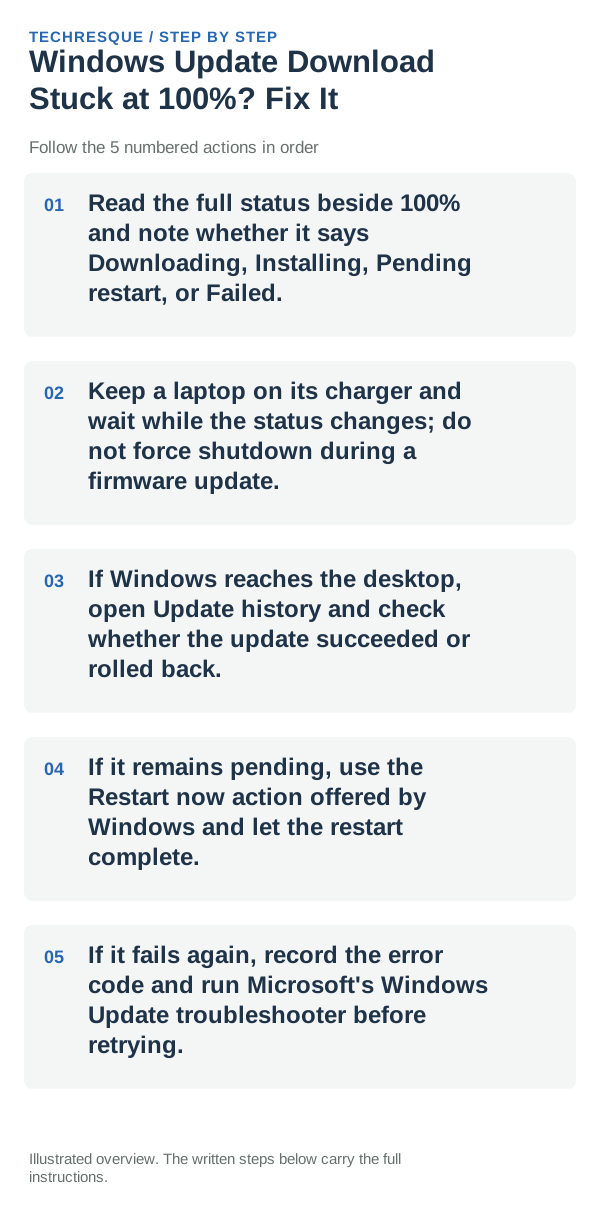
- Read the full status beside 100% and note whether it says Downloading, Installing, Pending restart, or Failed.
- Keep a laptop on its charger and wait while the status changes; do not force shutdown during a firmware update.
- If Windows reaches the desktop, open Update history and check whether the update succeeded or rolled back.
- If it remains pending, use the Restart now action offered by Windows and let the restart complete.
- If it fails again, record the error code and run Microsoft's Windows Update troubleshooter before retrying.
Use a clean A/B test
A pending-restart status means the download is complete but the update still needs a restart. A failure or rollback with an error code is different from a slow installation at 100%.
Do not delete the download cache or power off during installation just because the percentage is unchanged. Save open files before any restart that Windows offers.
What success should look like
Verify that Update history reports success and the PC starts normally. If the same update rolls back, keep its error code and do not repeat the same restart loop.
When to use support or repair
If 100% remains with no status change or Windows cannot restart, contact Microsoft or the PC maker with the update name and error history.
Frequently asked questions
Should I reset the whole device immediately?
Usually not. Try the guide’s reversible checks first and confirm whether the problem is limited to one app, file, device, or Windows component. Back up important files before considering Reset this PC.
How do I know when the fix is real?
Verify that Update history reports success and the PC starts normally. If the same update rolls back, keep its error code and do not repeat the same restart loop.