Check connection, Windows Update status, and system-drive space, then run the official troubleshooter. A 0% display may still be preparing metadata, so wait for a clear error before resetting services.
On Windows 11, menu names vary by build. Use built-in Settings and Microsoft Support guidance before registry edits or third-party repair tools.
Likely causes to check first
At 0%, Windows may be checking the update catalog, waiting for a service, or unable to reach the download endpoint. A persistent error code, not the percentage alone, identifies the next step.
Fix it in this order
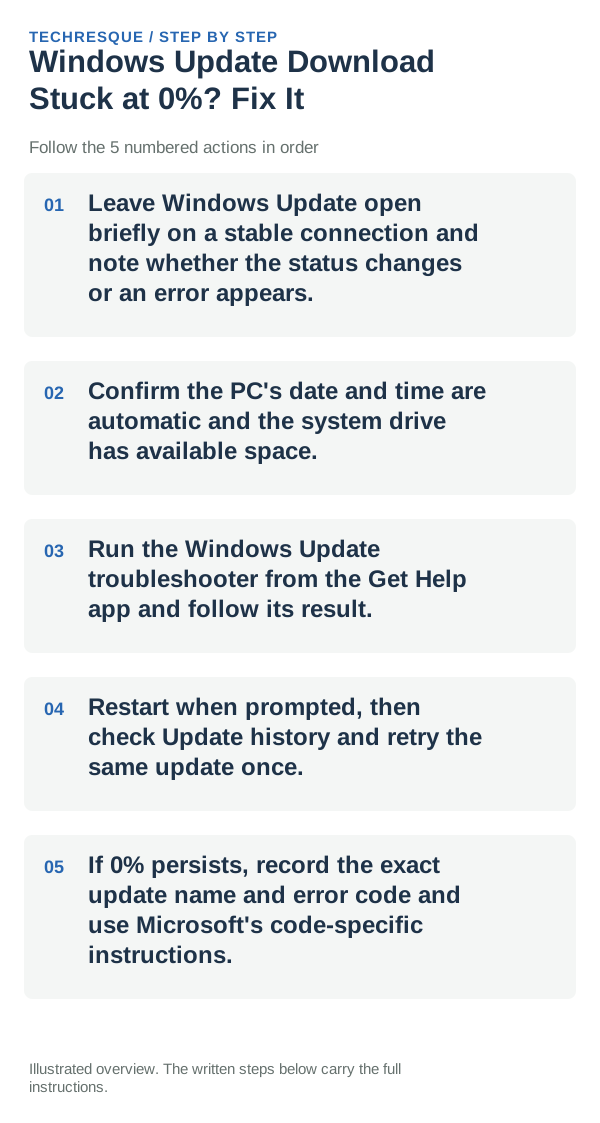
- Leave Windows Update open briefly on a stable connection and note whether the status changes or an error appears.
- Confirm the PC's date and time are automatic and the system drive has available space.
- Run the Windows Update troubleshooter from the Get Help app and follow its result.
- Restart when prompted, then check Update history and retry the same update once.
- If 0% persists, record the exact update name and error code and use Microsoft's code-specific instructions.
How to tell which cause applies
If the status changes after the troubleshooter or restart, the update was delayed by a service or connection condition. If it remains at 0 with the same code, use that code rather than generic download fixes.
What not to change first
Do not repeatedly cancel the update, turn off security protection, or delete update-service folders before the built-in troubleshooter has run.
How to confirm the fix
Confirm the update leaves 0%, reaches installation, and records success in Update history. If it fails again, keep the same code and date for support.
When to use support or repair
Contact Microsoft or the PC maker if the troubleshooter cannot resolve the same error. Share the code, Windows version, update name, and connection type.
Frequently asked questions
Should I reset the whole device immediately?
Usually not. Try the guide’s reversible checks first and confirm whether the problem is limited to one app, file, device, or Windows component. Back up important files before considering Reset this PC.
How do I know when the fix is real?
Confirm the update leaves 0%, reaches installation, and records success in Update history. If it fails again, keep the same code and date for support.