
First determine whether Windows is still applying an update or firmware. Keep the PC on power and wait while the screen or progress changes; use recovery only after the documented process has stopped.
On Windows 11, menu names vary by build. Use built-in Settings and Microsoft Support guidance before registry edits or third-party repair tools.
Why this can happen
The Restarting screen can last longer while Windows applies updates, drivers, or firmware. A frozen screen is more likely when the same progress and activity remain unchanged, but interrupting an active firmware update can damage startup.
Work through these checks
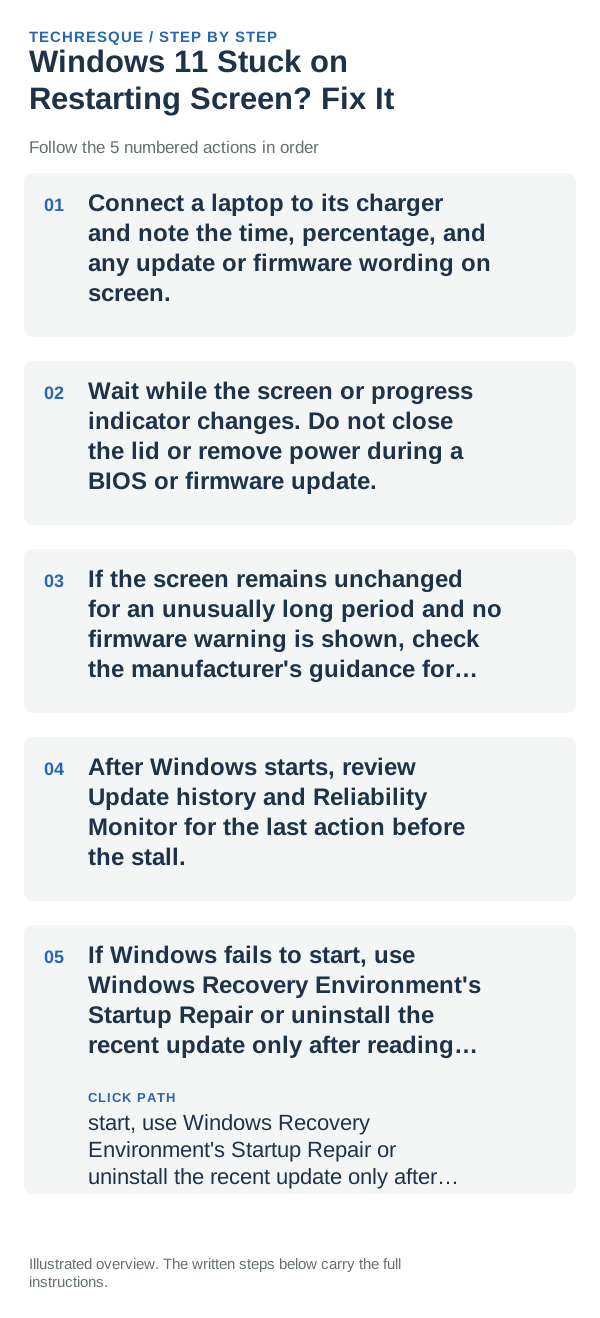
- Connect a laptop to its charger and note the time, percentage, and any update or firmware wording on screen.
- Wait while the screen or progress indicator changes. Do not close the lid or remove power during a BIOS or firmware update.
- If the screen remains unchanged for an unusually long period and no firmware warning is shown, check the manufacturer's guidance for the model before forcing a shutdown.
- After Windows starts, review Update history and Reliability Monitor for the last action before the stall.
- If Windows fails to start, use Windows Recovery Environment's Startup Repair or uninstall the recent update only after reading the data-loss implications.
A quick way to narrow it down
A percentage that moves or a firmware message is a reason to keep waiting. If Windows returns to the same restart screen after every boot, treat it as a startup loop and use the recovery path for the device.
Shortcuts that usually waste time
Do not repeatedly hold the power button during an update, and do not select Reset this PC without a current backup. Follow the PC manufacturer's guidance if a firmware screen is involved.
Retest the original failure
Windows should reach the sign-in screen and complete one ordinary restart without returning to the same screen. Check Update history before retrying the failed update.
When to use support or repair
If it cannot get past the restart screen, contact the PC maker or use Microsoft's Recovery options. Share the model, progress text, update history, and whether a firmware screen appeared.
Frequently asked questions
Should I reset the whole device immediately?
Usually not. Try the guide’s reversible checks first and confirm whether the problem is limited to one app, file, device, or Windows component. Back up important files before considering Reset this PC.
How do I know when the fix is real?
Windows should reach the sign-in screen and complete one ordinary restart without returning to the same screen. Check Update history before retrying the failed update.