Record the restart time and any blue-screen stop code, then check Reliability Monitor, recent updates, temperature, and power. Back up files before using Windows recovery options.
On Windows 11, menu names vary by build. Use built-in Settings and Microsoft Support guidance before registry edits or third-party repair tools.
Start by narrowing the cause
A random restart can be a crash, an update restart, a power interruption, overheating, or a driver fault. The stop code and Reliability Monitor entry help distinguish a system crash from a brief power loss.
Troubleshoot from low-risk to high-risk
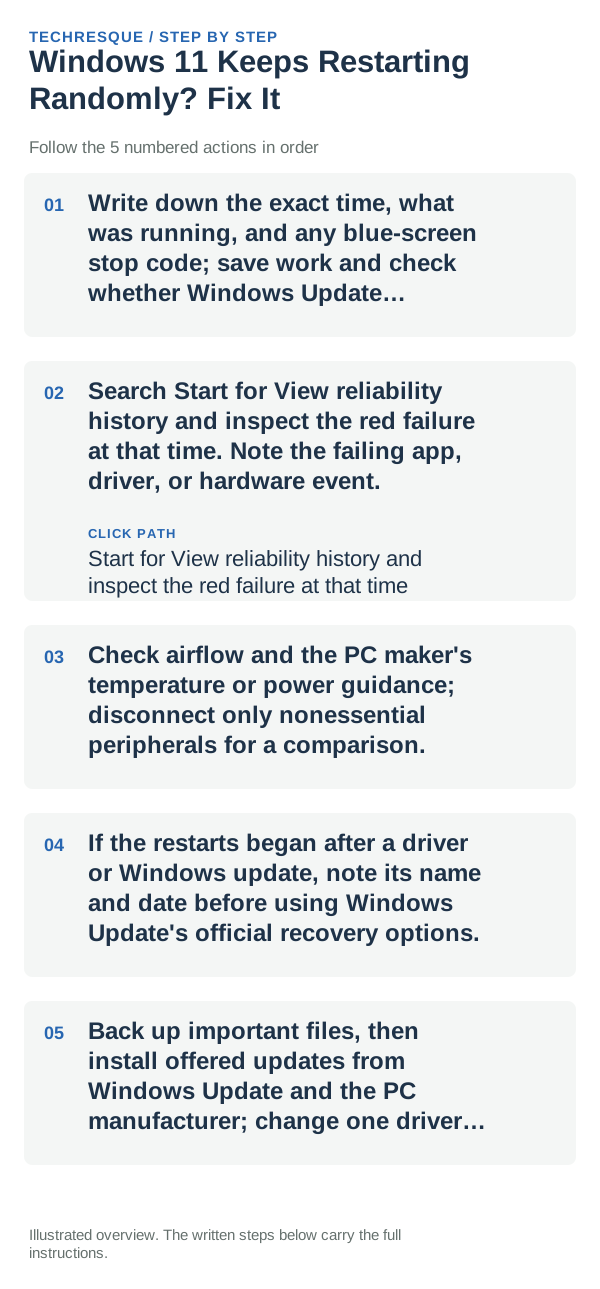
- Write down the exact time, what was running, and any blue-screen stop code; save work and check whether Windows Update requested a restart.
- Search Start for View reliability history and inspect the red failure at that time. Note the failing app, driver, or hardware event.
- Check airflow and the PC maker's temperature or power guidance; disconnect only nonessential peripherals for a comparison.
- If the restarts began after a driver or Windows update, note its name and date before using Windows Update's official recovery options.
- Back up important files, then install offered updates from Windows Update and the PC manufacturer; change one driver or device at a time.
Isolate the failing layer
A blue screen and a matching Reliability Monitor crash point to a software or hardware fault; an abrupt power cut with no dump can point to power or thermal protection. A planned restart appears in update history.
Do not disable security tools, edit the registry, or repeatedly force power off. If the case is hot, fans stop, or a battery is swollen, stop using the PC and contact the manufacturer.
Verify before you move on
Use the PC through the same workload that previously triggered the restart and check Reliability Monitor again. A single boot without a restart is not enough to confirm the cause.
When to use support or repair
If restarts continue or a stop code repeats, contact the PC maker or Microsoft with the exact code, Reliability Monitor event, device model, and recent update history.
Frequently asked questions
Should I reset the whole device immediately?
Usually not. Try the guide’s reversible checks first and confirm whether the problem is limited to one app, file, device, or Windows component. Back up important files before considering Reset this PC.
How do I know when the fix is real?
Use the PC through the same workload that previously triggered the restart and check Reliability Monitor again. A single boot without a restart is not enough to confirm the cause.