A blue screen is a Windows stop error, not an ordinary app crash. The stop code, recent driver/hardware change, and whether Windows can start are the best clues. Photograph or write down the stop code and note when it occurs; remove only newly connected nonessential peripherals for one test. If Windows starts, check Reliability Monitor and install drivers from Windows Update or the PC maker for the exact model.
Windows menu names and power controls vary by build and PC maker; note the exact Windows version and error before changing drivers or system settings.
What this symptom usually means
A blue screen is a Windows stop error, not an ordinary app crash. The stop code, recent driver/hardware change, and whether Windows can start are the best clues.
- A recent driver, firmware, or Windows update introduced a conflict.
- A peripheral, memory, storage, or other hardware fault is intermittent.
- System files or a device driver fail during startup or under load.
- Overheating or unstable power causes a repeatable crash.
- The same stop code appears in a particular workload or after sleep.
Use this order so you can identify the cause
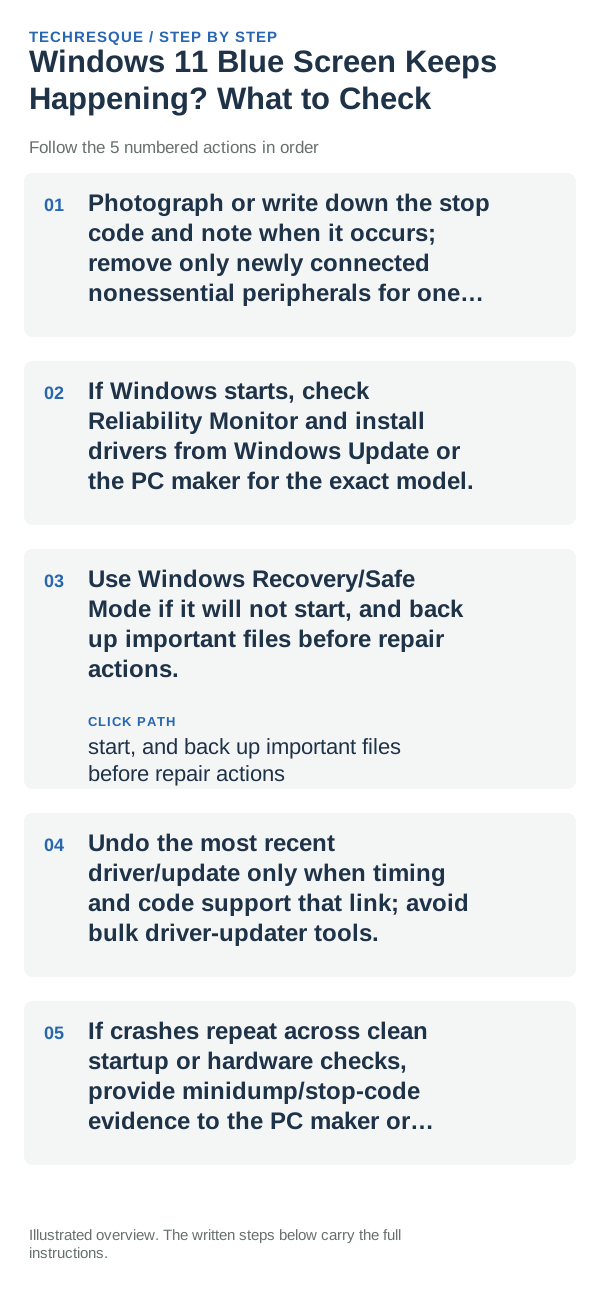
- Photograph or write down the stop code and note when it occurs; remove only newly connected nonessential peripherals for one test.
- If Windows starts, check Reliability Monitor and install drivers from Windows Update or the PC maker for the exact model.
- Use Windows Recovery/Safe Mode if it will not start, and back up important files before repair actions.
- Undo the most recent driver/update only when timing and code support that link; avoid bulk driver-updater tools.
- If crashes repeat across clean startup or hardware checks, provide minidump/stop-code evidence to the PC maker or technician.
Isolate the failing layer
Look for the same stop code and trigger across two restarts; preserve the code and timestamp because they guide diagnosis.
Use the PC through the same workload that previously triggered the stop code and check Reliability Monitor afterward for a new crash at that time.
Do not make troubleshooting harder
- Do not repeatedly force shutdown during disk activity.
- Do not disable security features or install drivers from unknown sites.
How to confirm the fix
Look for the same stop code and trigger across two restarts; preserve the code and timestamp because they guide diagnosis.
When to use support or repair
If blue screens recur, write down the stop code, time, and any driver or hardware change immediately beforehand. Preserve important files, avoid repeating a change that triggers the crash, and give the minidump and Windows build to Microsoft or the PC maker; do not share private files publicly.
Frequently asked questions
What should I check first?
Photograph or write down the stop code and note when it occurs; remove only newly connected nonessential peripherals for one test. If Windows starts, check Reliability Monitor and install drivers from Windows Update or the PC maker for the exact model. Use Windows Recovery/Safe Mode if it will not start, and back up important files before repair actions.
Should I reset the whole device immediately?
Usually not. Try the guide’s reversible checks first and confirm whether the problem is limited to one app, file, device, or Windows component. Back up important files before considering Reset this PC.
How do I know when the fix is real?
Look for the same stop code and trigger across two restarts; preserve the code and timestamp because they guide diagnosis.
Official sources and further reading
Windows Settings paths can shift between releases. Search for the named control and note your Windows build if an option is missing.