
Restart Windows Explorer, test a simple local folder, then disable problematic shell extensions or Quick Access items if Explorer crashes only in specific locations.
On Windows 11, menu names vary by build. Use built-in Settings and Microsoft Support guidance before registry edits or third-party repair tools.
What this symptom usually means
- a shell extension is crashing Explorer
- a network/Quick Access location is timing out
- thumbnail generation is stuck on a file
- system files or storage errors are involved
The practical troubleshooting sequence
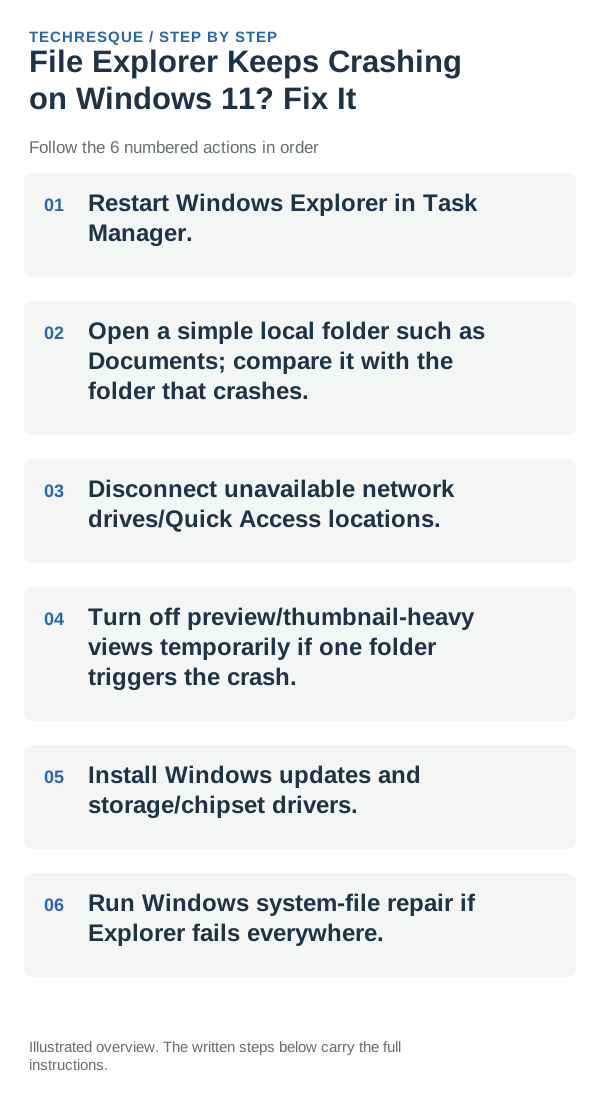
- Restart Windows Explorer in Task Manager.
- Open a simple local folder such as Documents; compare it with the folder that crashes.
- Disconnect unavailable network drives/Quick Access locations.
- Turn off preview/thumbnail-heavy views temporarily if one folder triggers the crash.
- Install Windows updates and storage/chipset drivers.
- Run Windows system-file repair if Explorer fails everywhere.
What each result tells you
Check whether Explorer crashes in every folder or only when opening one location or file type. If a simple local folder works but a cloud, network, or media folder crashes, focus on that location or its shell extension before changing Windows-wide settings.
Shortcuts that usually waste time
- Do not delete or move files, shortcuts, or settings data until you know what they contain and have a backup.
- Do not run an unknown registry edit or third-party repair script before checking Windows built-in options.
- Do not use Reset this PC for a problem isolated to one shell control, file location, or search index.
- Do not disable Windows security controls or change access permissions unless the specific check calls for it.
How to confirm the fix
When to use support or repair
If Explorer still crashes in a simple local folder after a restart and update check, record the Windows build, crash time, and Reliability Monitor faulting module before contacting Microsoft or the PC maker. Keep recovery keys private.
Separate an Explorer crash from a file or folder problem
If Explorer closes for every folder, the issue is more likely in the Windows shell, a recent update, or a startup extension. If it happens only when opening one folder or file type, compare another folder and turn off Preview pane for that test before changing drivers.
After restarting Explorer, repeat the same folder action and note the time if it crashes again. Reliability Monitor can show whether Explorer failed repeatedly and which component was named; avoid changing unrelated device drivers for a folder-only crash.
| Pattern | What it suggests | Next check |
|---|---|---|
| Any folder crashes | Explorer, a shell extension, or system component | Check recent updates and Reliability Monitor |
| One folder or file type crashes | Preview handler, file, or folder-specific content | Turn off Preview pane and compare another folder |
| Crash returns after sign-in | Startup app, extension, or profile state | Note the recurring fault before disabling one recent addition |
Frequently asked questions
What should I check first for file explorer keeps crashing on windows 11? fix it?
Restart Windows Explorer, test a simple local folder, then disable problematic shell extensions or Quick Access items if Explorer crashes only in specific locations.
Should I reset the whole device immediately?
Usually not. Try the guide’s reversible checks first and confirm whether the problem is limited to one app, file, device, or Windows component. Back up important files before considering Reset this PC.
How do I know when the fix is real?
Repeat the folder action that caused Explorer to close, then open several other folders and leave Explorer running. If it crashes again, note the time and faulting app in Reliability Monitor; one successful restart alone does not prove the problem is fixed.
Official sources and further reading
Windows labels and available controls can vary by build and device policy.