
A Windows PC that wakes by itself can be responding to a scheduled task, network adapter, USB device, or wake timer. Identify the wake source before disabling hardware. Run `powercfg /lastwake` in an administrator Terminal after an unexpected wake and note the reported source. Check Power Options > Change plan settings > Advanced settings > Sleep > Allow wake timers.
Windows menu names and power controls vary by build and PC maker; note the exact Windows version and error before changing drivers or system settings.
Where this problem usually comes from
A Windows PC that wakes by itself can be responding to a scheduled task, network adapter, USB device, or wake timer. Identify the wake source before disabling hardware.
- A mouse, keyboard, USB device, or network adapter is allowed to wake the PC.
- A scheduled maintenance task or wake timer is active.
- A lid, dock, or power-plan action behaves differently than expected.
- Firmware/driver behavior changes after an update.
- The PC is not sleeping and instead has a display-only or modern-standby issue.
Work through these checks
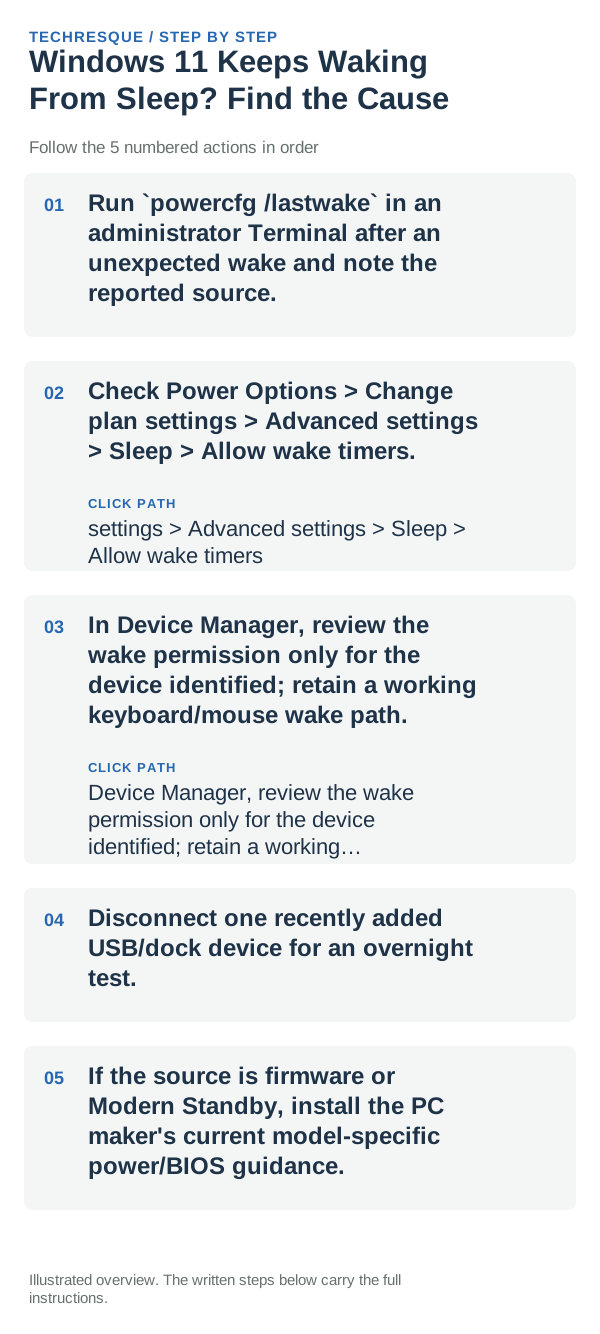
- Run `powercfg /lastwake` in an administrator Terminal after an unexpected wake and note the reported source.
- Check Power Options > Change plan settings > Advanced settings > Sleep > Allow wake timers.
- In Device Manager, review the wake permission only for the device identified; retain a working keyboard/mouse wake path.
- Disconnect one recently added USB/dock device for an overnight test.
- If the source is firmware or Modern Standby, install the PC maker's current model-specific power/BIOS guidance.
Isolate the failing layer
After one targeted change, put the PC to sleep and note the next wake time and `powercfg /lastwake` output.
Put the PC to sleep with the same peripherals connected and check whether it stays asleep; after an unexpected wake, run powercfg /lastwake before another change.
Changes to avoid until you know the cause
- Do not disable every wake-capable device or use powercfg changes without recording the original state.
Confirm that the problem is actually gone
After one targeted change, put the PC to sleep and note the next wake time and `powercfg /lastwake` output.
When to use support or repair
If the PC continues waking unexpectedly, run powercfg /lastwake after a wake and note the device or timer it reports, plus the laptop model and Windows build. If the cause is a driver or connected device, contact the PC maker with that result rather than disabling unrelated devices.
Frequently asked questions
What should I check first?
Run `powercfg /lastwake` in an administrator Terminal after an unexpected wake and note the reported source. Check Power Options > Change plan settings > Advanced settings > Sleep > Allow wake timers. In Device Manager, review the wake permission only for the device identified; retain a working keyboard/mouse wake path.
Should I reset the whole device immediately?
Usually not. Try the guide’s reversible checks first and confirm whether the problem is limited to one app, file, device, or Windows component. Back up important files before considering Reset this PC.
How do I know when the fix is real?
After one targeted change, put the PC to sleep and note the next wake time and `powercfg /lastwake` output.
Official sources and further reading
- Microsoft Support — Shut down, sleep or hibernate your PC
- Microsoft Support — Power settings in Windows 11
Windows Settings paths can shift between releases. Search for the named control and note your Windows build if an option is missing.