
A laptop that will not wake may have resumed with a black display, drained battery, or a driver/firmware fault. Check whether the PC itself responds before forcing it off. Press a key or briefly tap the power button once; wait and check keyboard/caps-lock indicators for response. Connect the correct charger and disconnect a dock/external display for one test.
Windows menu names and power controls vary by build and PC maker; note the exact Windows version and error before changing drivers or system settings.
Start by narrowing the cause
A laptop that will not wake may have resumed with a black display, drained battery, or a driver/firmware fault. Check whether the PC itself responds before forcing it off.
- The display is off while Windows is awake.
- Battery or dock power is insufficient for resume.
- A graphics, chipset, or sleep-state driver failed.
- A connected dock/peripheral prevents the display from returning.
- The device is frozen and a forced shutdown risks unsaved work.
Troubleshoot from low-risk to high-risk
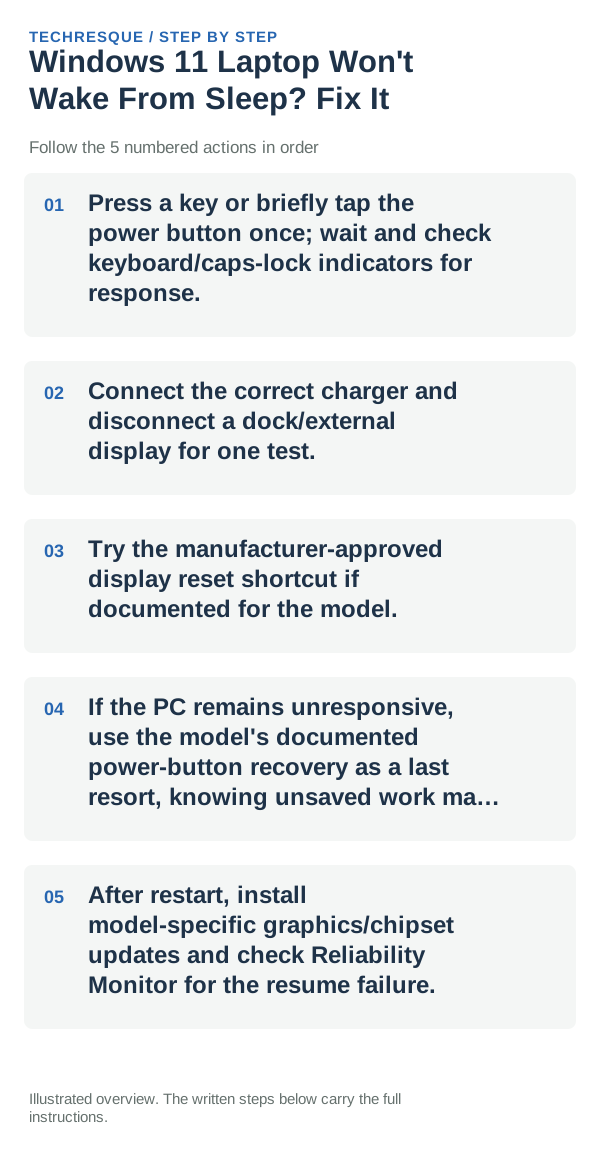
- Press a key or briefly tap the power button once; wait and check keyboard/caps-lock indicators for response.
- Connect the correct charger and disconnect a dock/external display for one test.
- Try the manufacturer-approved display reset shortcut if documented for the model.
- If the PC remains unresponsive, use the model's documented power-button recovery as a last resort, knowing unsaved work may be lost.
- After restart, install model-specific graphics/chipset updates and check Reliability Monitor for the resume failure.
Use a clean A/B test
Check display response and power indicators before a forced shutdown; note whether the laptop wakes when docked or undocked.
Put the laptop to sleep and wake it using the same lid or power-button action; confirm the display, keyboard, and touchpad return without a forced restart.
Changes to avoid until you know the cause
- Do not repeatedly hold the power button during disk activity.
- Back up work after recovery and before driver/firmware repair.
How to confirm the fix
Check display response and power indicators before a forced shutdown; note whether the laptop wakes when docked or undocked.
When to use support or repair
If the display still will not return from sleep, note whether the power light or keyboard responds, the laptop model, and any recent graphics or firmware update. After safely restarting, share the Windows build and wake behavior with the manufacturer; save work frequently until sleep is reliable.
Frequently asked questions
What should I check first?
Press a key or briefly tap the power button once; wait and check keyboard/caps-lock indicators for response. Connect the correct charger and disconnect a dock/external display for one test. Try the manufacturer-approved display reset shortcut if documented for the model.
Should I reset the whole device immediately?
Usually not. Try the guide’s reversible checks first and confirm whether the problem is limited to one app, file, device, or Windows component. Back up important files before considering Reset this PC.
How do I know when the fix is real?
Check display response and power indicators before a forced shutdown; note whether the laptop wakes when docked or undocked.
Official sources and further reading
- Microsoft Support — Shut down, sleep or hibernate your PC
- Microsoft Support — Power settings in Windows 11
Windows Settings paths can shift between releases. Search for the named control and note your Windows build if an option is missing.