A Windows shutdown that hangs may be waiting for an app, update, driver, or connected device. Check whether it happens after every shutdown and whether the screen shows an update message. Save open work, unplug nonessential peripherals, and choose Shut down again; note any app or update message. Install pending Windows updates and restart once before testing a full shutdown.
Windows menu names and power controls vary by build and PC maker; note the exact Windows version and error before changing drivers or system settings.
Why this can happen
A Windows shutdown that hangs may be waiting for an app, update, driver, or connected device. Check whether it happens after every shutdown and whether the screen shows an update message.
- An app is waiting for a save/close response.
- Windows Update is finishing or rolling back changes.
- A driver or peripheral does not respond to shutdown.
- Fast Startup or firmware behavior affects power-off.
- The issue began after a specific driver, update, or dock change.
Troubleshoot from low-risk to high-risk
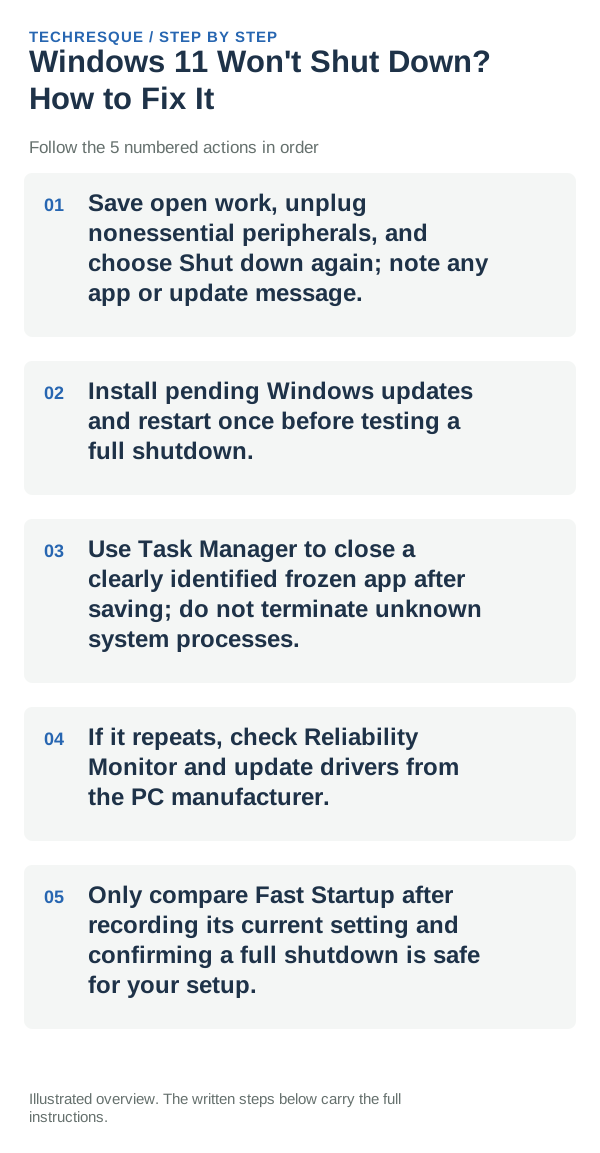
- Save open work, unplug nonessential peripherals, and choose Shut down again; note any app or update message.
- Install pending Windows updates and restart once before testing a full shutdown.
- Use Task Manager to close a clearly identified frozen app after saving; do not terminate unknown system processes.
- If it repeats, check Reliability Monitor and update drivers from the PC manufacturer.
- Only compare Fast Startup after recording its current setting and confirming a full shutdown is safe for your setup.
What each result tells you
Repeat shutdown once with the same peripherals removed and record the message or last visible screen.
Save work, choose Shut down from Start, and observe whether the PC powers off or restarts; after booting again, check Update history for a pending restart.
What not to change first
- Do not repeatedly force power-off while updates are being applied.
- Avoid registry shutdown tweaks from unofficial sites.
How to confirm the fix
Repeat shutdown once with the same peripherals removed and record the message or last visible screen.
When to use support or repair
If shutdown continues to hang, note whether Windows stays on the shutting-down screen, restarts, or is blocked by an app, and record any update or driver change. Save work and share the Windows build and exact behavior with Microsoft or the PC maker; avoid repeated forced power-offs unless the system is completely unresponsive.
Frequently asked questions
What should I check first?
Save open work, unplug nonessential peripherals, and choose Shut down again; note any app or update message. Install pending Windows updates and restart once before testing a full shutdown. Use Task Manager to close a clearly identified frozen app after saving; do not terminate unknown system processes.
Should I reset the whole device immediately?
Usually not. Try the guide’s reversible checks first and confirm whether the problem is limited to one app, file, device, or Windows component. Back up important files before considering Reset this PC.
How do I know when the fix is real?
Repeat shutdown once with the same peripherals removed and record the message or last visible screen.
Official sources and further reading
- Microsoft Support — Shut down, sleep or hibernate your PC
- Microsoft Support — Power settings in Windows 11
Windows Settings paths can shift between releases. Search for the named control and note your Windows build if an option is missing.