Restart Windows, install pending updates, then test Settings from another entry point. If Settings alone will not open, repair system files before considering a reset.
On Windows 11, menu names vary by build. Use built-in Settings and Microsoft Support guidance before registry edits or third-party repair tools.
Start by narrowing the cause
- a Windows component registration issue
- corrupted system files
- an incomplete update
- a user-profile-specific problem
Fix it in this order
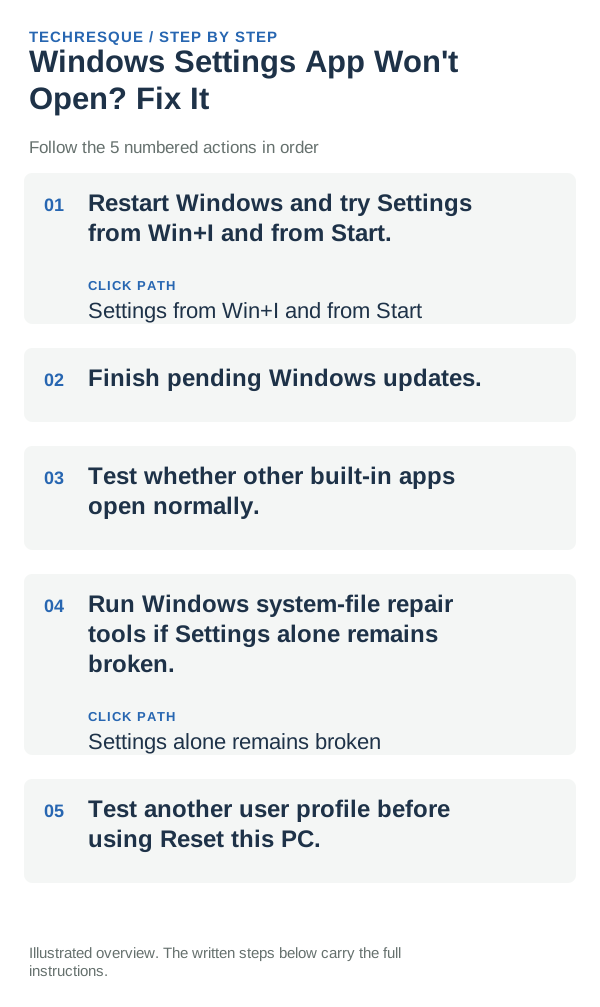
- Restart Windows and try Settings from Win+I and from Start.
- Finish pending Windows updates.
- Test whether other built-in apps open normally.
- Run Windows system-file repair tools if Settings alone remains broken.
- Test another user profile before using Reset this PC.
Isolate the failing layer
Try Win+I and the Start menu, then open more than one Settings category. If both entry points fail across categories, suspect the Settings app or a Windows component; if one category alone fails, keep troubleshooting scoped to that page and retest after a restart.
Avoid these common mistakes
- Do not delete or move files, shortcuts, or settings data until you know what they contain and have a backup.
- Do not run an unknown registry edit or third-party repair script before checking Windows built-in options.
- Do not use Reset this PC for a problem isolated to one shell control, file location, or search index.
- Do not disable Windows security controls or change access permissions unless the specific check calls for it.
Confirm that the problem is actually gone
When to use support or repair
If Settings still fails from Win+I and Start after a restart and system-file check, note which categories fail, any error message, and the Windows build. Share those details with Microsoft Support before attempting a reset, especially if other built-in apps are also affected.
Test Settings through more than one entry point
Try opening Settings with Win+I and from Start, then see whether the same category fails or the whole app closes. If only one page fails, keep the problem scoped to that page; if Settings fails from both entry points after a restart, check recent Windows updates and system-file health.
Before using recovery options, back up important files and try the documented Windows repair steps. Do not use a registry cleaner or a full PC reset just because one Settings page will not load.
| What happens | Likely layer | Next check |
|---|---|---|
| Win+I works but Start does not | Start menu or shortcut path | Use the working entry point and check the Start experience |
| Only one category fails | That page or its settings data | Try a Settings search for the same control |
| Settings closes from both paths | Windows component or recent update | Check update history and system-file repair guidance |
Frequently asked questions
What should I check first for windows settings app won't open? fix it?
Restart Windows, install pending updates, then test Settings from another entry point. If Settings alone will not open, repair system files before considering a reset.
Should I reset the whole device immediately?
Usually not. Try the guide’s reversible checks first and confirm whether the problem is limited to one app, file, device, or Windows component. Back up important files before considering Reset this PC.
How do I know when the fix is real?
After a restart, open Settings with Win+I and from Start, then navigate between two categories. If both routes still fail, note the Windows build and any error message before trying system repair steps.
Official sources and further reading
- Microsoft Support — Exploring Windows Settings
- Microsoft Support — Use System File Checker to repair system files
Windows labels and available controls can vary by build and device policy.