A Windows app that will not open may be blocked at launch, missing a dependency, or failing inside one user profile. Check the event/error and whether other apps work before reinstalling Windows. Restart Windows and install the app's official update; check whether Windows Update is pending. Right-click the app or use Settings > Apps > Advanced options and try Repair if offered.
Windows menu names and power controls vary by build and PC maker; note the exact Windows version and error before changing drivers or system settings.
Likely causes to check first
A Windows app that will not open may be blocked at launch, missing a dependency, or failing inside one user profile. Check the event/error and whether other apps work before reinstalling Windows.
- The app update is incomplete or the installed build is incompatible.
- A required runtime, service, or permission is unavailable.
- The app is blocked by security policy or controlled-folder access.
- The issue is limited to one Windows account or a damaged app profile.
- Low disk space or pending restart prevents startup.
Use this order so you can identify the cause
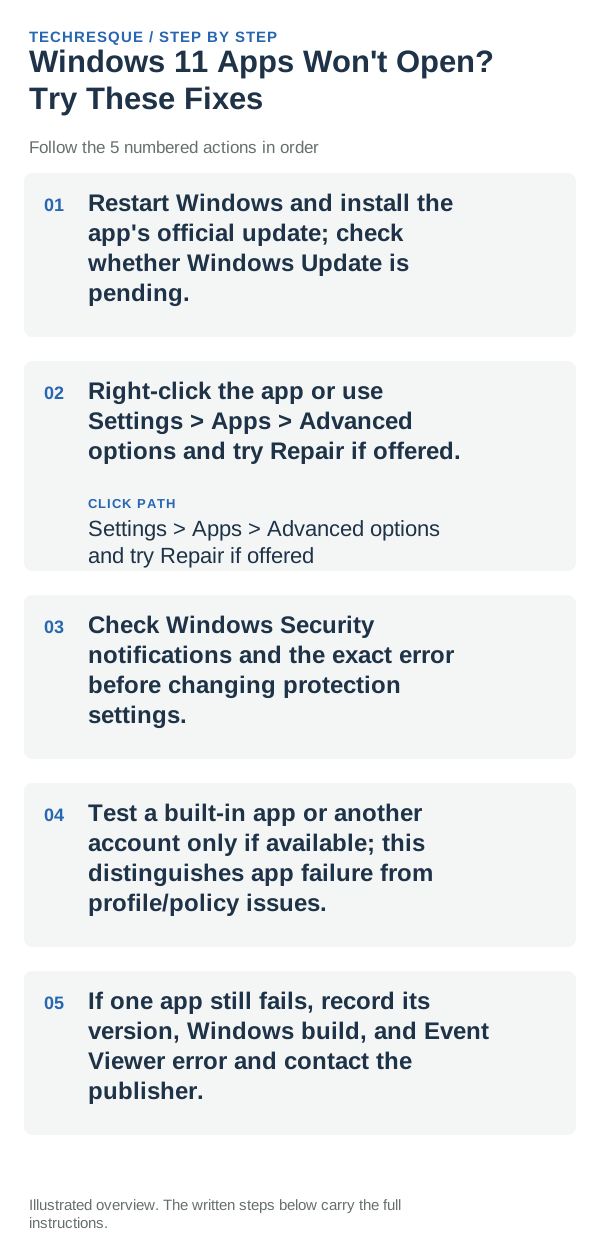
- Restart Windows and install the app's official update; check whether Windows Update is pending.
- Right-click the app or use Settings > Apps > Advanced options and try Repair if offered.
- Check Windows Security notifications and the exact error before changing protection settings.
- Test a built-in app or another account only if available; this distinguishes app failure from profile/policy issues.
- If one app still fails, record its version, Windows build, and Event Viewer error and contact the publisher.
Use a clean A/B test
Repeat the same launch action after each single change and note the exact error or whether the window flashes and closes.
Open the same affected app again after sign-in and check whether it reaches its normal screen; then open one built-in app to see whether the failure is app-specific.
What not to change first
- Do not disable antivirus or clear app data without checking what it contains.
- Avoid random DLL downloads.
What success should look like
Repeat the same launch action after each single change and note the exact error or whether the window flashes and closes.
When to use support or repair
If the same apps still fail after a restart while built-in apps work, note each app, the exact error, and any recent install or update. If built-in Windows apps also fail, include the Windows build and use Microsoft Support before attempting a system reset.
Frequently asked questions
What should I check first?
Restart Windows and install the app's official update; check whether Windows Update is pending. Right-click the app or use Settings > Apps > Advanced options and try Repair if offered. Check Windows Security notifications and the exact error before changing protection settings.
Should I reset the whole device immediately?
Usually not. Try the guide’s reversible checks first and confirm whether the problem is limited to one app, file, device, or Windows component. Back up important files before considering Reset this PC.
How do I know when the fix is real?
Repeat the same launch action after each single change and note the exact error or whether the window flashes and closes.
Official sources and further reading
Windows Settings paths can shift between releases. Search for the named control and note your Windows build if an option is missing.