Windows installation failures can be caused by the app source, Windows version, permissions, storage, or a managed-device policy. The exact installer message narrows the correct fix. Record the exact error and verify the Windows edition/build and app requirements on the publisher's official page. Download a fresh installer only from the publisher or Microsoft Store and check its digital publisher prompt.
Windows menu names and power controls vary by build and PC maker; note the exact Windows version and error before changing drivers or system settings.
Where this problem usually comes from
Windows installation failures can be caused by the app source, Windows version, permissions, storage, or a managed-device policy. The exact installer message narrows the correct fix.
- The installer does not support the Windows edition, build, or device architecture.
- The package is incomplete or from an untrusted source.
- Windows Installer or a required service is unavailable.
- Insufficient storage or permissions block the selected install location.
- S mode, organization policy, or security controls prevent this package.
Work through these checks
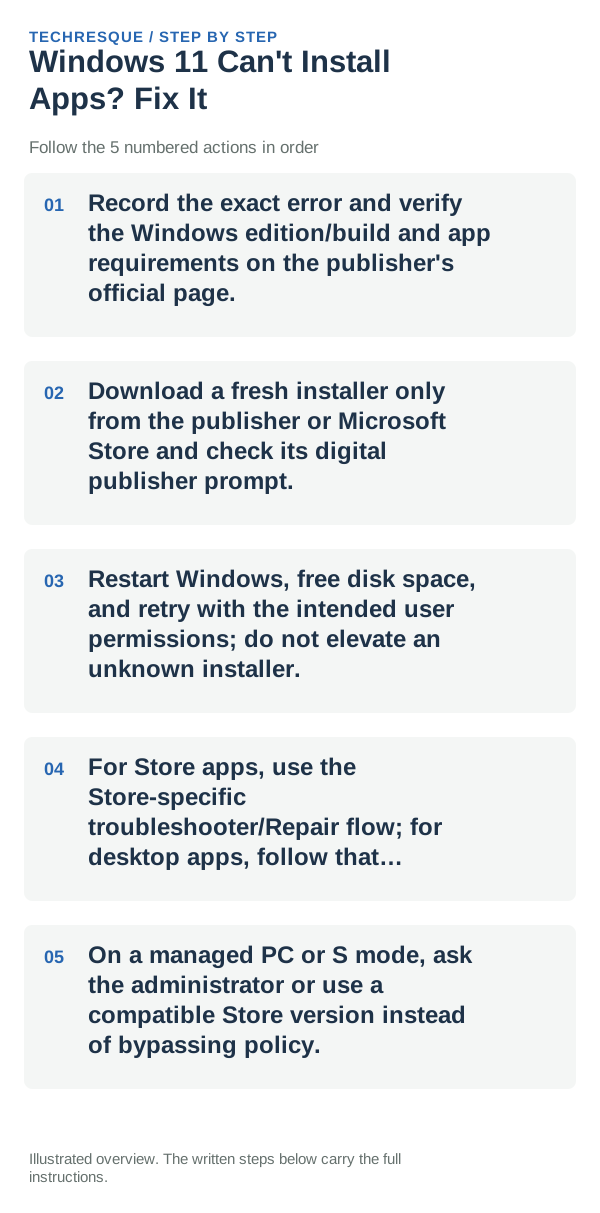
- Record the exact error and verify the Windows edition/build and app requirements on the publisher's official page.
- Download a fresh installer only from the publisher or Microsoft Store and check its digital publisher prompt.
- Restart Windows, free disk space, and retry with the intended user permissions; do not elevate an unknown installer.
- For Store apps, use the Store-specific troubleshooter/Repair flow; for desktop apps, follow that publisher's installation log guidance.
- On a managed PC or S mode, ask the administrator or use a compatible Store version instead of bypassing policy.
Use a clean A/B test
Try one official installer after checking Windows version and free space, then record its full error code.
Run the same installer from its verified publisher source and confirm setup completes and the installed app opens; note any new code rather than retrying a different installer.
Changes to avoid until you know the cause
- Do not disable antivirus or bypass organizational controls to install unknown software.
Retest the original failure
Try one official installer after checking Windows version and free space, then record its full error code.
When to use support or repair
If a trusted installer still fails, record its source, app version, exact error text, Windows build, and whether the issue affects other installers. Contact the software publisher or Microsoft with those details, and use only the publisher’s official download page.
Frequently asked questions
What should I check first?
Record the exact error and verify the Windows edition/build and app requirements on the publisher's official page. Download a fresh installer only from the publisher or Microsoft Store and check its digital publisher prompt. Restart Windows, free disk space, and retry with the intended user permissions; do not elevate an unknown installer.
Should I reset the whole device immediately?
Usually not. Try the guide’s reversible checks first and confirm whether the problem is limited to one app, file, device, or Windows component. Back up important files before considering Reset this PC.
How do I know when the fix is real?
Try one official installer after checking Windows version and free space, then record its full error code.
Official sources and further reading
Windows Settings paths can shift between releases. Search for the named control and note your Windows build if an option is missing.