Let Windows finish update work, restart once, and identify the process using CPU, memory, or disk before changing settings. Compare the same task again after background activity settles.
On Windows 11, menu names vary by build. Use built-in Settings and Microsoft Support guidance before registry edits or third-party repair tools.
Likely causes to check first
After an update, Windows may index files, optimize components, or finish app updates in the background. A lasting slowdown can instead come from a driver, an incompatible app, or low free space.
Troubleshoot from low-risk to high-risk
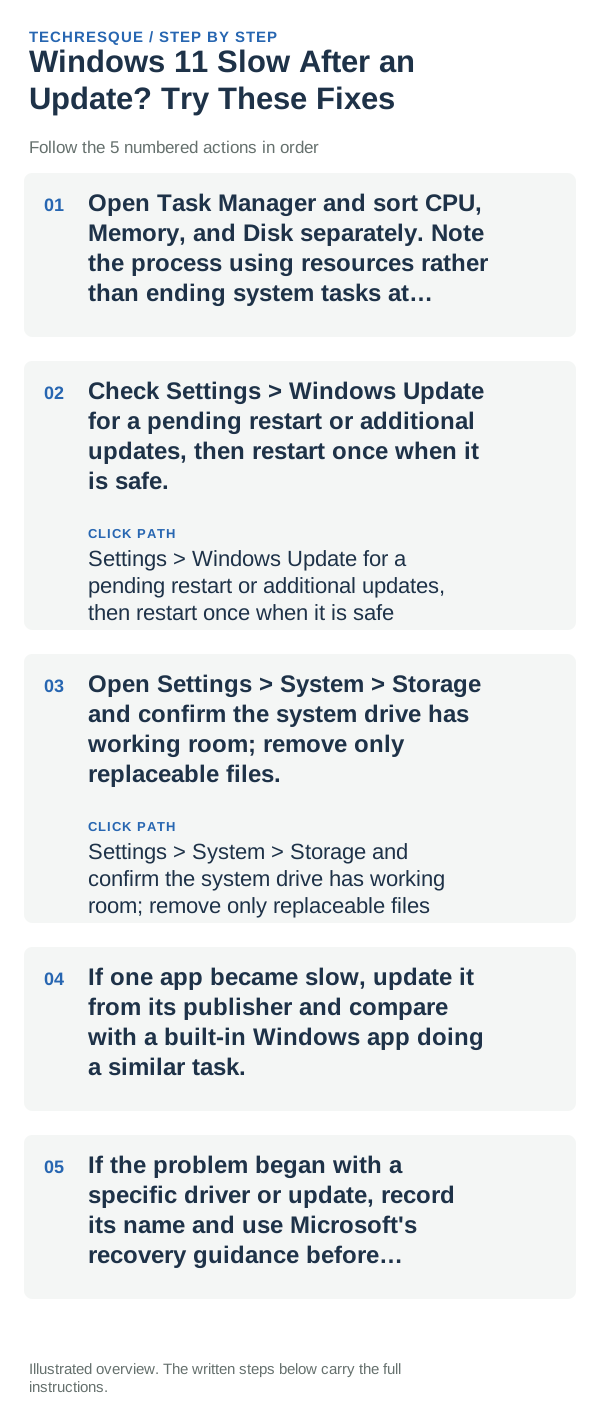
- Open Task Manager and sort CPU, Memory, and Disk separately. Note the process using resources rather than ending system tasks at random.
- Check Settings > Windows Update for a pending restart or additional updates, then restart once when it is safe.
- Open Settings > System > Storage and confirm the system drive has working room; remove only replaceable files.
- If one app became slow, update it from its publisher and compare with a built-in Windows app doing a similar task.
- If the problem began with a specific driver or update, record its name and use Microsoft's recovery guidance before uninstalling it.
Isolate the failing layer
High disk activity from Windows Update or indexing may settle after background work completes. A single app using resources points to that app; all tasks slowing with low disk space or memory needs a broader check.
Shortcuts that usually waste time
Do not use registry cleaners, disable Windows services, or uninstall security updates without a clear reason. Keep the PC plugged in during updates and save work before restarting.
Retest the original failure
Repeat the same task after resource use settles and after one normal restart. Compare app response and Task Manager; if the process remains high, use its name to narrow the cause.
When to use support or repair
If the slowdown persists across built-in apps after updates finish, contact the PC maker or Microsoft with the update date, Task Manager process, and available storage.
Frequently asked questions
Should I reset the whole device immediately?
Usually not. Try the guide’s reversible checks first and confirm whether the problem is limited to one app, file, device, or Windows component. Back up important files before considering Reset this PC.
How do I know when the fix is real?
Repeat the same task after resource use settles and after one normal restart. Compare app response and Task Manager; if the process remains high, use its name to narrow the cause.