Keep the PC powered and check whether the update percentage or disk activity is still changing. If it has genuinely stalled, use Microsoft's troubleshooter and the exact error rather than interrupting an active install.
On Windows 11, menu names vary by build. Use built-in Settings and Microsoft Support guidance before registry edits or third-party repair tools.
Where this problem usually comes from
Windows Update can appear paused while it downloads, verifies, or installs files. A fixed percentage alone is not proof of failure; repeated rollback, an error code, or the same state after a restart is stronger evidence.
Troubleshoot from low-risk to high-risk
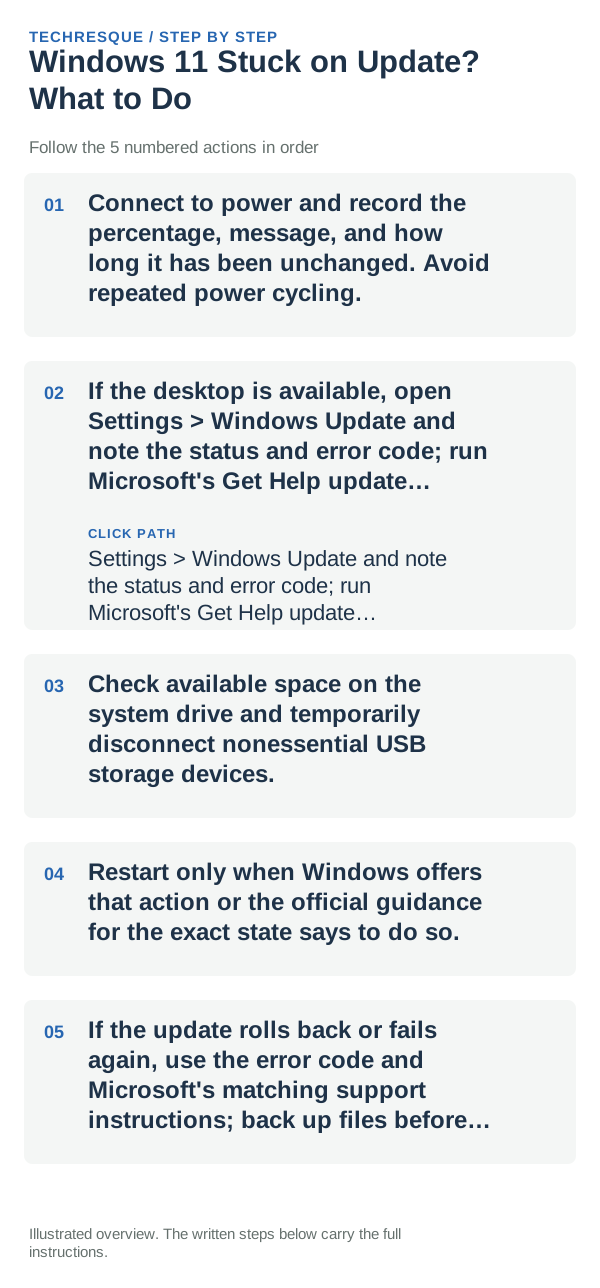
- Connect to power and record the percentage, message, and how long it has been unchanged. Avoid repeated power cycling.
- If the desktop is available, open Settings > Windows Update and note the status and error code; run Microsoft's Get Help update troubleshooter.
- Check available space on the system drive and temporarily disconnect nonessential USB storage devices.
- Restart only when Windows offers that action or the official guidance for the exact state says to do so.
- If the update rolls back or fails again, use the error code and Microsoft's matching support instructions; back up files before recovery actions.
Isolate the failing layer
Progress that changes or disk activity during install can mean the update is still working. A repeated error or rollback after restart points to the update package, free space, or a driver conflict.
Shortcuts that usually waste time
Do not delete the SoftwareDistribution folder or run command-line reset scripts as a first step. Do not power off during a firmware update or while Windows explicitly says not to turn off the PC.
Verify before you move on
Confirm Windows Update reports current or gives a different, actionable result after the troubleshooter. Check Update history and make sure the PC can restart into the desktop.
When to use support or repair
If the update repeatedly fails, contact Microsoft or the PC maker with the error code, update name, Windows version, and whether the troubleshooter changed the result.
Frequently asked questions
Should I reset the whole device immediately?
Usually not. Try the guide’s reversible checks first and confirm whether the problem is limited to one app, file, device, or Windows component. Back up important files before considering Reset this PC.
How do I know when the fix is real?
Confirm Windows Update reports current or gives a different, actionable result after the troubleshooter. Check Update history and make sure the PC can restart into the desktop.