
Sleep failures can mean Windows refuses to sleep, sleeps then wakes, or turns off the screen only. Those outcomes have different causes and should be tested separately. Run `powercfg /requests` in Terminal to see whether a process or driver requests the PC stay awake. Check Settings > System > Power & battery and the lid/power-button action in Control Panel.
Windows menu names and power controls vary by build and PC maker; note the exact Windows version and error before changing drivers or system settings.
Start by narrowing the cause
Sleep failures can mean Windows refuses to sleep, sleeps then wakes, or turns off the screen only. Those outcomes have different causes and should be tested separately.
- An app or driver is actively requesting the system/display stay awake.
- A wake timer or input device immediately wakes the computer.
- The lid/power-button action is configured differently than expected.
- Modern Standby/firmware or a driver prevents a stable low-power state.
- A dock, network adapter, or USB device changes sleep behavior.
The practical troubleshooting sequence
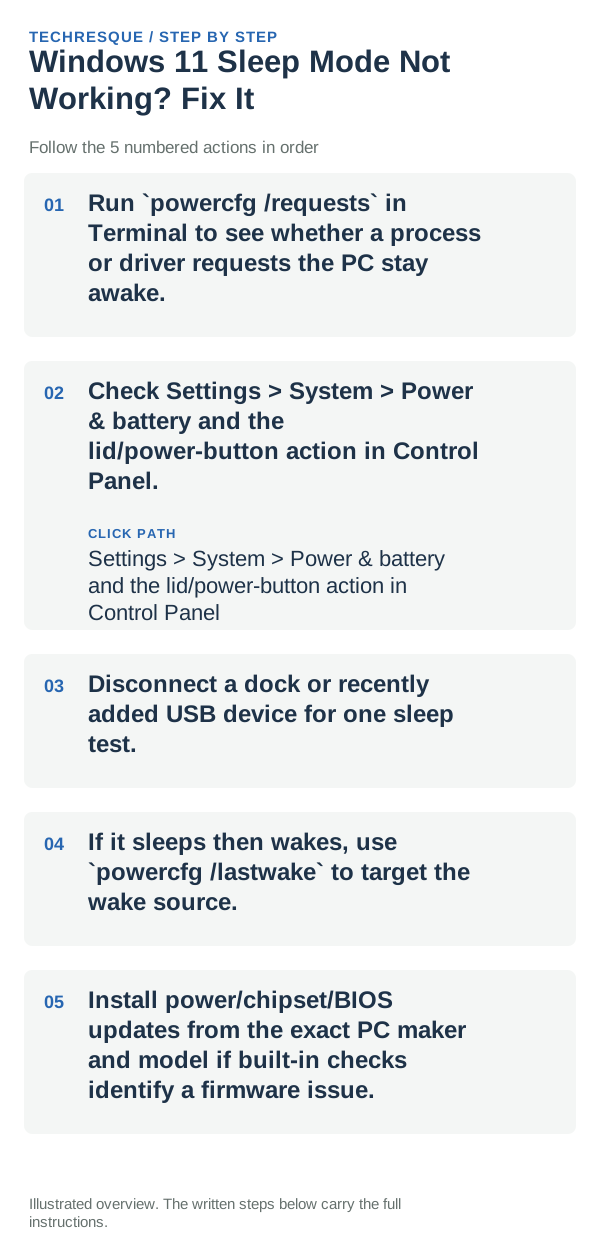
- Run `powercfg /requests` in Terminal to see whether a process or driver requests the PC stay awake.
- Check Settings > System > Power & battery and the lid/power-button action in Control Panel.
- Disconnect a dock or recently added USB device for one sleep test.
- If it sleeps then wakes, use `powercfg /lastwake` to target the wake source.
- Install power/chipset/BIOS updates from the exact PC maker and model if built-in checks identify a firmware issue.
How to tell which cause applies
Test one sleep cycle with the same lid, power, and peripheral setup, then note whether the PC never sleeps or wakes immediately.
Choose Sleep from Start, wait for the PC to enter its low-power state, then wake it and check that the same apps and unsaved work are handled as expected.
Avoid these common mistakes
- Do not disable all wake timers or change registry power settings without recording their original values.
How to confirm the fix
Test one sleep cycle with the same lid, power, and peripheral setup, then note whether the PC never sleeps or wakes immediately.
When to use support or repair
If sleep still fails, note whether the PC refuses to enter sleep or wakes immediately, then check powercfg /lastwake after an unexpected wake. Include the laptop or PC model, Windows build, and attached devices for the manufacturer; save open work before further power troubleshooting.
Frequently asked questions
What should I check first?
Run `powercfg /requests` in Terminal to see whether a process or driver requests the PC stay awake. Check Settings > System > Power & battery and the lid/power-button action in Control Panel. Disconnect a dock or recently added USB device for one sleep test.
Should I reset the whole device immediately?
Usually not. Try the guide’s reversible checks first and confirm whether the problem is limited to one app, file, device, or Windows component. Back up important files before considering Reset this PC.
How do I know when the fix is real?
Test one sleep cycle with the same lid, power, and peripheral setup, then note whether the PC never sleeps or wakes immediately.
Official sources and further reading
- Microsoft Support — Shut down, sleep or hibernate your PC
- Microsoft Support — Power settings in Windows 11
Windows Settings paths can shift between releases. Search for the named control and note your Windows build if an option is missing.