
A Windows keyboard failure may be connection-level, accessibility-related, driver-related, or limited to one app. A second keyboard or the sign-in screen helps isolate it. Try the on-screen keyboard or a second known-good keyboard to establish whether Windows accepts input. For USB/wireless, reconnect directly, replace batteries, and try another port without a hub.
Windows menu names and power controls vary by build and PC maker; note the exact Windows version and error before changing drivers or system settings.
Likely causes to check first
A Windows keyboard failure may be connection-level, accessibility-related, driver-related, or limited to one app. A second keyboard or the sign-in screen helps isolate it.
- A wireless keyboard battery, receiver, Bluetooth, or USB port is failing.
- Filter Keys or another accessibility setting changes key response.
- The keyboard works at sign-in but not in one app/layout.
- A device driver or recent update changed input behavior.
- The built-in keyboard has a hardware fault.
Troubleshoot from low-risk to high-risk
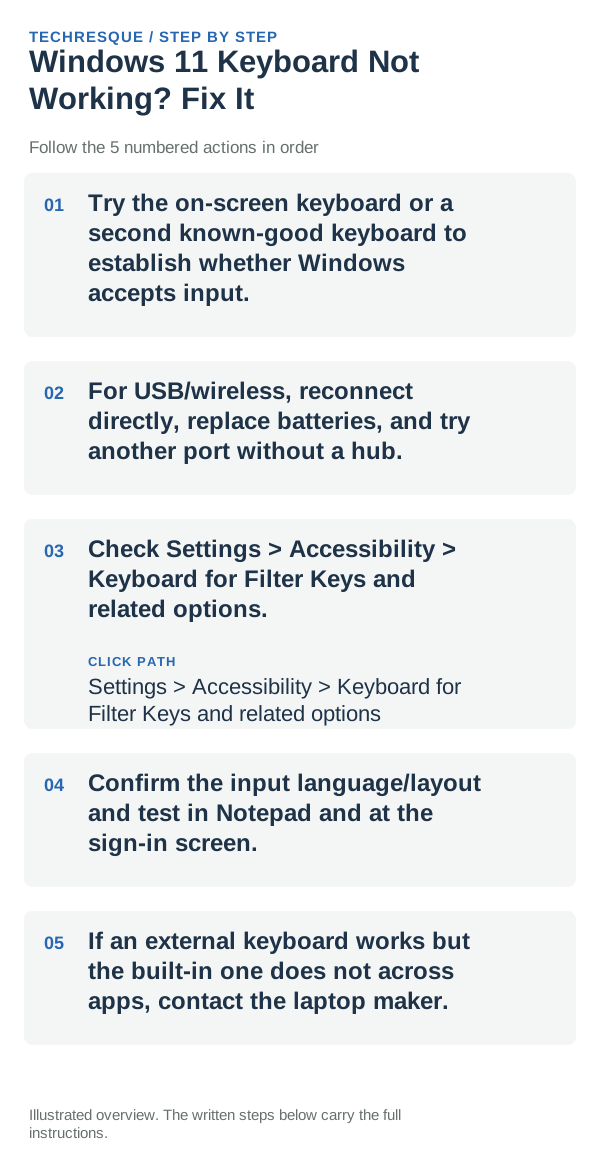
- Try the on-screen keyboard or a second known-good keyboard to establish whether Windows accepts input.
- For USB/wireless, reconnect directly, replace batteries, and try another port without a hub.
- Check Settings > Accessibility > Keyboard for Filter Keys and related options.
- Confirm the input language/layout and test in Notepad and at the sign-in screen.
- If an external keyboard works but the built-in one does not across apps, contact the laptop maker.
Isolate the failing layer
Test a second keyboard and one simple field; distinguish all-key failure from one key, layout, or app issue.
Type the same short test in a text editor and check the keys that failed; if only the built-in keyboard is affected, compare it with an external keyboard.
What not to change first
- Do not uninstall keyboard drivers if you have no alternate way to type or sign back in.
What success should look like
Test a second keyboard and one simple field; distinguish all-key failure from one key, layout, or app issue.
When to use support or repair
If the built-in keyboard still misses keys after checking Filter Keys and restarting, compare an external keyboard and note which keys fail, whether the problem occurs before sign-in, and the laptop model. Contact the manufacturer if the built-in keyboard alone remains affected; avoid opening the device unless qualified.
Frequently asked questions
What should I check first?
Try the on-screen keyboard or a second known-good keyboard to establish whether Windows accepts input. For USB/wireless, reconnect directly, replace batteries, and try another port without a hub. Check Settings > Accessibility > Keyboard for Filter Keys and related options.
Should I reset the whole device immediately?
Usually not. Try the guide’s reversible checks first and confirm whether the problem is limited to one app, file, device, or Windows component. Back up important files before considering Reset this PC.
How do I know when the fix is real?
Test a second keyboard and one simple field; distinguish all-key failure from one key, layout, or app issue.
Official sources and further reading
Windows Settings paths can shift between releases. Search for the named control and note your Windows build if an option is missing.