Windows clipboard is shared across apps and can also be affected by clipboard history, remote desktop, or organization policy. Compare a local text copy with the Windows+V history separately. Copy a harmless phrase in Notepad and paste it into a second local app using Ctrl+C/Ctrl+V. Press Windows+V and enable history only if you want stored clipboard items; check whether the phrase appears.
Windows menu names and power controls vary by build and PC maker; note the exact Windows version and error before changing drivers or system settings.
What this symptom usually means
Windows clipboard is shared across apps and can also be affected by clipboard history, remote desktop, or organization policy. Compare a local text copy with the Windows+V history separately.
- Clipboard history is off or the copied item expired.
- The source/destination app blocks clipboard operations or uses a secure field.
- A remote desktop session redirects clipboard differently.
- Clipboard-related process state or a recent update is stuck.
- A work policy disables history or synchronization.
Troubleshoot from low-risk to high-risk
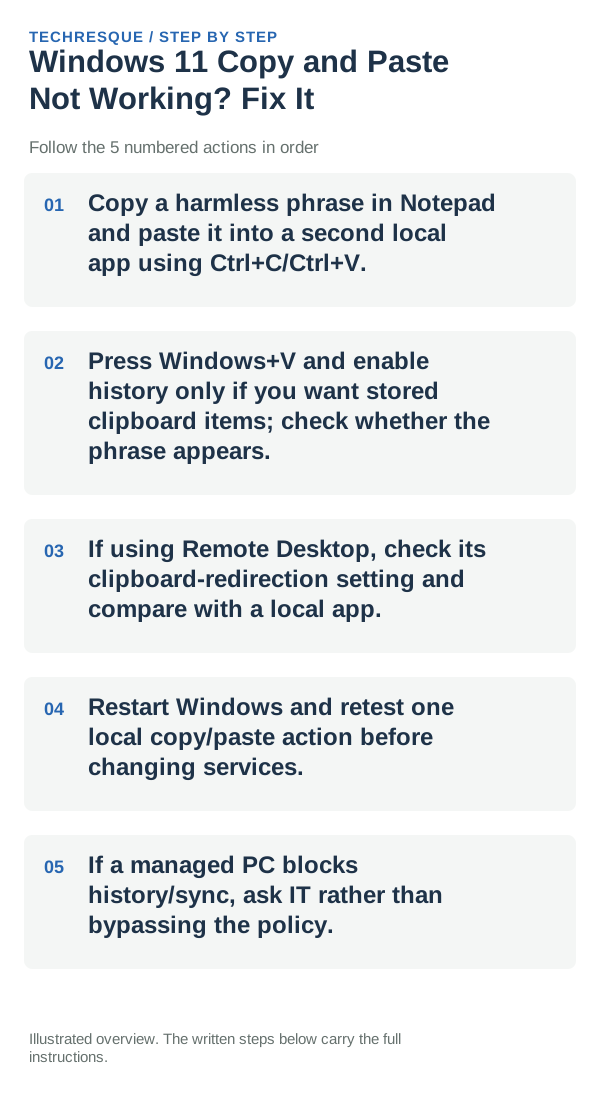
- Copy a harmless phrase in Notepad and paste it into a second local app using Ctrl+C/Ctrl+V.
- Press Windows+V and enable history only if you want stored clipboard items; check whether the phrase appears.
- If using Remote Desktop, check its clipboard-redirection setting and compare with a local app.
- Restart Windows and retest one local copy/paste action before changing services.
- If a managed PC blocks history/sync, ask IT rather than bypassing the policy.
How to tell which cause applies
Use one harmless phrase and test local paste, then Windows+V history; do not use passwords or private data.
Copy a short harmless line and paste it in the same app, then test a second app; verify separately whether file copy and paste also work if that was the failing action.
Avoid these common mistakes
- Do not enable clipboard sync for sensitive content or bypass work-device policy.
Confirm that the problem is actually gone
Use one harmless phrase and test local paste, then Windows+V history; do not use passwords or private data.
When to use support or repair
If copy and paste still fails across apps, note whether text, files, or both are affected and whether the clipboard history panel opens with Win+V. Record the Windows build and any remote-desktop or clipboard utility in use before asking Microsoft Support; avoid clearing data you still need.
Frequently asked questions
What should I check first?
Copy a harmless phrase in Notepad and paste it into a second local app using Ctrl+C/Ctrl+V. Press Windows+V and enable history only if you want stored clipboard items; check whether the phrase appears. If using Remote Desktop, check its clipboard-redirection setting and compare with a local app.
Should I reset the whole device immediately?
Usually not. Try the guide’s reversible checks first and confirm whether the problem is limited to one app, file, device, or Windows component. Back up important files before considering Reset this PC.
How do I know when the fix is real?
Use one harmless phrase and test local paste, then Windows+V history; do not use passwords or private data.
Official sources and further reading
Windows Settings paths can shift between releases. Search for the named control and note your Windows build if an option is missing.