
A Windows touchpad may be disabled by a function key, system setting, external-mouse option, or manufacturer driver. Compare the built-in touchpad with a USB mouse before changing drivers. Check Settings > Bluetooth & devices > Touchpad and enable it; look for a separate 'leave on when mouse connected' option. Try the model's touchpad Fn key and confirm the indicator changes.
Windows menu names and power controls vary by build and PC maker; note the exact Windows version and error before changing drivers or system settings.
Why this can happen
A Windows touchpad may be disabled by a function key, system setting, external-mouse option, or manufacturer driver. Compare the built-in touchpad with a USB mouse before changing drivers.
- The touchpad toggle or Fn shortcut switched it off.
- Windows disables the touchpad while a mouse is connected.
- The precision-touchpad or manufacturer driver is outdated.
- A recent update or BIOS setting changed the device state.
- The touchpad or its connection has a hardware fault.
The practical troubleshooting sequence
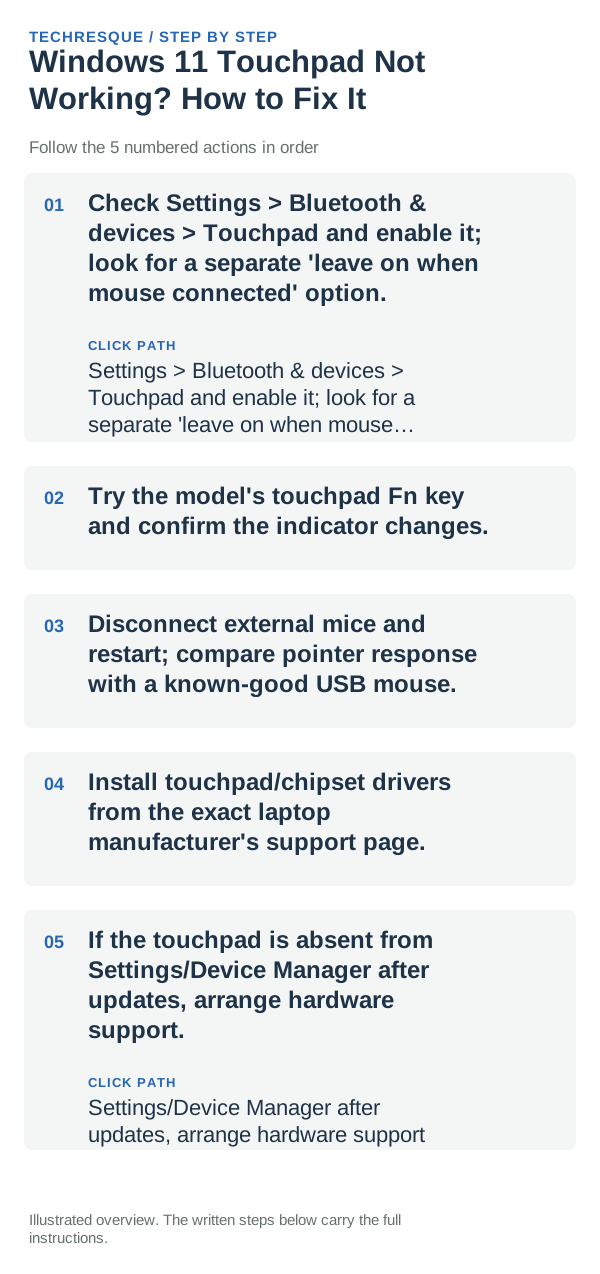
- Check Settings > Bluetooth & devices > Touchpad and enable it; look for a separate 'leave on when mouse connected' option.
- Try the model's touchpad Fn key and confirm the indicator changes.
- Disconnect external mice and restart; compare pointer response with a known-good USB mouse.
- Install touchpad/chipset drivers from the exact laptop manufacturer's support page.
- If the touchpad is absent from Settings/Device Manager after updates, arrange hardware support.
What each result tells you
Compare the touchpad with an external mouse, then retest after each toggle or driver change.
Repeat the same pointer movement and two-finger scroll after sign-in; compare an external mouse to confirm whether the remaining fault is limited to the touchpad.
Do not make troubleshooting harder
- Do not install generic driver bundles or disable the only working pointer device.
Verify before you move on
Compare the touchpad with an external mouse, then retest after each toggle or driver change.
When to use support or repair
If the touchpad remains unavailable after checking its function-key toggle and Windows touchpad settings, compare an external mouse and note whether the touchpad appears in Device Manager. Give the laptop model, Windows build, and recent driver changes to the manufacturer.
Frequently asked questions
What should I check first?
Check Settings > Bluetooth & devices > Touchpad and enable it; look for a separate 'leave on when mouse connected' option. Try the model's touchpad Fn key and confirm the indicator changes. Disconnect external mice and restart; compare pointer response with a known-good USB mouse.
Should I reset the whole device immediately?
Usually not. Try the guide’s reversible checks first and confirm whether the problem is limited to one app, file, device, or Windows component. Back up important files before considering Reset this PC.
How do I know when the fix is real?
Compare the touchpad with an external mouse, then retest after each toggle or driver change.
Official sources and further reading
Windows Settings paths can shift between releases. Search for the named control and note your Windows build if an option is missing.