Confirm the monitor is on the correct input, reconnect the HDMI cable, press Windows + P and choose Duplicate or Extend, then test another known-good cable or port before changing drivers.
On Windows 11, menu names vary by build. Use built-in Settings and Microsoft Support guidance before registry edits or third-party repair tools.
Likely causes to check first
- the wrong input or projection mode is selected
- the cable, adapter, dock or port cannot carry the required signal
- resolution or refresh rate is unsupported by the display
- the graphics driver is stuck or outdated
- the external display is not being detected by the OS
The practical troubleshooting sequence
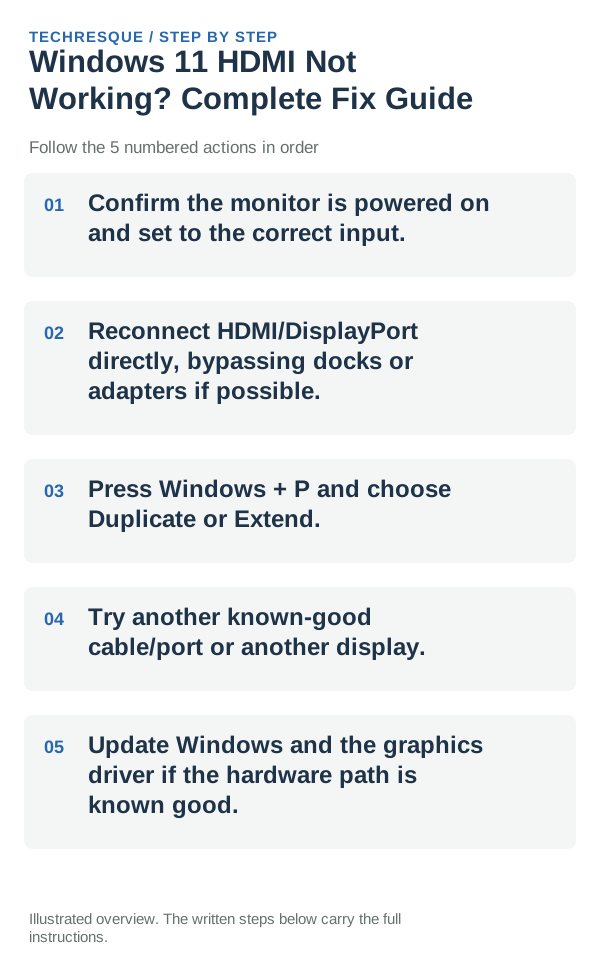
- Confirm the monitor is powered on and set to the correct input.
- Reconnect HDMI/DisplayPort directly, bypassing docks or adapters if possible.
- Press Windows + P and choose Duplicate or Extend.
- Try another known-good cable/port or another display.
- Update Windows and the graphics driver if the hardware path is known good.
How to tell which cause applies
If windows 11 hdmi not working works with another cable or monitor, the original cable/display path is the likely cause. If the same known-good display fails only on this PC, focus on Windows display mode, the graphics driver and the physical output port.
Reconnect the same display directly with the known-good cable, choose the matching monitor input, and confirm the picture remains after selecting Extend with Windows+P.
Do not make troubleshooting harder
- Do not install random display utilities before testing the cable and input.
- Do not assume “No signal” means the GPU is dead; a wrong monitor input can look identical.
- Do not change several resolution/refresh settings at once.
- Avoid troubleshooting through a dock until a direct cable test works.
What success should look like
A direct connection with a known-good cable and display is the cleanest A/B test for the PC versus the accessory chain.
When to use support or repair
If a known-good monitor and cable still produce no output from the same physical port, check the PC maker’s diagnostics or repair options. If the display works during firmware/boot but disappears only in Windows, software/driver troubleshooting is more likely to help.
Record Windows build, affected app, exact error code and whether it repeats in another account or built-in app. Keep recovery keys private.
A two-minute display sanity check
Power the monitor, select the correct input, connect one direct known-good cable, then press Windows + P. If that exact setup works, reintroduce docks/adapters one at a time.
Frequently asked questions
What should I check first for windows 11 hdmi not working? complete fix guide?
Confirm the monitor is on the correct input, reconnect the HDMI cable, press Windows + P and choose Duplicate or Extend, then test another known-good cable or port before changing drivers.
Should I reset the whole device immediately?
Usually not. Try the guide’s reversible checks first and confirm whether the problem is limited to one app, file, device, or Windows component. Back up important files before considering Reset this PC.
How do I know when the fix is real?
A direct connection with a known-good cable and display is the cleanest A/B test for the PC versus the accessory chain.
Official sources and further reading
- Microsoft Support — Troubleshoot external monitor connections
- Microsoft Support — Troubleshoot blank screens in Windows
Windows Settings paths can shift between releases. Search for the named control and note your Windows build if an option is missing.