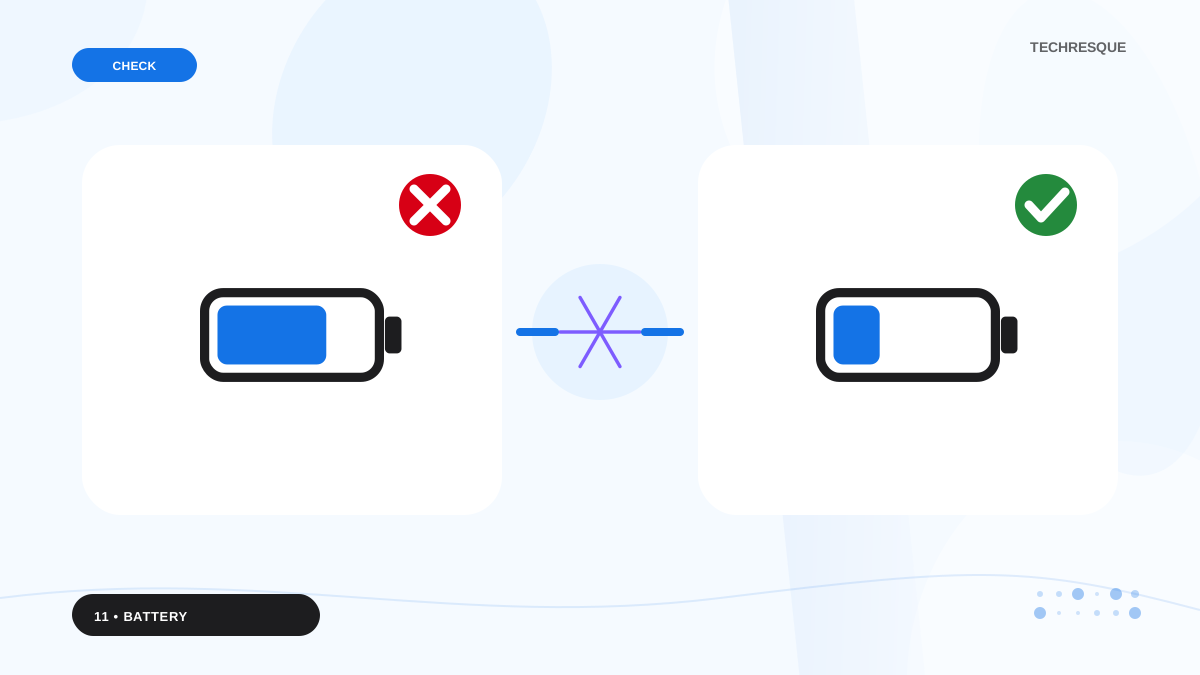
Compare the taskbar reading with Settings > System > Power & battery and whether the laptop says plugged in. Check the maker's battery diagnostic before changing drivers or BIOS settings.
On Windows 11, menu names vary by build. Use built-in Settings and Microsoft Support guidance before registry edits or third-party repair tools.
What this symptom usually means
The displayed percentage is an estimate from the battery controller. A stale icon, charge limit, power adapter issue, or aging battery can make the number appear stuck even while Windows is running.
The practical troubleshooting sequence
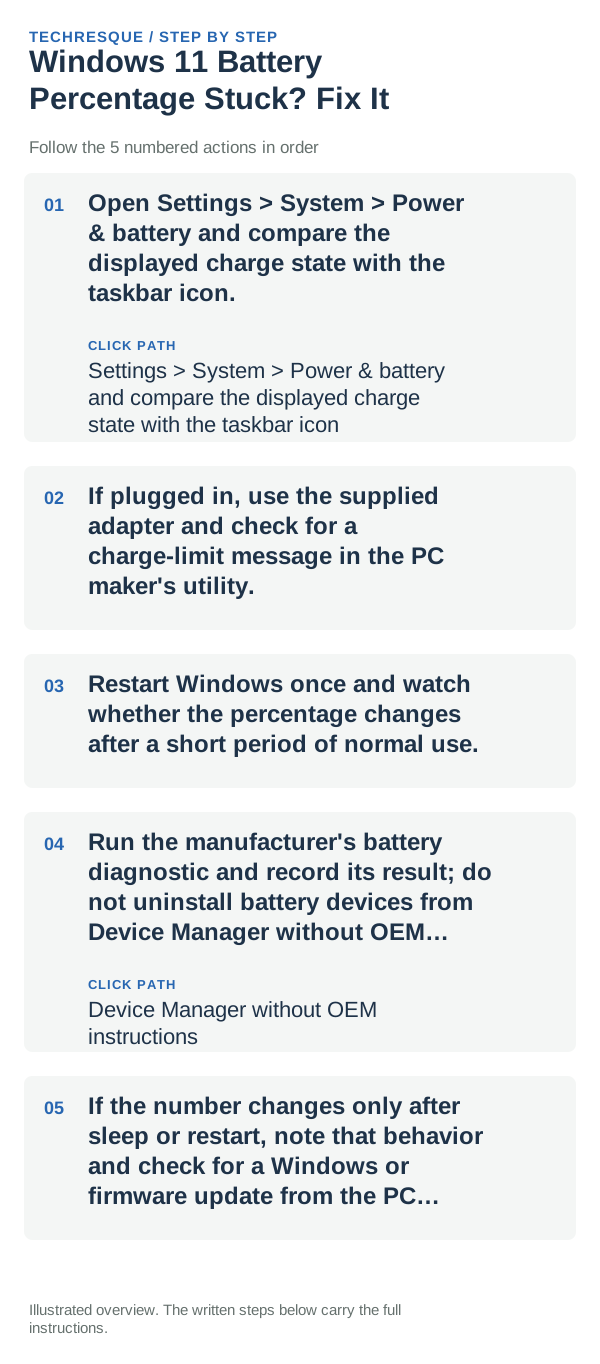
- Open Settings > System > Power & battery and compare the displayed charge state with the taskbar icon.
- If plugged in, use the supplied adapter and check for a charge-limit message in the PC maker's utility.
- Restart Windows once and watch whether the percentage changes after a short period of normal use.
- Run the manufacturer's battery diagnostic and record its result; do not uninstall battery devices from Device Manager without OEM instructions.
- If the number changes only after sleep or restart, note that behavior and check for a Windows or firmware update from the PC maker.
What each result tells you
Both Windows readings frozen but the PC continues to run may point to battery telemetry or firmware. A charge cap can intentionally hold a target value; abrupt shutdown at a fixed percentage suggests battery wear.
Changes to avoid until you know the cause
Do not run battery-calibration downloads or flash BIOS from an unofficial source. Stop using the laptop if the battery swells, smells unusual, or becomes hot.
Verify before you move on
Confirm the Windows readings move after ordinary charge and discharge and match the charge-limit setting if one is enabled.
When to use support or repair
If the percentage remains fixed or the laptop shuts down unexpectedly, contact the PC manufacturer with its battery diagnostic and adapter model.
Frequently asked questions
Should I reset the whole device immediately?
Usually not. Try the guide’s reversible checks first and confirm whether the problem is limited to one app, file, device, or Windows component. Back up important files before considering Reset this PC.
How do I know when the fix is real?
Confirm the Windows readings move after ordinary charge and discharge and match the charge-limit setting if one is enabled.