Write down the complete Windows Update error code and update name first. Run the built-in troubleshooter, check system-drive space, then follow Microsoft's guidance for that specific code.
On Windows 11, menu names vary by build. Use built-in Settings and Microsoft Support guidance before registry edits or third-party repair tools.
Start by narrowing the cause
A failed update can be caused by limited disk space, a temporary service issue, a damaged download, or a driver conflict. The error code is more useful than trying several reset scripts at once.
Use this order so you can identify the cause
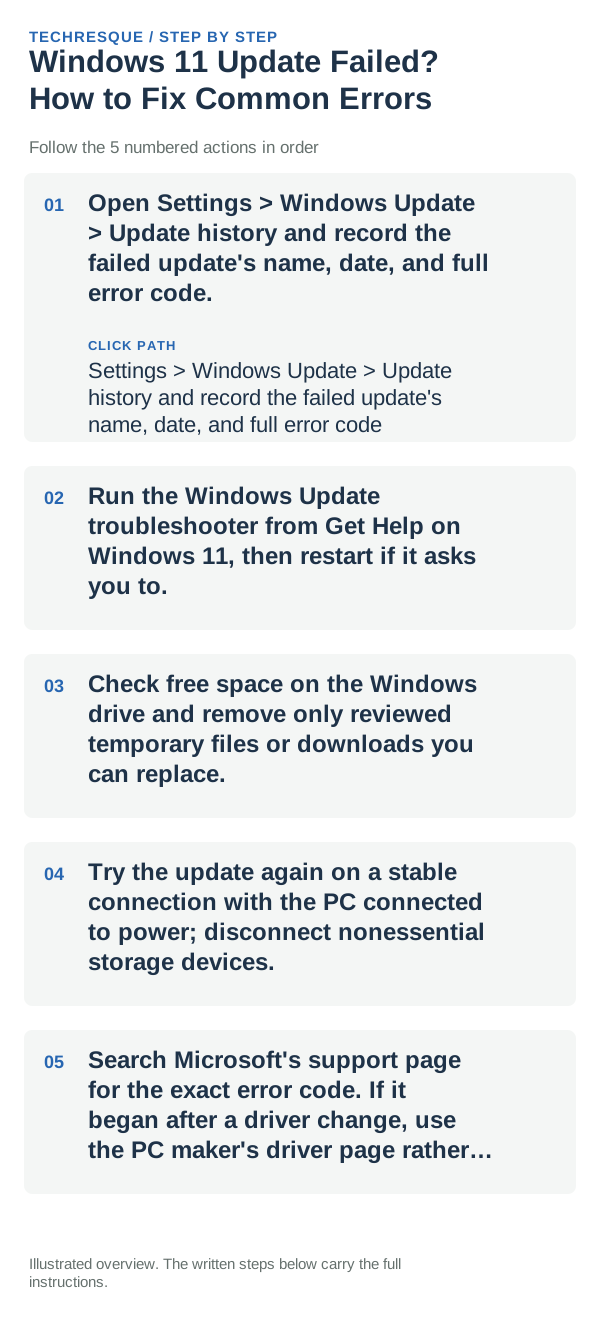
- Open Settings > Windows Update > Update history and record the failed update's name, date, and full error code.
- Run the Windows Update troubleshooter from Get Help on Windows 11, then restart if it asks you to.
- Check free space on the Windows drive and remove only reviewed temporary files or downloads you can replace.
- Try the update again on a stable connection with the PC connected to power; disconnect nonessential storage devices.
- Search Microsoft's support page for the exact error code. If it began after a driver change, use the PC maker's driver page rather than a third-party utility.
A quick way to narrow it down
The same code recurring after the troubleshooter is evidence to follow its code-specific branch. A different code or a rollback after restart should be recorded separately; do not assume the first fix applies.
Shortcuts that usually waste time
Do not disable antivirus, delete update folders, or run registry edits from a forum without confirming they apply. Back up important files before recovery or rollback.
Verify before you move on
Windows Update should finish and the update should appear in successful Update history. Confirm the version or build only after the requested restart completes.
When to use support or repair
If the same error returns, give Microsoft or the PC manufacturer the full code, update name, Windows build, and troubleshooter result.
Frequently asked questions
Should I reset the whole device immediately?
Usually not. Try the guide’s reversible checks first and confirm whether the problem is limited to one app, file, device, or Windows component. Back up important files before considering Reset this PC.
How do I know when the fix is real?
Windows Update should finish and the update should appear in successful Update history. Confirm the version or build only after the requested restart completes.