
First confirm the Windows Search service and indexing are running, then use the built-in Search and Indexing troubleshooter or rebuild the index only if search results are persistently incomplete.
On Windows 11, menu names vary by build. Use built-in Settings and Microsoft Support guidance before registry edits or third-party repair tools.
Likely causes to check first
- indexing is paused or incomplete
- the Windows Search service is stopped
- the search database is damaged
- the problem is limited to one user profile
Work through these checks
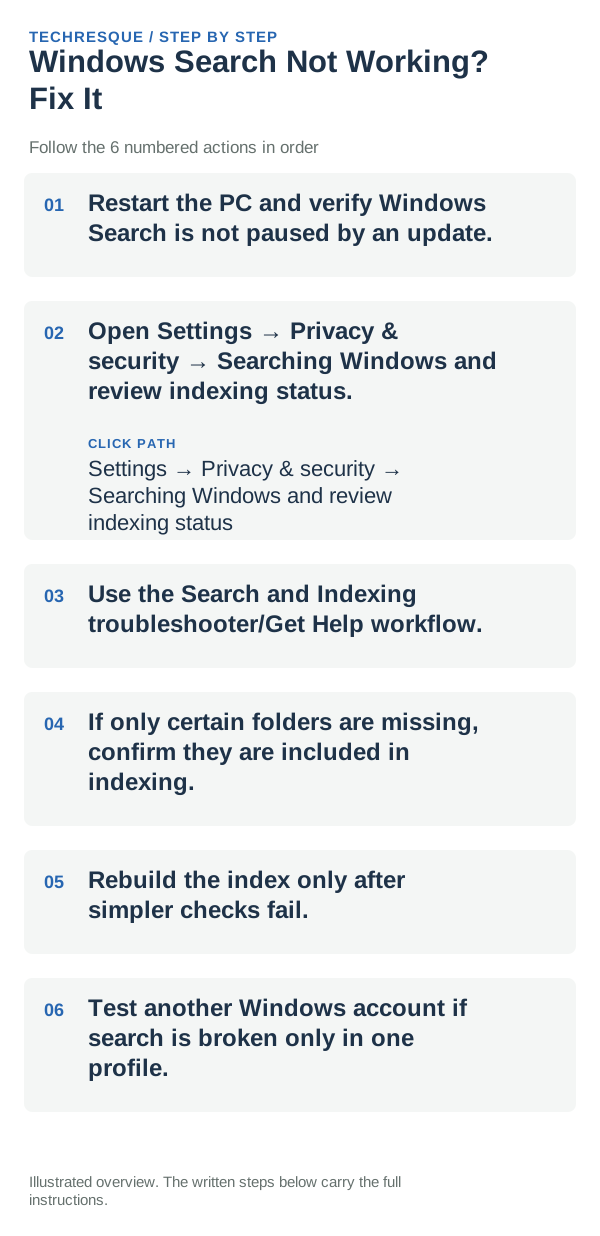
- Restart the PC and verify Windows Search is not paused by an update.
- Open Settings → Privacy & security → Searching Windows and review indexing status.
- Use the Search and Indexing troubleshooter/Get Help workflow.
- If only certain folders are missing, confirm they are included in indexing.
- Rebuild the index only after simpler checks fail.
- Test another Windows account if search is broken only in one profile.
A quick way to narrow it down
Separate app and settings results from local file results. If apps and settings appear but files do not, check indexed locations and indexing status; if all Search categories fail, test Start and Settings too and check for a wider Windows shell issue.
Shortcuts that usually waste time
- Do not delete or move files, shortcuts, or settings data until you know what they contain and have a backup.
- Do not run an unknown registry edit or third-party repair script before checking Windows built-in options.
- Do not use Reset this PC for a problem isolated to one shell control, file location, or search index.
- Do not disable Windows security controls or change access permissions unless the specific check calls for it.
What success should look like
When to use support or repair
If Search still misses expected results, note whether apps, settings, local files, or web results are affected and check the indexing status for the relevant folder. Include the Windows build, indexing state, and recent changes when using Microsoft Support; do not rebuild the index repeatedly while it is still processing.
Frequently asked questions
What should I check first for windows search not working? fix it?
First confirm the Windows Search service and indexing are running, then use the built-in Search and Indexing troubleshooter or rebuild the index only if search results are persistently incomplete.
Should I reset the whole device immediately?
Usually not. Try the guide’s reversible checks first and confirm whether the problem is limited to one app, file, device, or Windows component. Back up important files before considering Reset this PC.
How do I know when the fix is real?
Search for one installed app and one local file, open both results, and repeat after a restart. If only one result category fails, keep its indexing scope unchanged while you investigate that category.
Official sources and further reading
- Microsoft Support — Search indexing in Windows
- Microsoft Support — Find lost files after upgrading Windows
Windows labels and available controls can vary by build and device policy.