Restart Windows Explorer from Task Manager, then check taskbar settings and pending Windows updates. If the taskbar alone is broken, do not reset unrelated apps or the whole PC.
On Windows 11, menu names vary by build. Use built-in Settings and Microsoft Support guidance before registry edits or third-party repair tools.
Where this problem usually comes from
- Windows Explorer is stuck
- a shell component did not reload after an update
- a third-party shell/customization tool is interfering
- system files are damaged
Troubleshoot from low-risk to high-risk
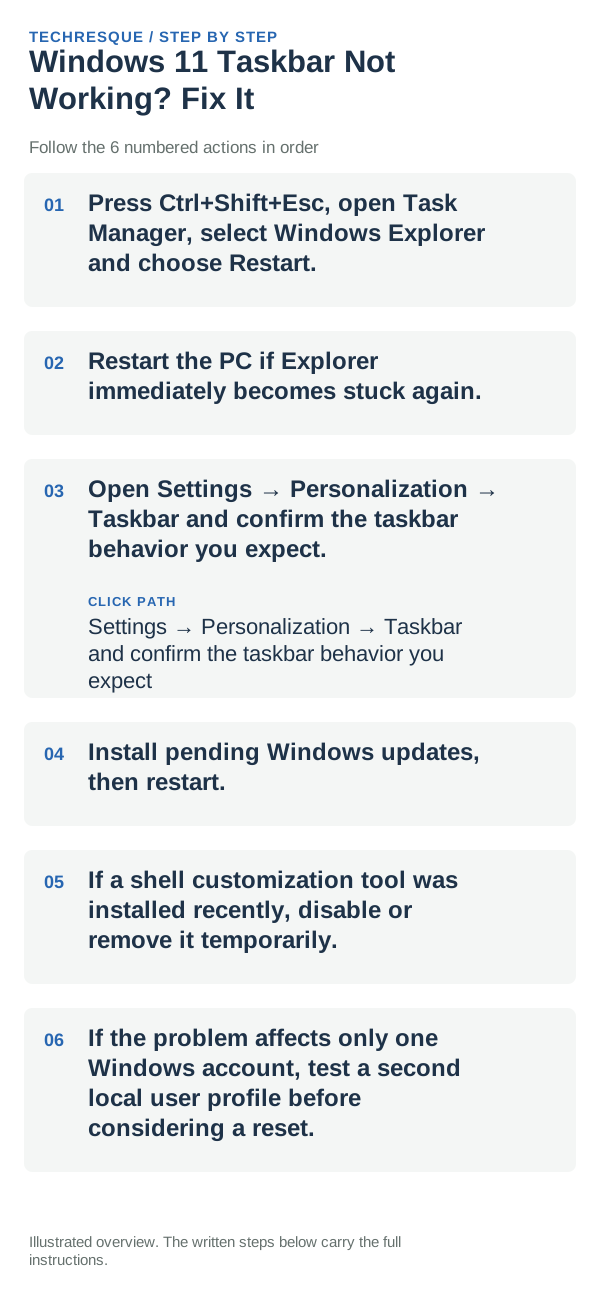
- Press Ctrl+Shift+Esc, open Task Manager, select Windows Explorer and choose Restart.
- Restart the PC if Explorer immediately becomes stuck again.
- Open Settings → Personalization → Taskbar and confirm the taskbar behavior you expect.
- Install pending Windows updates, then restart.
- If a shell customization tool was installed recently, disable or remove it temporarily.
- If the problem affects only one Windows account, test a second local user profile before considering a reset.
What each result tells you
Check whether the failure is limited to pinned icons, the notification area, or the whole taskbar. If Start and Search also fail, treat it as a Windows shell problem; if one icon alone is affected, check that app’s shortcut and running state first.
Avoid these common mistakes
- Do not delete or move files, shortcuts, or settings data until you know what they contain and have a backup.
- Do not run an unknown registry edit or third-party repair script before checking Windows built-in options.
- Do not use Reset this PC for a problem isolated to one shell control, file location, or search index.
- Do not disable Windows security controls or change access permissions unless the specific check calls for it.
Verify before you move on
When to use support or repair
If the affected taskbar controls remain unavailable after restarting Explorer and signing in again, record which controls fail, whether Start and Search also fail, the Windows build, and any recent update. Use Microsoft Support with those details before trying profile or system recovery.
Frequently asked questions
What should I check first for windows 11 taskbar not working? fix it?
Restart Windows Explorer from Task Manager, then check taskbar settings and pending Windows updates. If the taskbar alone is broken, do not reset unrelated apps or the whole PC.
Should I reset the whole device immediately?
Usually not. Try the guide’s reversible checks first and confirm whether the problem is limited to one app, file, device, or Windows component. Back up important files before considering Reset this PC.
How do I know when the fix is real?
Repeat the taskbar action that failed: open Start or Search, launch a pinned app, and use the notification area. Check it again after restarting Windows Explorer and signing in once more.
Official sources and further reading
- Microsoft Support — Customize the taskbar in Windows
- Microsoft Support — Explorer, Start, Settings, and taskbar known issue (specific managed devices)
Windows labels and available controls can vary by build and device policy.