Press Ctrl+Shift+Esc, find Windows Explorer in Task Manager, and choose Restart. If Start still fails, check Windows Update and test whether Settings, Search, and the taskbar fail too.
On Windows 11, menu names vary by build. Use built-in Settings and Microsoft Support guidance before registry edits or third-party repair tools.
Why this can happen
The Start menu, taskbar, Search, and File Explorer share parts of the Windows shell. A temporary Explorer hang can affect Start, while a profile-specific problem or a failed system update can point elsewhere.
- Windows Explorer or the Start menu process stopped responding.
- A pending update or recent system change affected the shell.
- The problem occurs in one Windows user profile but not another.
- A managed or virtual desktop has an update or provisioning issue.
Troubleshoot from low-risk to high-risk
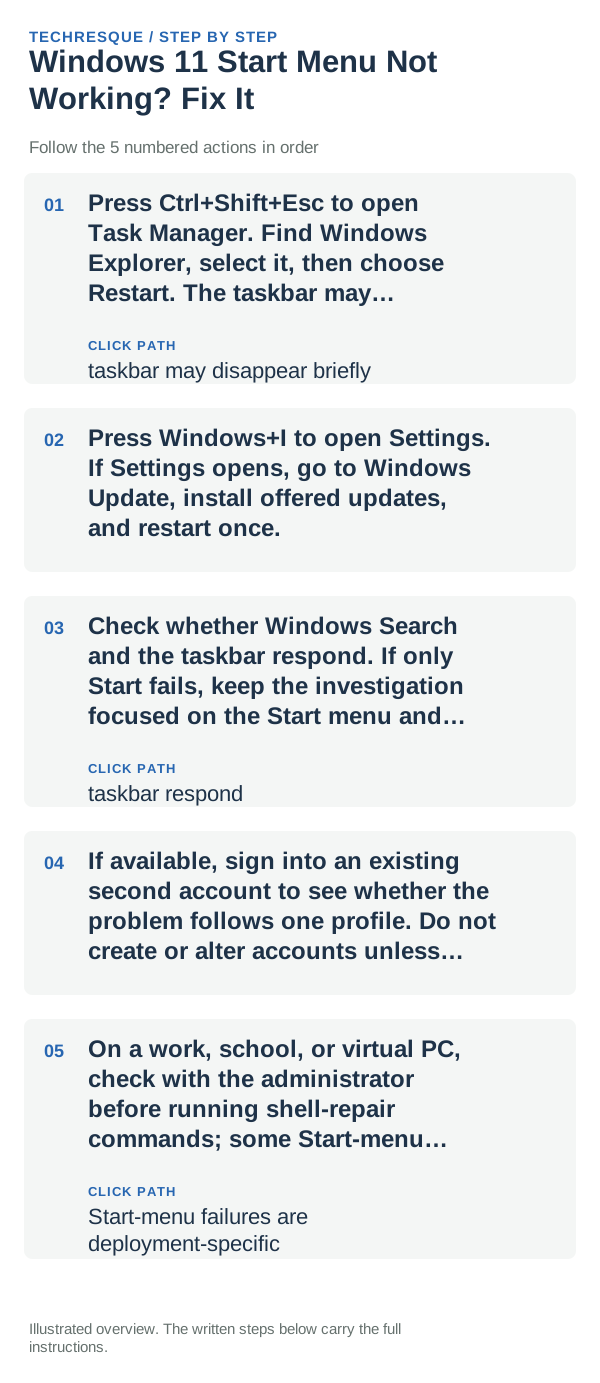
- Press Ctrl+Shift+Esc to open Task Manager. Find Windows Explorer, select it, then choose Restart. The taskbar may disappear briefly.
- Press Windows+I to open Settings. If Settings opens, go to Windows Update, install offered updates, and restart once.
- Check whether Windows Search and the taskbar respond. If only Start fails, keep the investigation focused on the Start menu and shell.
- If available, sign into an existing second account to see whether the problem follows one profile. Do not create or alter accounts unless you understand the setup.
- On a work, school, or virtual PC, check with the administrator before running shell-repair commands; some Start-menu failures are deployment-specific.
Isolate the failing layer
Try opening Start with the taskbar button and the Windows key, then check whether Search and taskbar controls respond too. If only Start fails, keep the repair focused there; if several shell controls fail together, note recent updates and restart Explorer before broader recovery.
What not to change first
- Do not download unofficial Start-menu repair utilities.
- Do not run registry edits or package-registration commands copied from a forum.
- Do not reset the PC before checking Windows Update and whether the issue affects another existing account.
- Save work before restarting Explorer or Windows.
Confirm that the problem is actually gone
When to use support or repair
If Start still fails across existing accounts after current updates, contact Microsoft Support or your PC administrator with the Windows version, recent update history, and whether Explorer, Search, or Settings also fail. Do not try enterprise package-registration steps on a personal PC without confirming they apply.
Frequently asked questions
How do I restart the Start menu shell?
Open Task Manager with Ctrl+Shift+Esc, select Windows Explorer, and choose Restart. The taskbar may disappear briefly while it reloads.
What if Settings also will not open?
Check whether the problem began after an update and whether Explorer, Search, and the taskbar fail as well. A managed PC may need its administrator to inspect deployment history.
Should I reset Windows?
Not as a first step. Restart Explorer, install available updates, and check whether the issue affects another existing account before considering recovery options.
Official sources and further reading
Microsoft’s linked known issue applies to some managed or virtualized Windows 11 devices; it does not describe every Start-menu failure.