Raise the volume for the app that is playing, then check the selected output, Volume mixer, and the device's own controls. Do not change driver settings until the same file is quiet on more than one output.
On Windows 11, menu names vary by build. Use built-in Settings and Microsoft Support guidance before registry edits or third-party repair tools.
Start by narrowing the cause
Windows has a master volume and per-app mixer levels, while speakers and headphones may have physical controls. A quiet source recording or an output routed to a monitor can mimic a system-wide volume problem.
Work through these checks
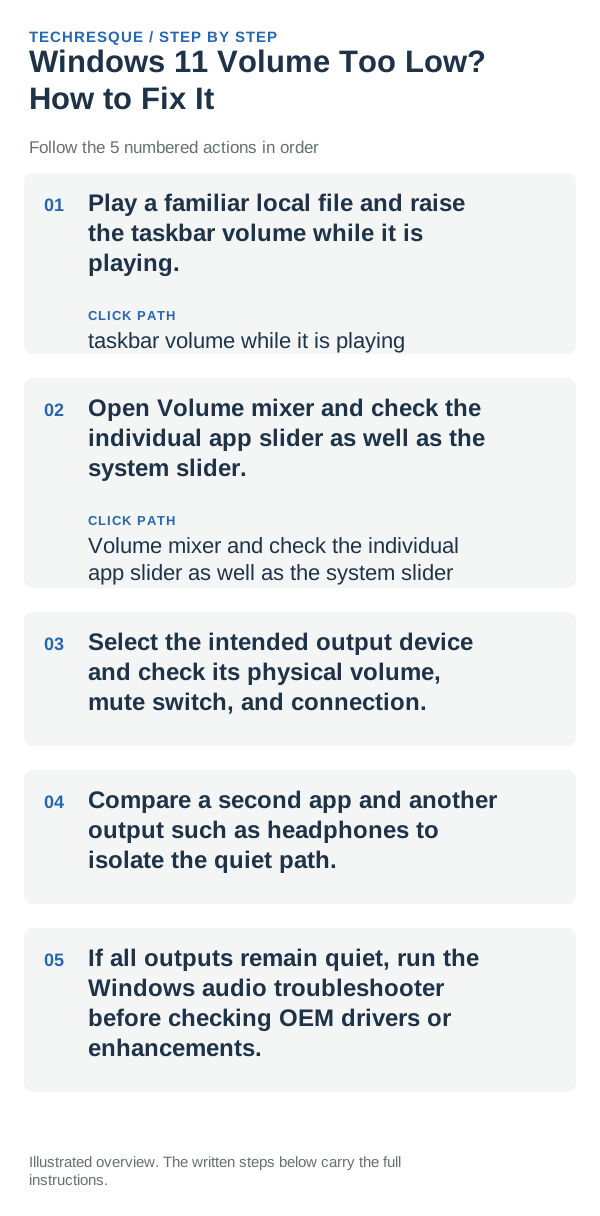
- Play a familiar local file and raise the taskbar volume while it is playing.
- Open Volume mixer and check the individual app slider as well as the system slider.
- Select the intended output device and check its physical volume, mute switch, and connection.
- Compare a second app and another output such as headphones to isolate the quiet path.
- If all outputs remain quiet, run the Windows audio troubleshooter before checking OEM drivers or enhancements.
A quick way to narrow it down
One app quiet points to its mixer level or source. Speakers and headphones both quiet suggests Windows' output level; only one accessory quiet suggests its physical controls or hardware.
Do not make troubleshooting harder
Do not max out the volume abruptly or install volume-boost utilities. Keep listening at a comfortable level and change one output at a time.
Retest the original failure
Replay the same file and verify both system and app sliders, then restore any temporary test setting that made no difference.
When to use support or repair
If all known-good outputs remain unusually quiet after the mixer and troubleshooter checks, contact the PC or accessory manufacturer.
Frequently asked questions
Should I reset the whole device immediately?
Usually not. Try the guide’s reversible checks first and confirm whether the problem is limited to one app, file, device, or Windows component. Back up important files before considering Reset this PC.
How do I know when the fix is real?
Replay the same file and verify both system and app sliders, then restore any temporary test setting that made no difference.