Identify whether the headset is Bluetooth, USB, or 3.5 mm first; each uses a different detection path. Select it in Windows Sound before updating drivers.
On Windows 11, menu names vary by build. Use built-in Settings and Microsoft Support guidance before registry edits or third-party repair tools.
Start by narrowing the cause
A headset can connect but remain absent from the output list if Windows selects another device, the USB port lacks a data connection, or a 3.5 mm jack is not fully seated. Microphone detection is a separate input check.
The practical troubleshooting sequence
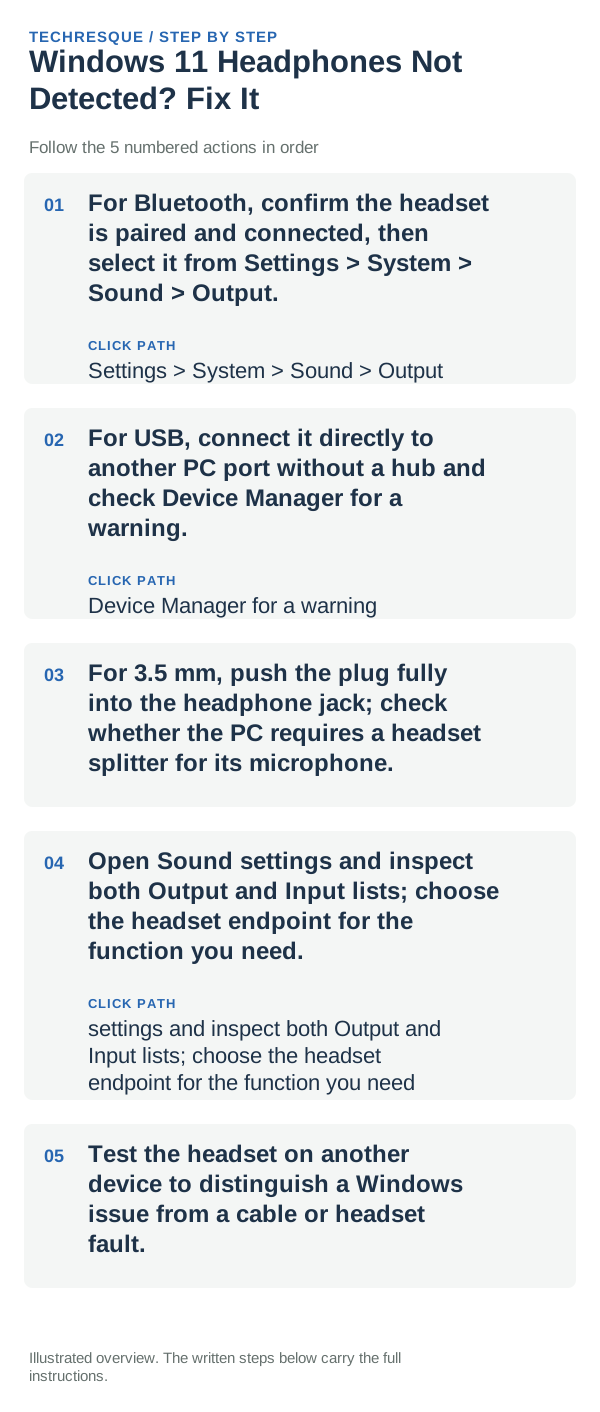
- For Bluetooth, confirm the headset is paired and connected, then select it from Settings > System > Sound > Output.
- For USB, connect it directly to another PC port without a hub and check Device Manager for a warning.
- For 3.5 mm, push the plug fully into the headphone jack; check whether the PC requires a headset splitter for its microphone.
- Open Sound settings and inspect both Output and Input lists; choose the headset endpoint for the function you need.
- Test the headset on another device to distinguish a Windows issue from a cable or headset fault.
How to tell which cause applies
Headset visible but silent is an output selection or volume problem. Not visible in Windows but working elsewhere points to the PC port or driver; failing on multiple devices points to the headset.
Changes to avoid until you know the cause
Do not install generic driver packs or force a microphone driver onto an output device. Note the headset connection type before using the manufacturer's support steps.
What success should look like
Confirm the headset appears under the correct Output or Input list and plays a test sound; test its microphone separately if required.
When to use support or repair
If Windows still does not enumerate the headset in Device Manager, contact the PC or headset maker with its model and connection type.
Frequently asked questions
Should I reset the whole device immediately?
Usually not. Try the guide’s reversible checks first and confirm whether the problem is limited to one app, file, device, or Windows component. Back up important files before considering Reset this PC.
How do I know when the fix is real?
Confirm the headset appears under the correct Output or Input list and plays a test sound; test its microphone separately if required.