Select the intended speakers in Windows, check the Volume mixer, and test a second app before changing drivers. Confirm external speakers are powered and connected to the right port.
On Windows 11, menu names vary by build. Use built-in Settings and Microsoft Support guidance before registry edits or third-party repair tools.
Start by narrowing the cause
Windows can send sound to a monitor, dock, headset, or disconnected Bluetooth device instead of the built-in speakers. App-specific mute and speaker power are separate from the main volume slider.
The practical troubleshooting sequence
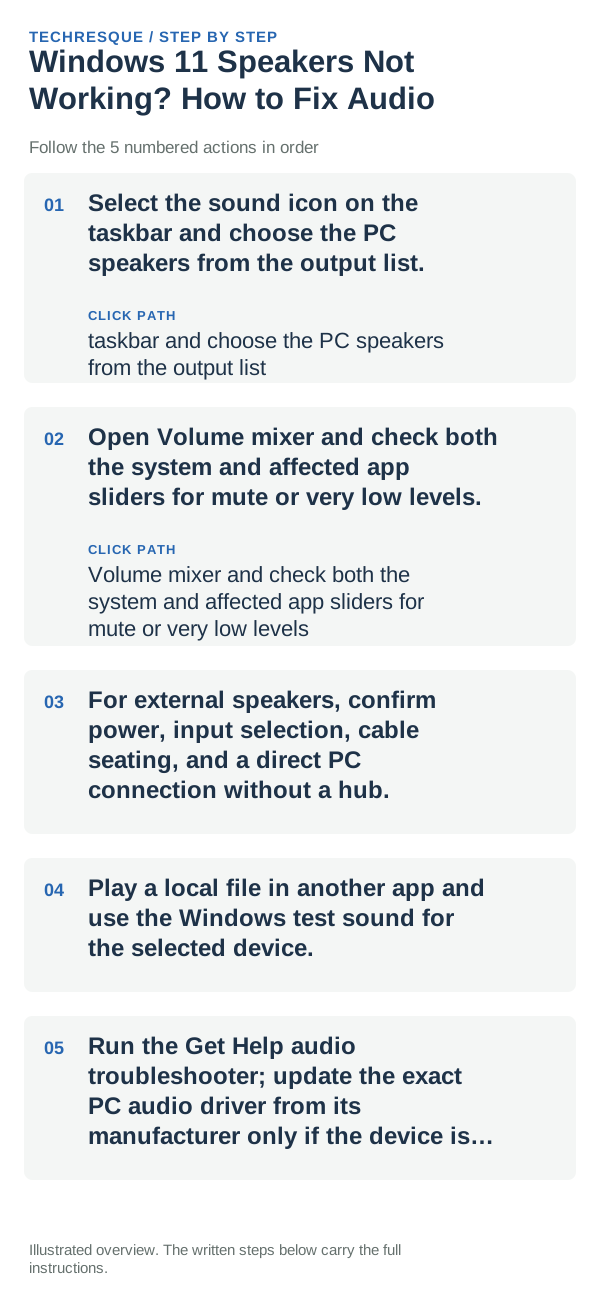
- Select the sound icon on the taskbar and choose the PC speakers from the output list.
- Open Volume mixer and check both the system and affected app sliders for mute or very low levels.
- For external speakers, confirm power, input selection, cable seating, and a direct PC connection without a hub.
- Play a local file in another app and use the Windows test sound for the selected device.
- Run the Get Help audio troubleshooter; update the exact PC audio driver from its manufacturer only if the device is missing or errors.
Isolate the failing layer
If headphones play but speakers do not, the speaker output or its connection is the boundary. If every device is silent, check the mixer and Windows output before assuming the driver failed.
Shortcuts that usually waste time
Do not uninstall drivers or use registry repair tools before the output selection, power, and mixer checks. Keep the original driver version noted.
What success should look like
Confirm the Windows test sound and a local recording play from the selected speakers at a comfortable level.
When to use support or repair
If the speakers remain absent from Settings or the troubleshooter reports an error, contact the PC or speaker manufacturer with the device name and result.
Frequently asked questions
Should I reset the whole device immediately?
Usually not. Try the guide’s reversible checks first and confirm whether the problem is limited to one app, file, device, or Windows component. Back up important files before considering Reset this PC.
How do I know when the fix is real?
Confirm the Windows test sound and a local recording play from the selected speakers at a comfortable level.