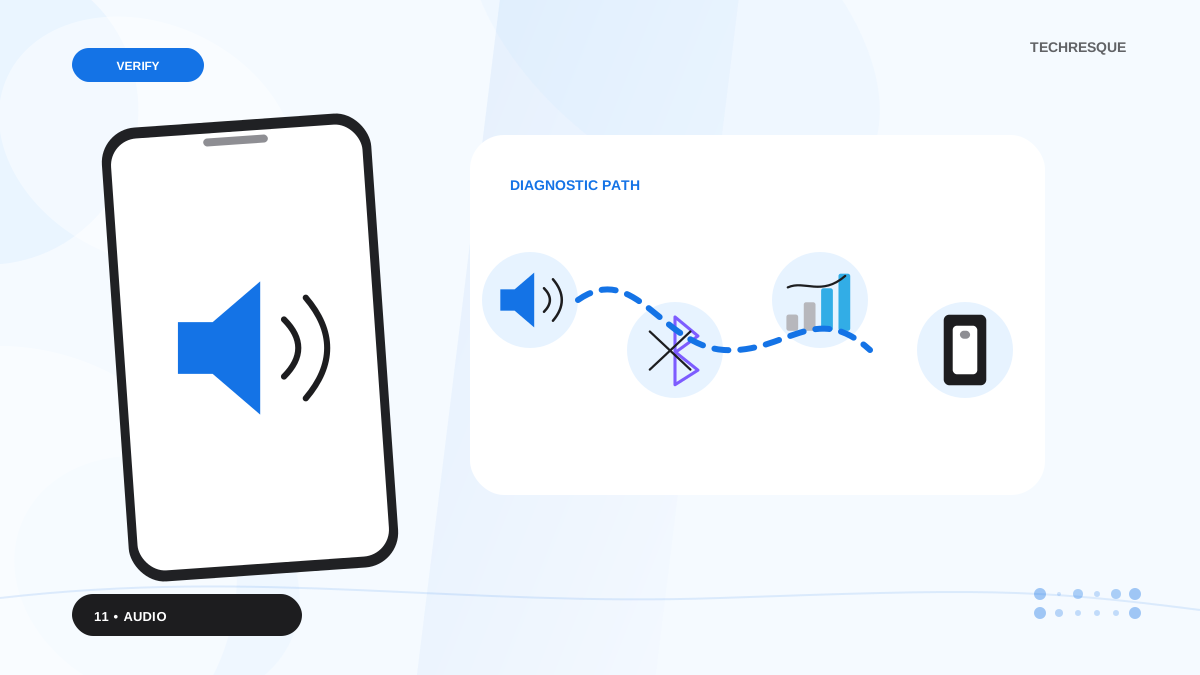
Compare a second app and output device, then switch off audio enhancements for one controlled test. If crackling began after a driver update, record that driver before rolling anything back.
On Windows 11, menu names vary by build. Use built-in Settings and Microsoft Support guidance before registry edits or third-party repair tools.
Start by narrowing the cause
Crackling can come from a loose connector, Bluetooth interference, an audio enhancement, a sample-rate mismatch, or a driver. The same test on speakers and headphones helps separate the output device from Windows.
Troubleshoot from low-risk to high-risk
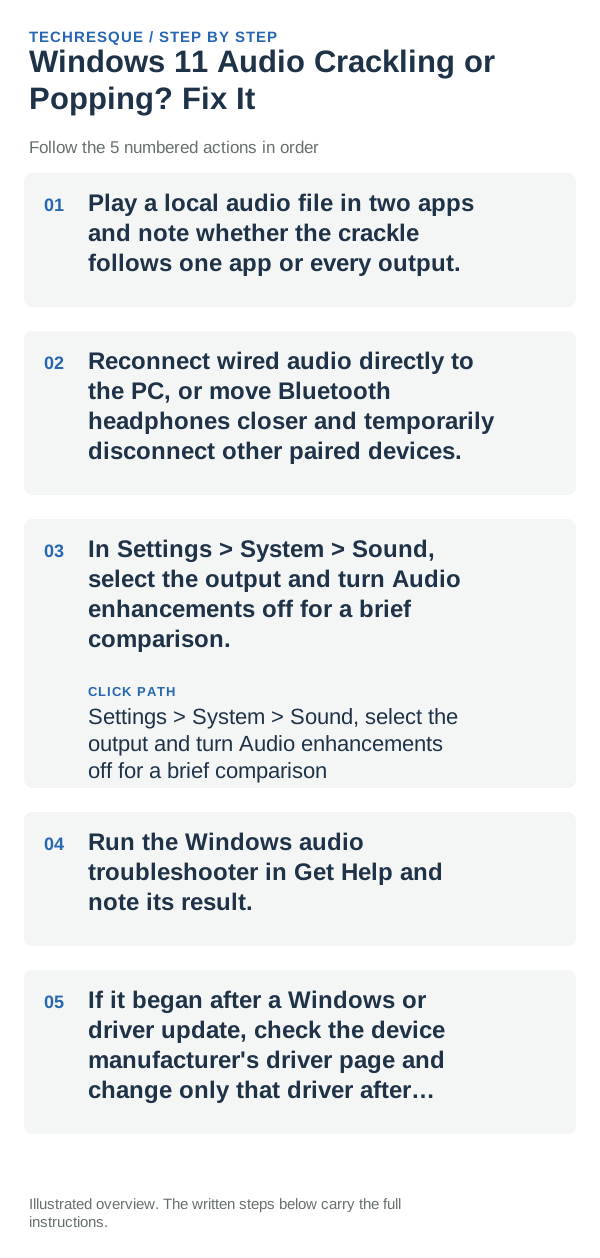
- Play a local audio file in two apps and note whether the crackle follows one app or every output.
- Reconnect wired audio directly to the PC, or move Bluetooth headphones closer and temporarily disconnect other paired devices.
- In Settings > System > Sound, select the output and turn Audio enhancements off for a brief comparison.
- Run the Windows audio troubleshooter in Get Help and note its result.
- If it began after a Windows or driver update, check the device manufacturer's driver page and change only that driver after saving the current version.
What each result tells you
Crackle limited to Bluetooth suggests radio interference or the headset; one app points to its stream or settings. All outputs crackling after a driver change suggests Windows' audio path.
What not to change first
Do not randomly change registry, sample rate, or driver packages. Keep a record of the original enhancement and driver settings so you can restore them.
What success should look like
Replay the same local file at the same volume and output. Confirm whether crackle remains after the troubleshooter or the single enhancement comparison.
When to use support or repair
If every output crackles after the built-in troubleshooter and current OEM driver, contact the PC or audio-device maker with the device name and driver version.
Frequently asked questions
Should I reset the whole device immediately?
Usually not. Try the guide’s reversible checks first and confirm whether the problem is limited to one app, file, device, or Windows component. Back up important files before considering Reset this PC.
How do I know when the fix is real?
Replay the same local file at the same volume and output. Confirm whether crackle remains after the troubleshooter or the single enhancement comparison.