Check whether the output appears in Settings > System > Sound and Device Manager before installing anything. A missing device, disabled endpoint, and wrong default output need different fixes.
On Windows 11, menu names vary by build. Use built-in Settings and Microsoft Support guidance before registry edits or third-party repair tools.
What this symptom usually means
Windows may fail to show an audio endpoint after an update, a device disable, a dock change, or a driver problem. A Bluetooth headset can be connected for calls but not selected as the output.
Troubleshoot from low-risk to high-risk
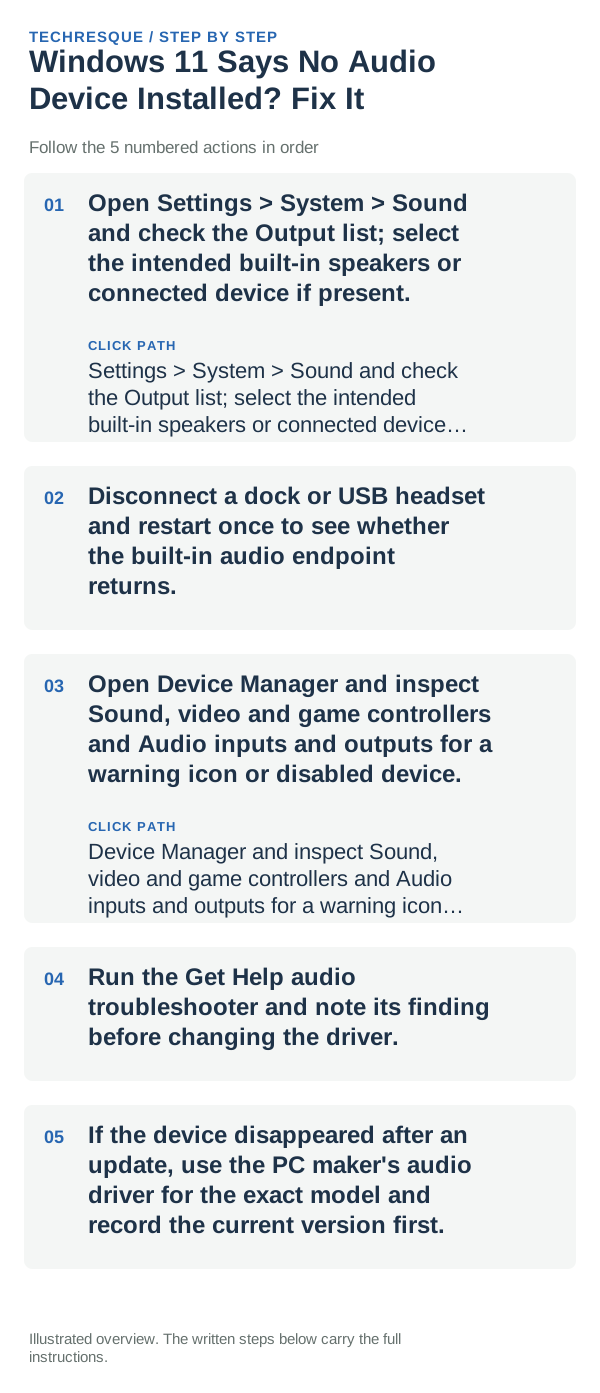
- Open Settings > System > Sound and check the Output list; select the intended built-in speakers or connected device if present.
- Disconnect a dock or USB headset and restart once to see whether the built-in audio endpoint returns.
- Open Device Manager and inspect Sound, video and game controllers and Audio inputs and outputs for a warning icon or disabled device.
- Run the Get Help audio troubleshooter and note its finding before changing the driver.
- If the device disappeared after an update, use the PC maker's audio driver for the exact model and record the current version first.
Use a clean A/B test
Device listed but not selected points to output routing. A warning code in Device Manager points to the driver or hardware; no endpoint at all after a dock disconnect can indicate OEM software or hardware.
Changes to avoid until you know the cause
Do not uninstall every audio controller or download a driver from a third-party updater. If this is a work PC, check with the administrator before changing managed drivers.
Retest the original failure
Confirm the device appears in the Output list and can play a test sound, then reconnect any dock or headset one at a time.
When to use support or repair
If the endpoint is absent or has a recurring Device Manager code after the OEM driver, contact the PC manufacturer and provide that code.
Frequently asked questions
Should I reset the whole device immediately?
Usually not. Try the guide’s reversible checks first and confirm whether the problem is limited to one app, file, device, or Windows component. Back up important files before considering Reset this PC.
How do I know when the fix is real?
Confirm the device appears in the Output list and can play a test sound, then reconnect any dock or headset one at a time.