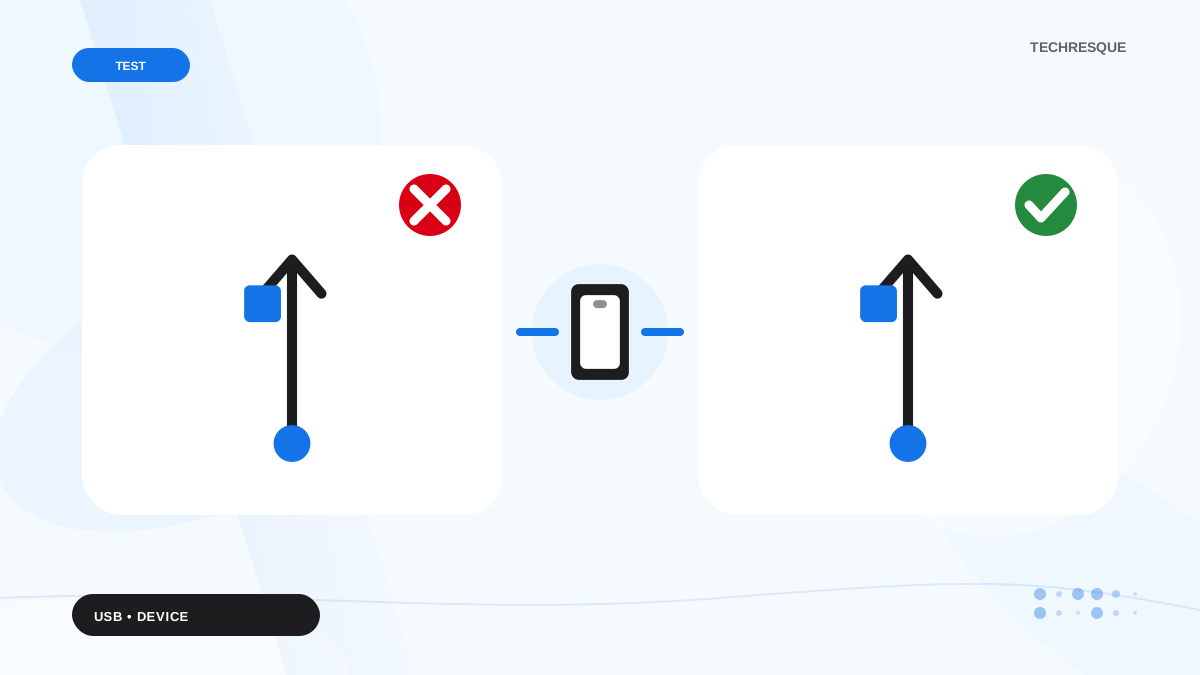
Read the Windows USB notification and Device Manager error code, then test the device directly on another port and PC. The code helps distinguish a device fault from a driver issue.
On Windows 11, menu names vary by build. Use built-in Settings and Microsoft Support guidance before registry edits or third-party repair tools.
Likely causes to check first
Windows may reject a USB device because of its cable, port, power demand, or driver. A charging-only cable can power a device while providing no data connection.
Use this order so you can identify the cause
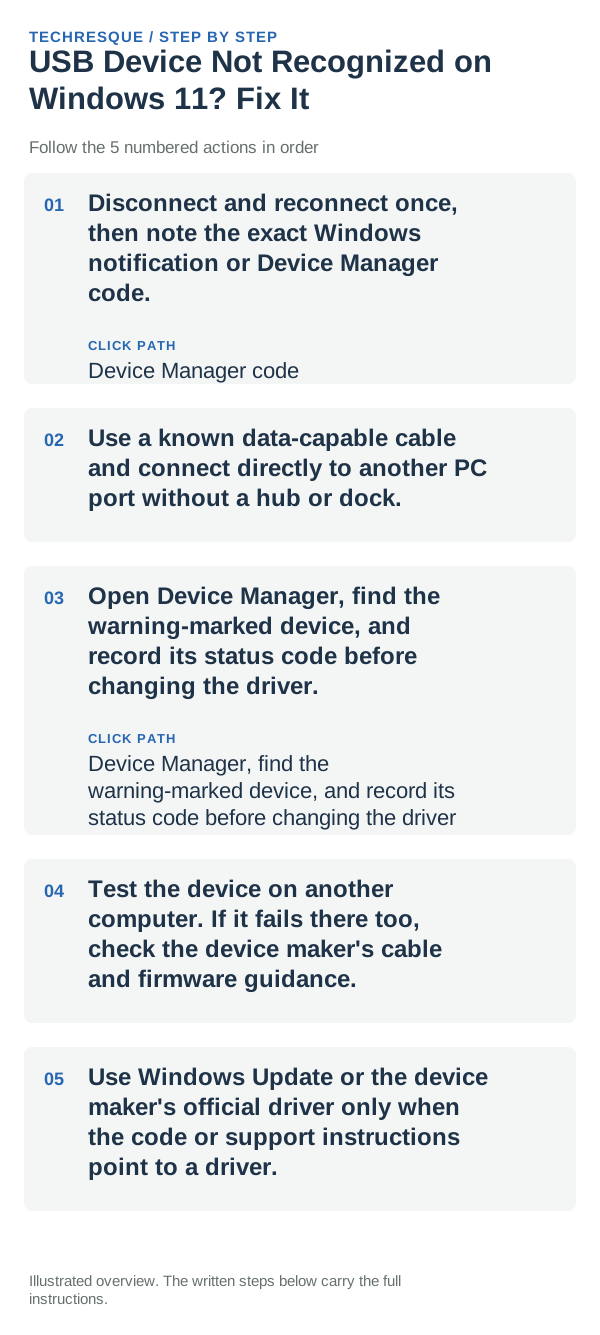
- Disconnect and reconnect once, then note the exact Windows notification or Device Manager code.
- Use a known data-capable cable and connect directly to another PC port without a hub or dock.
- Open Device Manager, find the warning-marked device, and record its status code before changing the driver.
- Test the device on another computer. If it fails there too, check the device maker's cable and firmware guidance.
- Use Windows Update or the device maker's official driver only when the code or support instructions point to a driver.
Use a clean A/B test
A device that works on another PC but not this one points to this PC's port, hub, or driver. Failure on multiple PCs suggests the cable or device; a specific code narrows the fix.
Changes to avoid until you know the cause
Do not uninstall USB controllers or edit the registry from a generic checklist. Back up any storage device before repair steps.
Retest the original failure
Reconnect and confirm the device appears without a warning in Device Manager and performs its intended function, not merely that its power light turns on.
When to use support or repair
If the same Device Manager code returns after the official driver path, contact the device or PC maker with the code and model.
Frequently asked questions
Should I reset the whole device immediately?
Usually not. Try the guide’s reversible checks first and confirm whether the problem is limited to one app, file, device, or Windows component. Back up important files before considering Reset this PC.
How do I know when the fix is real?
Reconnect and confirm the device appears without a warning in Device Manager and performs its intended function, not merely that its power light turns on.