Check the drive's cable, power, and Disk Management before assigning a letter. If Windows says Initialize, Format, or RAW and the drive has important files, stop and protect the data.
On Windows 11, menu names vary by build. Use built-in Settings and Microsoft Support guidance before registry edits or third-party repair tools.
Why this can happen
An external disk can be powered but lack a mounted drive letter, use a failed cable or enclosure, or have a partition Windows cannot read. A missing letter differs from a disk that is not detected at all.
Fix it in this order
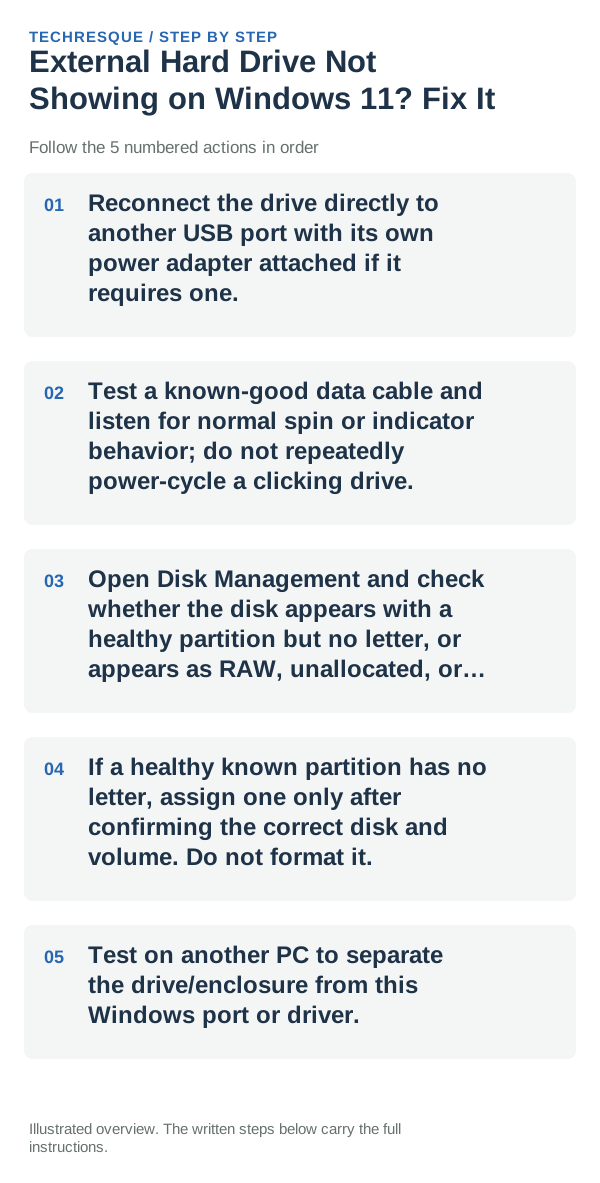
- Reconnect the drive directly to another USB port with its own power adapter attached if it requires one.
- Test a known-good data cable and listen for normal spin or indicator behavior; do not repeatedly power-cycle a clicking drive.
- Open Disk Management and check whether the disk appears with a healthy partition but no letter, or appears as RAW, unallocated, or not initialized.
- If a healthy known partition has no letter, assign one only after confirming the correct disk and volume. Do not format it.
- Test on another PC to separate the drive/enclosure from this Windows port or driver.
What each result tells you
A healthy partition without a letter may need a mount point. RAW, unallocated, or initialization prompts can indicate partition damage; no disk entry suggests cable, power, enclosure, or drive failure.
Shortcuts that usually waste time
Never initialize, format, or run repair tools on a disk containing files you need. Stop using a clicking or repeatedly disconnecting drive and seek data-recovery advice.
How to confirm the fix
The expected volume should appear with its original files and a stable drive letter. Open a few files before using the drive for new writes.
When to use support or repair
If the drive is not detected on multiple PCs or shows RAW/unallocated, contact the drive maker or a data-recovery professional before changing partitions.
Frequently asked questions
Should I reset the whole device immediately?
Usually not. Try the guide’s reversible checks first and confirm whether the problem is limited to one app, file, device, or Windows component. Back up important files before considering Reset this PC.
How do I know when the fix is real?
The expected volume should appear with its original files and a stable drive letter. Open a few files before using the drive for new writes.