Check whether the flash drive appears in Disk Management before assigning a letter or formatting it. If it contains files and Windows reports RAW or unallocated, stop and preserve the data.
On Windows 11, menu names vary by build. Use built-in Settings and Microsoft Support guidance before registry edits or third-party repair tools.
Why this can happen
A USB flash drive can be detected without appearing in File Explorer if it lacks a drive letter. A damaged partition, incompatible file system, faulty port, or failing flash memory needs a different response.
Use this order so you can identify the cause
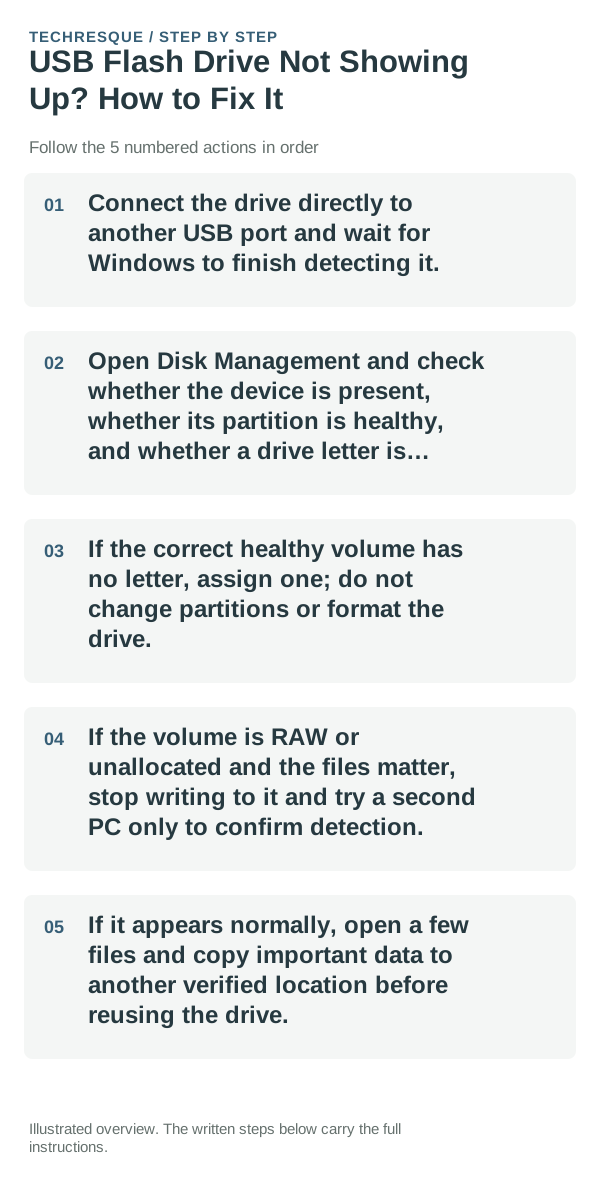
- Connect the drive directly to another USB port and wait for Windows to finish detecting it.
- Open Disk Management and check whether the device is present, whether its partition is healthy, and whether a drive letter is assigned.
- If the correct healthy volume has no letter, assign one; do not change partitions or format the drive.
- If the volume is RAW or unallocated and the files matter, stop writing to it and try a second PC only to confirm detection.
- If it appears normally, open a few files and copy important data to another verified location before reusing the drive.
How to tell which cause applies
Visible in Disk Management with a healthy partition but no letter suggests a mount issue. RAW or unallocated means the file system or partition is not readable; absent from Disk Management suggests port or device trouble.
Shortcuts that usually waste time
Do not click Format, Initialize, or New Simple Volume when you need existing files. These actions can overwrite recovery options.
Confirm that the problem is actually gone
Confirm the original files open and a backup copy is readable on another location. A drive letter alone does not prove the data is intact.
When to use support or repair
If important files are on a RAW or unallocated drive, consult data-recovery support before repair software or formatting.
Frequently asked questions
Should I reset the whole device immediately?
Usually not. Try the guide’s reversible checks first and confirm whether the problem is limited to one app, file, device, or Windows component. Back up important files before considering Reset this PC.
How do I know when the fix is real?
Confirm the original files open and a backup copy is readable on another location. A drive letter alone does not prove the data is intact.