
Restart Explorer first. If only shortcuts are blank, rebuild the icon cache or recreate the affected shortcuts after confirming the target apps still open normally.
On Windows 11, menu names vary by build. Use built-in Settings and Microsoft Support guidance before registry edits or third-party repair tools.
Start by narrowing the cause
- the icon cache is stale
- a shortcut target moved
- Explorer has not refreshed
- an app was updated or removed
Use this order so you can identify the cause
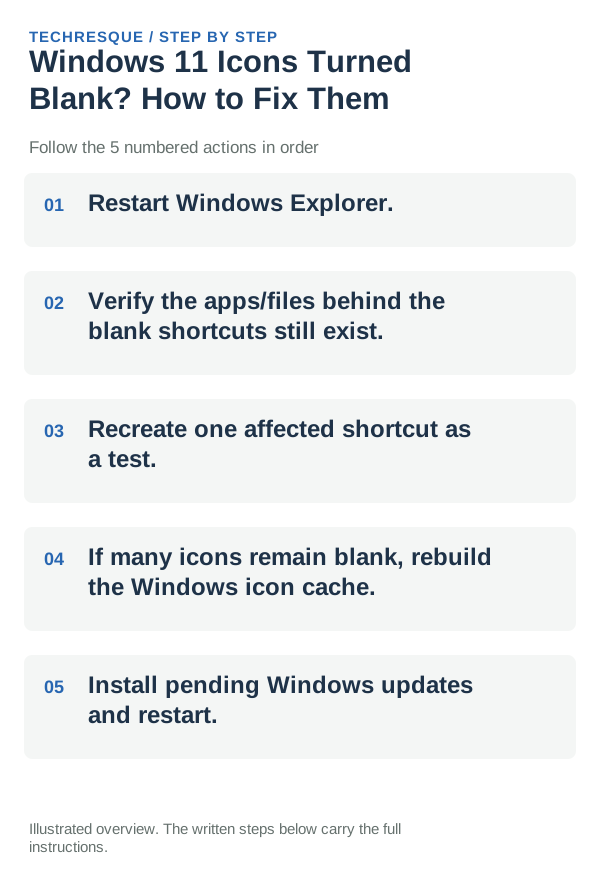
- Restart Windows Explorer.
- Verify the apps/files behind the blank shortcuts still exist.
- Recreate one affected shortcut as a test.
- If many icons remain blank, rebuild the Windows icon cache.
- Install pending Windows updates and restart.
Use a clean A/B test
Open one blank shortcut to confirm its target still works, then compare another shortcut to the same app. If only one shortcut is blank, repair that shortcut’s icon or target; if many unrelated shortcuts are blank, check the icon cache and recent theme or update changes.
Changes to avoid until you know the cause
- Do not delete or move files, shortcuts, or settings data until you know what they contain and have a backup.
- Do not run an unknown registry edit or third-party repair script before checking Windows built-in options.
- Do not use Reset this PC for a problem isolated to one shell control, file location, or search index.
- Do not disable Windows security controls or change access permissions unless the specific check calls for it.
How to confirm the fix
When to use support or repair
If a shortcut still looks blank after confirming its target opens and restarting Explorer, note whether the issue affects one app or many and whether the shortcut is pinned or on the Desktop. Include the Windows build and app install location when contacting the publisher or Microsoft Support.
Check whether the shortcut works before repairing its icon
Right-click a blank icon and open Properties to inspect its target. If the shortcut opens the intended app, the target is present and the display problem may be limited to the icon cache or shortcut metadata. If it does not open, locate the app first; refreshing the icon cannot repair a missing target.
Test a second shortcut and restart Windows Explorer before trying broader system repair. Recreate only shortcuts whose target is known to exist, and avoid downloading replacement icon files from unknown sites.
| Result | What it points to | Next check |
|---|---|---|
| App opens despite a blank icon | Icon display or cache issue | Restart Explorer and refresh the shortcut |
| Shortcut target is missing | App moved or was removed | Repair/reinstall the app from its trusted source, then create a new shortcut |
| Many Windows icons are blank | Broader shell or system-file issue | Install pending Windows updates and use Microsoft's system-file repair guidance if needed |
Frequently asked questions
What should I check first for windows 11 icons turned blank? how to fix them?
Restart Explorer first. If only shortcuts are blank, rebuild the icon cache or recreate the affected shortcuts after confirming the target apps still open normally.
Should I reset the whole device immediately?
Usually not. Try the guide’s reversible checks first and confirm whether the problem is limited to one app, file, device, or Windows component. Back up important files before considering Reset this PC.
How do I know when the fix is real?
Refresh the desktop or restart Windows Explorer, then check that each affected shortcut shows the right icon and opens its intended app. If it remains blank after a restart, inspect the shortcut target before rebuilding the icon cache.
Official sources and further reading
- Microsoft Support — Customize the Desktop icons in Windows
- Microsoft Support — Use System File Checker to repair system files
Windows labels and available controls can vary by build and device policy.