Right-click the desktop and confirm View → Show desktop icons is enabled, then check theme/icon settings before rebuilding any icon cache.
On Windows 11, menu names vary by build. Use built-in Settings and Microsoft Support guidance before registry edits or third-party repair tools.
Where this problem usually comes from
- desktop icons were hidden
- a theme changed icon visibility
- Explorer did not refresh
- the icon cache is stale
Fix it in this order
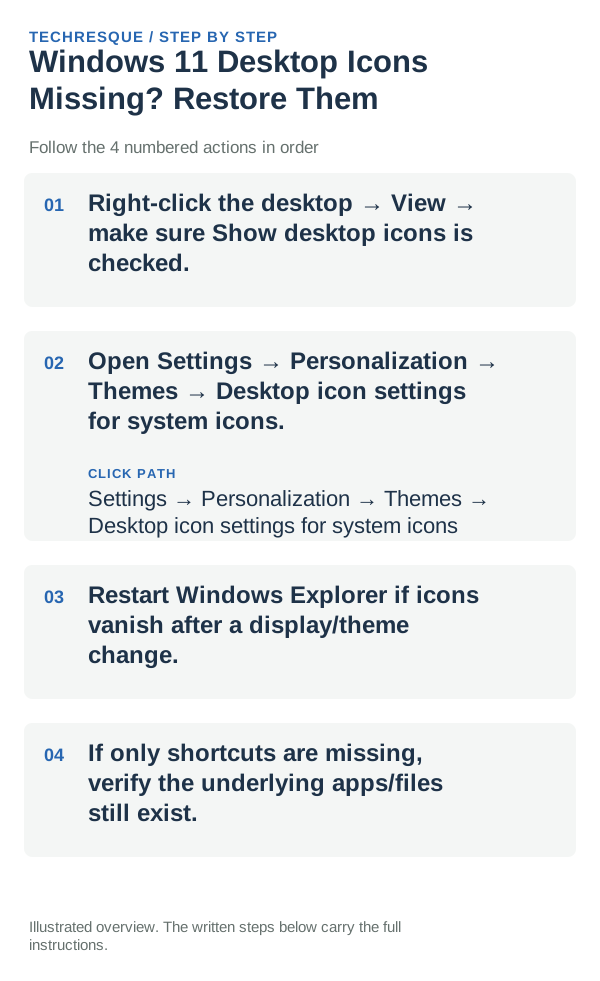
- Right-click the desktop → View → make sure Show desktop icons is checked.
- Open Settings → Personalization → Themes → Desktop icon settings for system icons.
- Restart Windows Explorer if icons vanish after a display/theme change.
- If only shortcuts are missing, verify the underlying apps/files still exist.
Isolate the failing layer
Check whether all icons are hidden or only one kind disappeared. When all vanish, check Show desktop icons; if only system icons are missing, verify Desktop icon settings. If personal shortcuts are missing, compare local and OneDrive Desktop folders before recreating them.
Do not make troubleshooting harder
- Do not delete or move files, shortcuts, or settings data until you know what they contain and have a backup.
- Do not run an unknown registry edit or third-party repair script before checking Windows built-in options.
- Do not use Reset this PC for a problem isolated to one shell control, file location, or search index.
- Do not disable Windows security controls or change access permissions unless the specific check calls for it.
Confirm that the problem is actually gone
When to use support or repair
If icons remain missing after checking visibility, Desktop icon settings, and local versus OneDrive Desktop folders, note whether all icons or only shortcuts are affected. Include the Windows build and recent theme or sync changes when using Microsoft Support; this symptom may not produce an error code.
Tell hidden icons from missing shortcuts
If every desktop icon disappears at once, right-click an empty area and check View > Show desktop icons. If only This PC or Recycle Bin is missing, use Personalization > Themes > Desktop icon settings. One or two missing personal shortcuts may instead be in a different Desktop folder.
Check both the local Desktop and OneDrive Desktop folders before recreating shortcuts, especially if folder backup was recently enabled. A shortcut can be restored from its original location without moving or deleting the app or document it points to.
| What is missing | Likely cause | Next check |
|---|---|---|
| All icons | Desktop icons hidden | Turn on Show desktop icons in View |
| System icons only | Desktop icon setting disabled | Choose the icons under Themes > Desktop icon settings |
| Personal shortcuts or files | Moved Desktop folder or deleted shortcut | Check local and OneDrive Desktop locations and Recycle Bin |
Frequently asked questions
What should I check first for windows 11 desktop icons missing? restore them?
Right-click the desktop and confirm View → Show desktop icons is enabled, then check theme/icon settings before rebuilding any icon cache.
Should I reset the whole device immediately?
Usually not. Try the guide’s reversible checks first and confirm whether the problem is limited to one app, file, device, or Windows component. Back up important files before considering Reset this PC.
How do I know when the fix is real?
Confirm the expected icons are visible, open each restored shortcut, then sign out or restart once to make sure they remain. If only personal shortcuts are missing, inspect both Desktop and OneDrive Desktop before recreating anything.
Official sources and further reading
- Microsoft Support — Where have my Desktop icons gone?
- Microsoft Support — Customize the Desktop icons in Windows
Windows labels and available controls can vary by build and device policy.