No Android permission is automatically dangerous in every app; risk depends on what the app does and how much access the feature needs. Location, SMS, contacts, camera, microphone, accessibility and broad file/media access deserve a clear purpose and the narrowest available grant.
The part people often miss
A permission gives a capability, not proof of misuse. A map may need location while in use; a photo editor may need selected pictures; a launcher should explain why it needs notification access for badges. Unrelated access is a reason to pause and ask whether the feature is worth it.
The sensible everyday approach
- Check Settings → Security & privacy → Privacy → Permission manager to see which apps have each permission, then open the app’s Permissions page for the details.
- For location, camera and microphone, choose while-in-use or ask-every-time options where your Android version offers them. Disable access globally with Privacy controls when appropriate.
- For pictures, use Android Photo Picker to share selected items where supported instead of granting an entire library.
- Review special access such as Accessibility, notification access, display over other apps, install unknown apps and usage access separately; these do not all appear as ordinary runtime permissions.
How to test it on your own device
Deny or narrow one optional permission, then reopen the feature. If the app explains a specific need, decide whether you want that feature; keep the narrower setting if other functions continue working.
Where the simple answer breaks down
Permission names and limited choices vary by Android version, phone maker and app. Some features genuinely need sensitive access; review the purpose and data handling before granting it, and revisit access after updates.
Bottom line
Ask what feature the permission enables, whether a narrower choice exists and whether you trust the app with that capability. Grant access only when those answers make sense for your use.
Use the least permission that still enables the feature
A permission should map to a feature you understand. Camera access makes sense for scanning a document; location may be needed for navigation; neither should be granted simply because an app refuses to explain why it wants access.
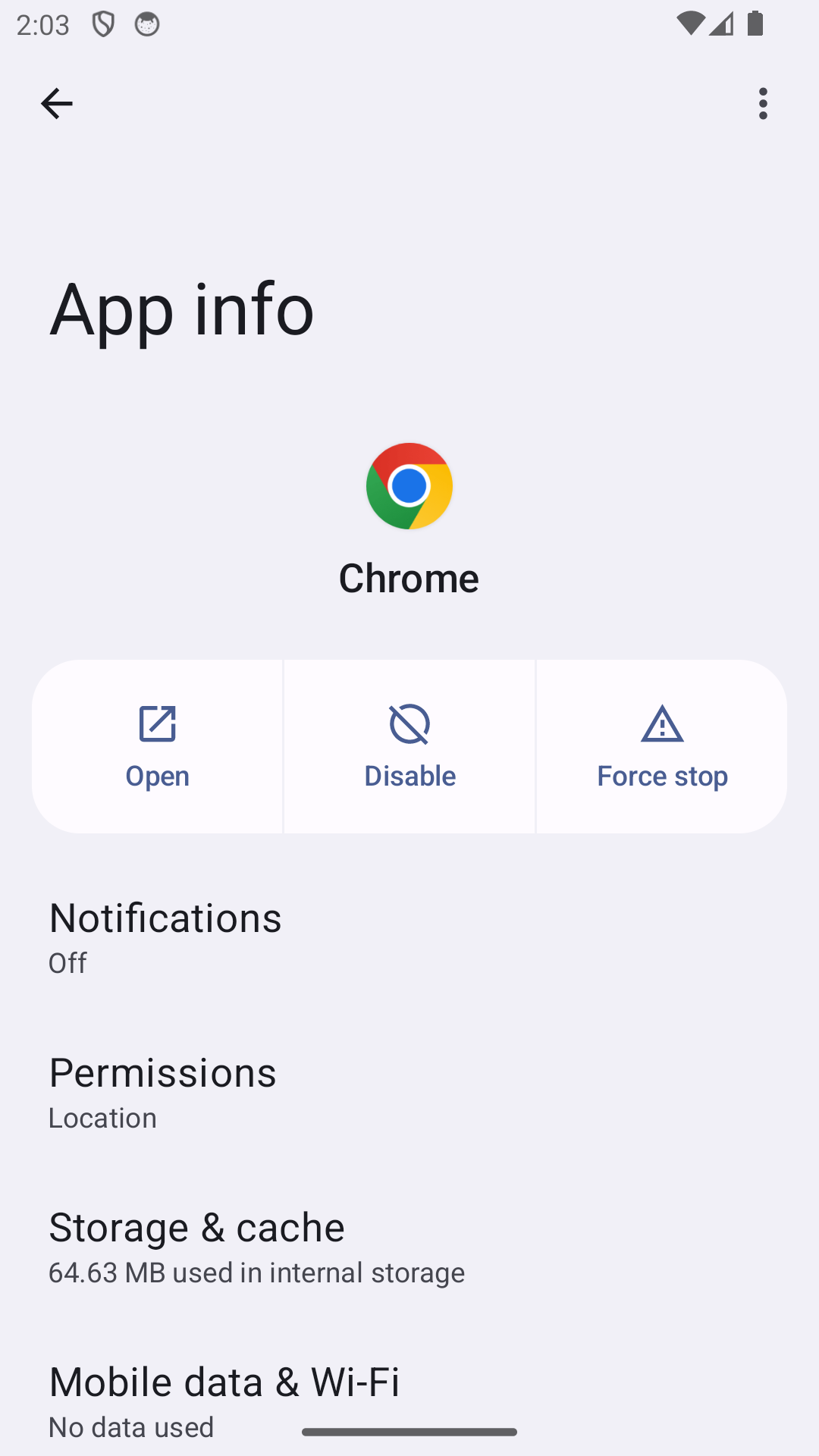
Android lets you review permissions per app and, for some sensitive permissions, choose limited or one-time access. If a feature works without broader access, keep the narrower setting.
Permission history is only one privacy signal. Also consider what account the app uses, whether data leaves the device, and whether the app’s core function still works when optional access is denied.
| What you observe | What it points to | Best next check |
|---|---|---|
| Permission matches a feature you use | Likely necessary access | Grant the narrowest available option |
| Permission seems unrelated | Optional or questionable access | Deny and test the feature |
| Feature fails after denial | Permission may be required | Review app explanation before granting |
Frequently asked questions
Is there one Android permission I should always deny?
There is no universal rule. Deny access that does not match the feature, and prefer limited or while-in-use options when they meet your needs.
Why is Accessibility access more sensitive than a normal permission?
It can let a service observe or interact with parts of the screen, depending on the service and Android version. Enable it only for a feature you understand and trust, then review it periodically in Settings.
Official sources and further reading
The Android permission and Photo Picker links below describe system behavior. They do not replace the app’s privacy policy or a review of its special-access requests.