Location privacy has several layers: app permission, precise/approximate access, background use, device location history, and account-level history are separate controls. Use Android's Privacy Dashboard to see recent location access and open each app's permission. Change optional apps to approximate or while-in-use access; keep background access only for a feature you deliberately use.
Location permissions, recent-access history, and account-level history are separate controls. Android names and available privacy views vary by version and manufacturer.
Before you start
Review recent location access before changing permissions. Decide which feature you want to keep working, then note whether each app needs location only while open or in the background.
A reversible workflow
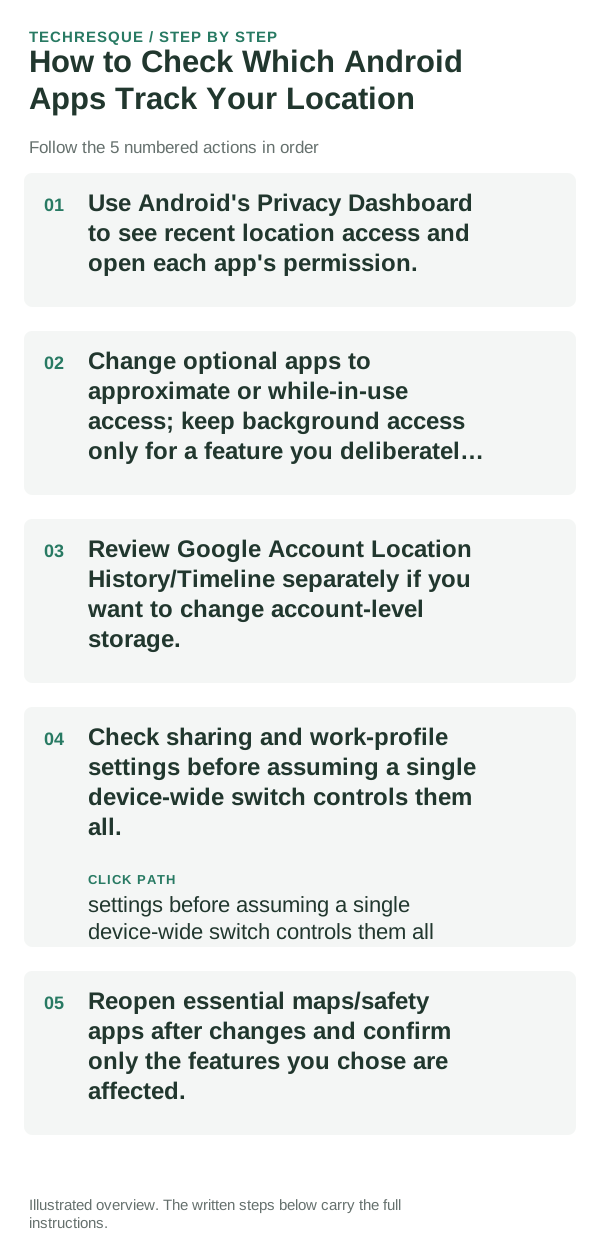
- Use Android's Privacy Dashboard to see recent location access and open each app's permission.
- Change optional apps to approximate or while-in-use access; keep background access only for a feature you deliberately use.
- Review Google Account Location History/Timeline separately if you want to change account-level storage.
- Check sharing and work-profile settings before assuming a single device-wide switch controls them all.
- Reopen essential maps/safety apps after changes and confirm only the features you chose are affected.
How to check the result
Reopen Privacy Dashboard or the app's location permission after the change. Confirm the access level is what you chose, then test only the feature that needs location.
If the option is missing
Android labels and privacy history vary by version and brand. Search Settings for Location or Permission manager; Google Account Location History is a separate control from app permission.
Keep the change easy to undo
Record the original permission for each app. If a feature you rely on stops working, restore only the narrow access that feature needs rather than granting location broadly.
What to do if it still fails
If access keeps returning, check unused-app permission reset, work-profile policy, parental controls, and the app's own account settings. These are separate from the device-wide Location switch.
Use the least permission that still enables the feature
A permission should map to a feature you understand. Camera access makes sense for scanning a document; location may be needed for navigation; neither should be granted simply because an app refuses to explain why it wants access.
Android lets you review permissions per app and, for some sensitive permissions, choose limited or one-time access. If a feature works without broader access, keep the narrower setting.
Permission history is only one privacy signal. Also consider what account the app uses, whether data leaves the device, and whether the app’s core function still works when optional access is denied.
| What you observe | What it points to | Best next check |
|---|---|---|
| Permission matches a feature you use | Likely necessary access | Grant the narrowest available option |
| Permission seems unrelated | Optional or questionable access | Deny and test the feature |
| Feature fails after denial | Permission may be required | Review app explanation before granting |
Before you make a bigger change
Before disabling location for many apps, review navigation, safety, weather, and automation features you depend on. Change one app at a time and avoid sharing maps or dashboards with private places visible.
Frequently asked questions
Can I turn off background location?
Yes, for apps whose feature works only while open. Check the app's explanation first; navigation, safety, or location sharing may stop updating in the background.
Is Google Location History the same as app permission?
No. Android app permission controls an app's access on the device; Google Account Location History is a separate account-level setting.
How can I check what an app accessed?
Use Privacy Dashboard or Permission manager where available, then inspect the app's own account and privacy settings. These screens do not describe every type of data an app may collect.
Official sources and further reading
Location permissions, recent-access history, and account-level history are separate controls. Android names and available privacy views vary by version and manufacturer.