Android permissions are granted per app and can often be limited by purpose, duration, or precision. A request should match a feature you choose to use; denying optional access should not require granting unrelated permissions. Open Settings > Privacy > Permission manager (or search Settings for the permission) and inspect apps by permission. For each app, match access to the feature: choose while-in-use, approximate, selected items, or one-time access when that is enough.
Android Settings labels differ across Pixel, Samsung, and other brands; search Settings for the named control and change one item at a time.
How Android app permissions work
Android permissions are granted per app and can often be limited by purpose, duration, or precision. A request should match a feature you choose to use; denying optional access should not require granting unrelated permissions.
- A feature requests a permission only when you open that feature.
- Android offers one-time, while-in-use, approximate, or selected-photo access for some permission types.
- Unused-app permission reset can revoke access after a long period without use.
- Background location, notifications, and media access follow separate controls.
- An app can still collect account or usage data that is unrelated to Android's permission list.
Use this order so you can identify the cause
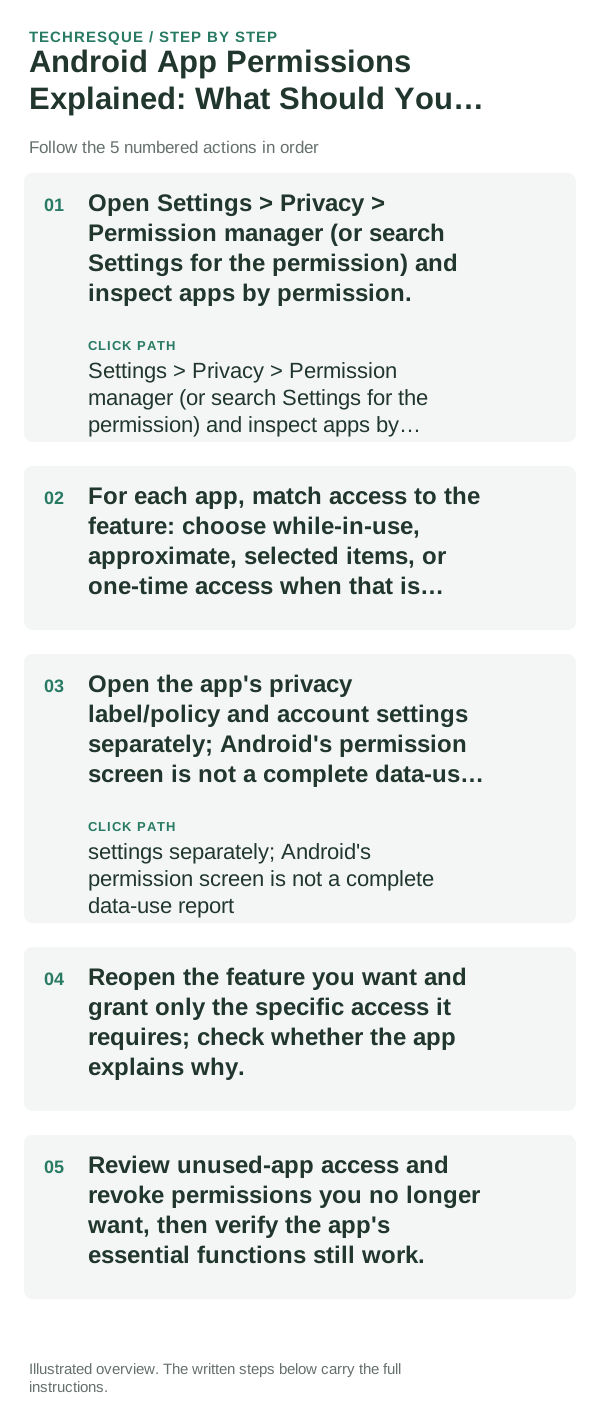
- Open Settings > Privacy > Permission manager (or search Settings for the permission) and inspect apps by permission.
- For each app, match access to the feature: choose while-in-use, approximate, selected items, or one-time access when that is enough.
- Open the app's privacy label/policy and account settings separately; Android's permission screen is not a complete data-use report.
- Reopen the feature you want and grant only the specific access it requires; check whether the app explains why.
- Review unused-app access and revoke permissions you no longer want, then verify the app's essential functions still work.
Tell whether a permission is causing the feature failure
Test the same permission change in the app and feature that requested it. If the feature works only after granting access, check whether a narrower option is available; if the permission control is missing, compare the app's in-app setting with Android's Permission manager.
Avoid these common mistakes
- Do not grant broad access just to dismiss a prompt.
- Do not infer that a permission screen lists every kind of data an app may collect.
Confirm the app still works as expected
Reopen one feature after changing one permission and confirm the prompt and behavior match your choice. Android labels and available limited-access options vary by version.
When to contact the app developer
If an app asks for access that seems unrelated, or its feature fails even after the correct permission is granted, contact the developer with the app version, Android version, permission name, and exact behavior. Do not send account credentials or private files.
Use the least permission that still enables the feature
Android lets you review permissions per app and, for some sensitive permissions, choose limited or one-time access. If a feature works without broader access, keep the narrower setting.
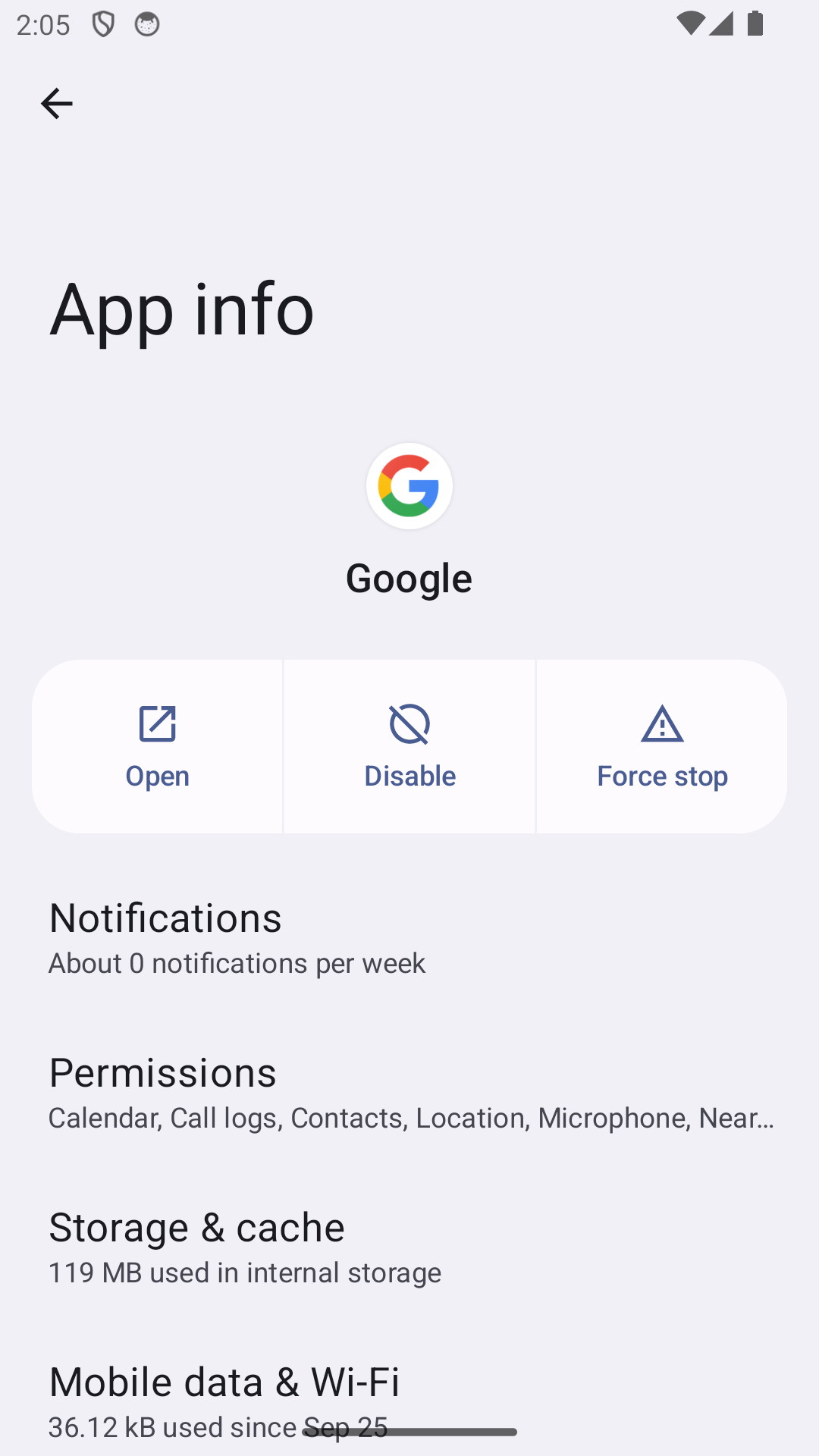
Permission history is only one privacy signal. Also consider what account the app uses, whether data leaves the device, and whether the app’s core function still works when optional access is denied.
A permission should map to a feature you understand. Camera access makes sense for scanning a document; location may be needed for navigation; neither should be granted simply because an app refuses to explain why it wants access.
| What you observe | What it points to | Best next check |
|---|---|---|
| Feature fails after denial | Permission may be required | Review app explanation before granting |
| Permission matches a feature you use | Likely necessary access | Grant the narrowest available option |
| Permission seems unrelated | Optional or questionable access | Deny and test the feature |
Frequently asked questions
What should I check first?
Open Settings > Privacy > Permission manager (or search Settings for the permission) and inspect apps by permission. For each app, match access to the feature: choose while-in-use, approximate, selected items, or one-time access when that is enough. Open the app's privacy label/policy and account settings separately; Android's permission screen is not a complete data-use report.
Does Android's permission list show everything an app collects?
No. Permission settings show operating-system access such as location, camera, microphone, contacts, or media. They do not list every account, analytics, or network data an app may handle, so review its privacy information separately.
Can I deny a permission and still use the app?
Often, yes. The app may continue working while the feature that needs that access stays unavailable. If you choose to use that feature later, grant only the narrower option that meets its need.
Official sources and further reading
Android permission labels and limited-access options vary by phone maker, Android release, and app. Grant only the access needed for the feature you choose.