Open the weather app and confirm its location and forecast are current. Then check the widget's selected city, location permission, background data, and refresh schedule.
On Android, menu names vary by maker, so use Settings search when a path in a guide does not match your phone exactly.
Start by narrowing the cause
A weather widget can stay stale when its app uses the wrong city, lacks location permission, is restricted in the background, or has not refreshed over the current connection.
The practical troubleshooting sequence
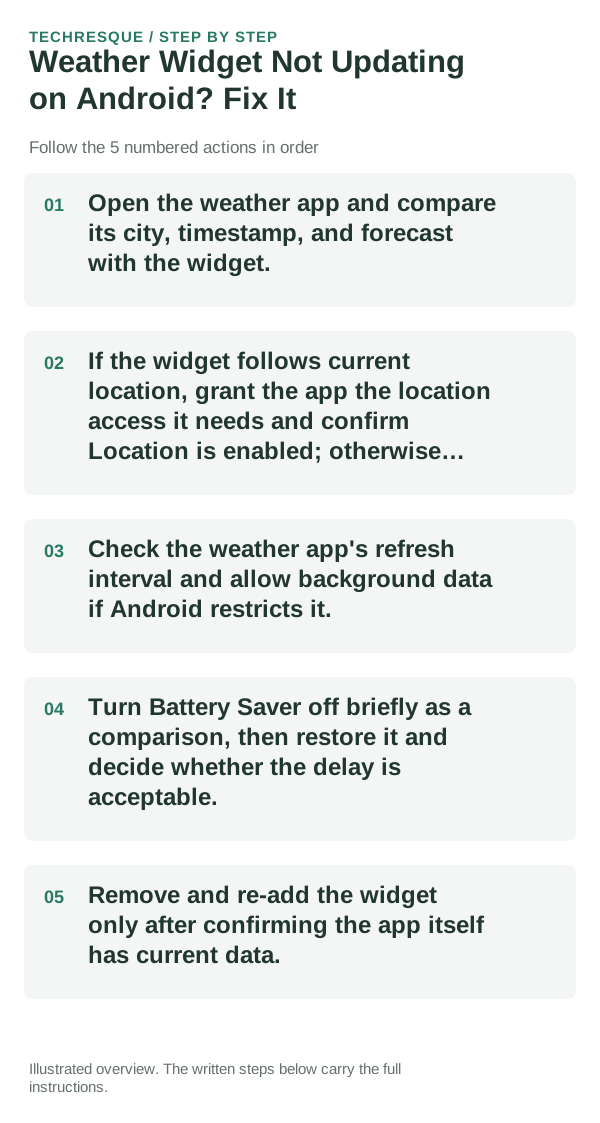
- Open the weather app and compare its city, timestamp, and forecast with the widget.
- If the widget follows current location, grant the app the location access it needs and confirm Location is enabled; otherwise select a saved city.
- Check the weather app's refresh interval and allow background data if Android restricts it.
- Turn Battery Saver off briefly as a comparison, then restore it and decide whether the delay is acceptable.
- Remove and re-add the widget only after confirming the app itself has current data.
Isolate the failing layer
Correct forecast in the app but a stale widget points to refresh or launcher state. A wrong city or old timestamp in both places points to the app's location, account, or network.
Shortcuts that usually waste time
Do not leave precise location enabled if a saved city meets your needs. Battery Saver can delay background refresh; restore the setting after the test.
What success should look like
Confirm the widget shows the selected city and a recent update time after the phone reconnects to the internet.
When to use support or repair
If the app is current but the widget stays stale after re-adding, report the app, launcher, Android version, and widget update time to its publisher.
Widgets: Pixel Theme
a pixel-inspired widget app with clock, weather, battery, music, photo, app-shortcut, device-information and productivity widgets plus matching wallpapers. Its Play listing states no data is shared or collected. It is most relevant here when the goal is a coordinated Android Home screen rather than a system-level troubleshooting fix.
View Widgets: Pixel Theme on Google Play →Frequently asked questions
Should I reset the whole device immediately?
Usually not. Undo the last setting or app change first, and back up the layout before any reset.
How do I know when the fix is real?
Confirm the widget shows the selected city and a recent update time after the phone reconnects to the internet.