Widgets depend on the app that supplies the data, the launcher rendering it, and background refresh. A missing widget, blank widget, and loading-error widget point to different layers. Open the source app once, sign in if needed, and check that its main screen has current data. In the Home-screen widget picker, confirm the widget is listed; remove and re-add only that widget if it is blank.
Android Settings labels differ across Pixel, Samsung, and other brands; search Settings for the named control and change one item at a time.
Why this can happen
Widgets depend on the app that supplies the data, the launcher rendering it, and background refresh. A missing widget, blank widget, and loading-error widget point to different layers.
- The app's widget provider is disabled, outdated, or not yet initialized.
- The active launcher does not support or has not refreshed the widget.
- Battery/background limits pause the app's data refresh.
- The widget lost an account, network, location, or notification permission it actually needs.
- An app or launcher update changed the widget size or layout.
The practical troubleshooting sequence
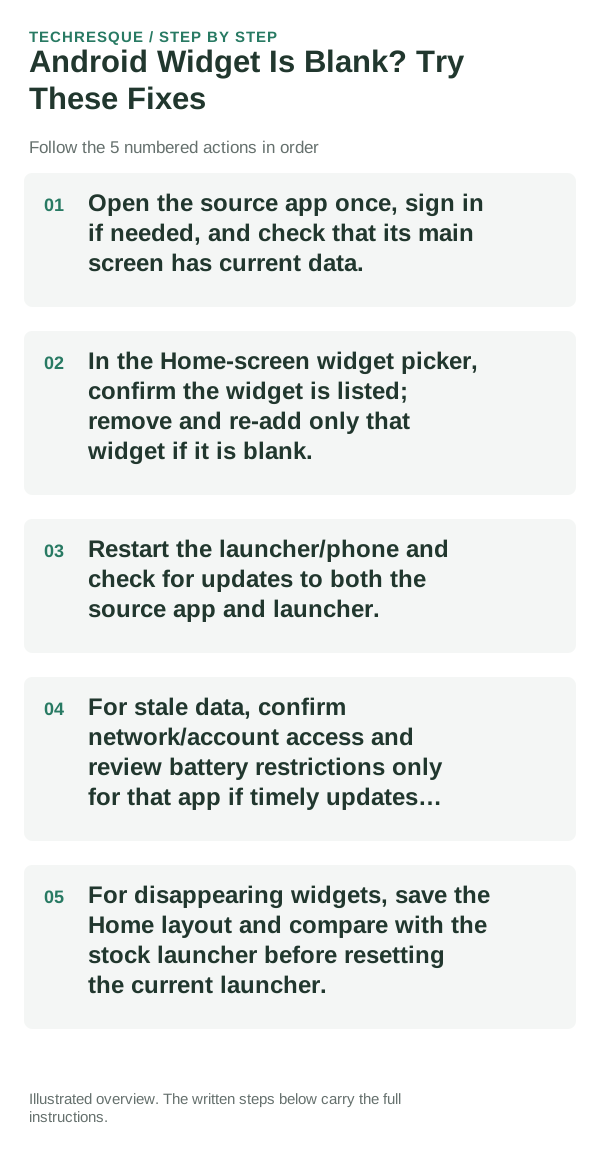
- Open the source app once, sign in if needed, and check that its main screen has current data.
- In the Home-screen widget picker, confirm the widget is listed; remove and re-add only that widget if it is blank.
- Restart the launcher/phone and check for updates to both the source app and launcher.
- For stale data, confirm network/account access and review battery restrictions only for that app if timely updates matter.
- For disappearing widgets, save the Home layout and compare with the stock launcher before resetting the current launcher.
Use a clean A/B test
Test the source app first, then the same widget after one refresh; note whether it is missing, blank, stale, or showing an explicit error.
Change one widget, gesture or launcher setting at a time. Keep the original value so you can reverse a change that makes the phone harder to use.
Changes to avoid until you know the cause
- Do not clear the launcher's data before saving its layout.
- Avoid unrestricted background use unless the widget genuinely needs it.
Verify before you move on
Test the source app first, then the same widget after one refresh; note whether it is missing, blank, stale, or showing an explicit error.
When to use support or repair
If restoring the previous value does not help, test the stock interface and share app/OS versions before removing a working setup.
Record phone model, Android version, customization app, exact setting changed and whether restoring the previous value fixes it.
Widgets: Pixel Theme
a pixel-inspired widget app with clock, weather, battery, music, photo, app-shortcut, device-information and productivity widgets plus matching wallpapers. Its Play listing states no data is shared or collected. It is most relevant here when the goal is a coordinated Android Home screen rather than a system-level troubleshooting fix.
View Widgets: Pixel Theme on Google Play →Frequently asked questions
What should I check first?
Open the source app once, sign in if needed, and check that its main screen has current data. In the Home-screen widget picker, confirm the widget is listed; remove and re-add only that widget if it is blank. Restart the launcher/phone and check for updates to both the source app and launcher.
Should I reset the whole device immediately?
Usually not. Undo the last setting or app change first, and back up the layout before any reset.
How do I know when the fix is real?
Test the source app first, then the same widget after one refresh; note whether it is missing, blank, stale, or showing an explicit error.
Official sources and further reading
Android customization controls vary by launcher and device skin. Confirm which app supplies the Home screen, widget or gesture before changing defaults.