Confirm whether the USB-C earphones contain a digital DAC or require analog audio accessory support. A USB-C plug alone does not guarantee compatibility with every Android phone.
On Android, menu names vary by maker, so use Settings search when a path in a guide does not match your phone exactly.
Start by narrowing the cause
Some phones route audio through digital USB-C headphones; passive analog adapters need a phone that supports analog audio output. A loose connector, case obstruction, USB mode, or unsupported accessory can also prevent detection.
The practical troubleshooting sequence
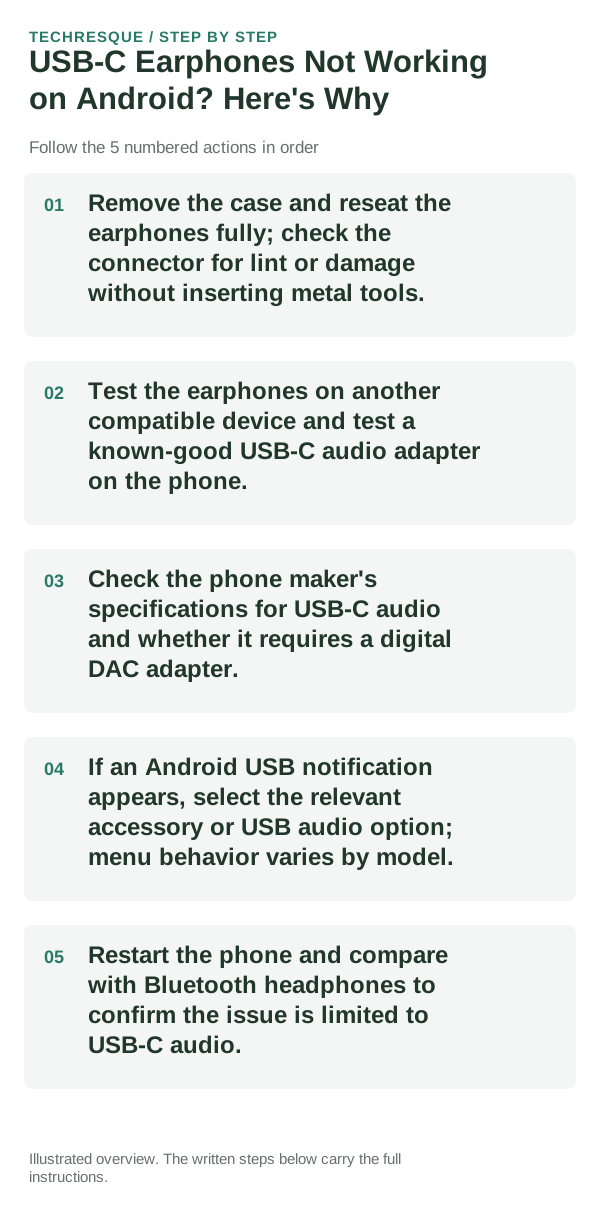
- Remove the case and reseat the earphones fully; check the connector for lint or damage without inserting metal tools.
- Test the earphones on another compatible device and test a known-good USB-C audio adapter on the phone.
- Check the phone maker's specifications for USB-C audio and whether it requires a digital DAC adapter.
- If an Android USB notification appears, select the relevant accessory or USB audio option; menu behavior varies by model.
- Restart the phone and compare with Bluetooth headphones to confirm the issue is limited to USB-C audio.
Use a clean A/B test
A digital USB-C headset working while a passive adapter fails suggests analog accessory-mode incompatibility. If no USB audio accessory is detected, check the port, adapter, and phone support.
Do not make troubleshooting harder
Do not force a plug or scrape the port. Do not buy several adapters without checking whether the phone expects an active DAC.
Verify before you move on
Confirm the exact earphones or adapter produce sound at a moderate level and the phone returns to its normal speaker route after unplugging.
When to use support or repair
If a compatible digital headset is still absent after the port and restart checks, ask the phone maker about USB audio support for that model.
Frequently asked questions
Should I reset the whole device immediately?
Usually not. Check the active audio route, app permission and one known-good accessory before resetting the device.
How do I know when the fix is real?
Confirm the exact earphones or adapter produce sound at a moderate level and the phone returns to its normal speaker route after unplugging.