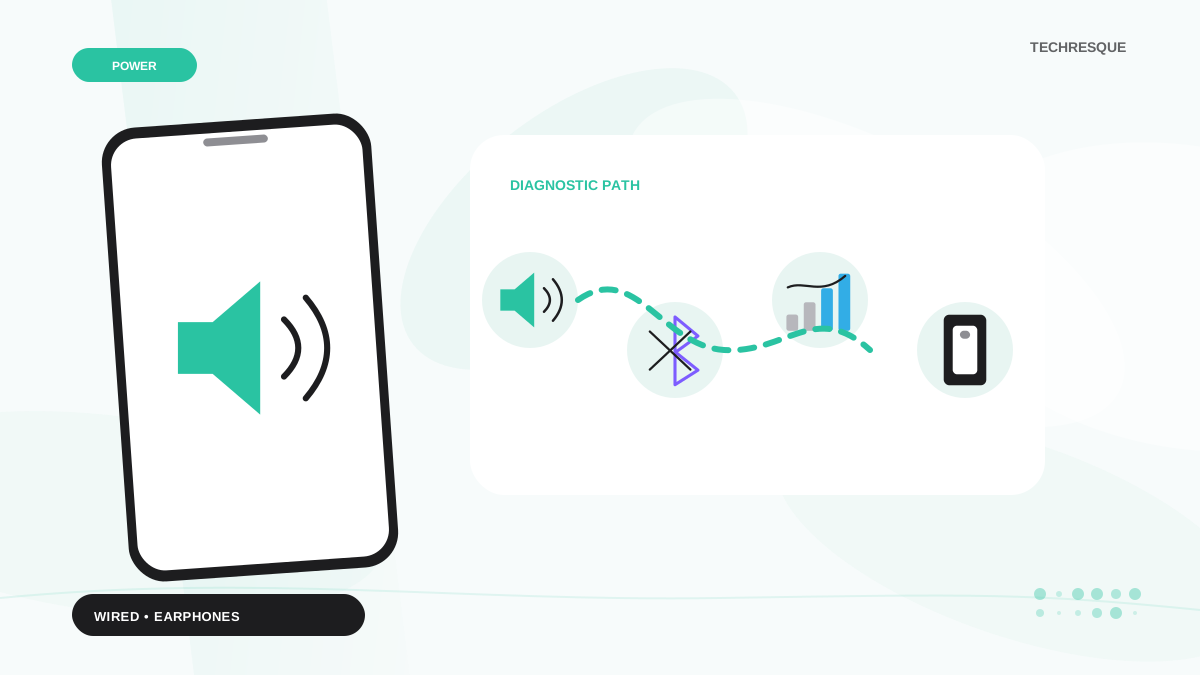
Identify whether the earphones use a 3.5 mm jack or USB-C, then test the connector and adapter separately. Android menu settings cannot add missing hardware support.
On Android, menu names vary by maker, so use Settings search when a path in a guide does not match your phone exactly.
Why this can happen
A 3.5 mm headset may need a compatible USB-C DAC on phones without a headphone jack. A case can stop the plug seating, while lint or a worn port can interrupt contact.
Use this order so you can identify the cause
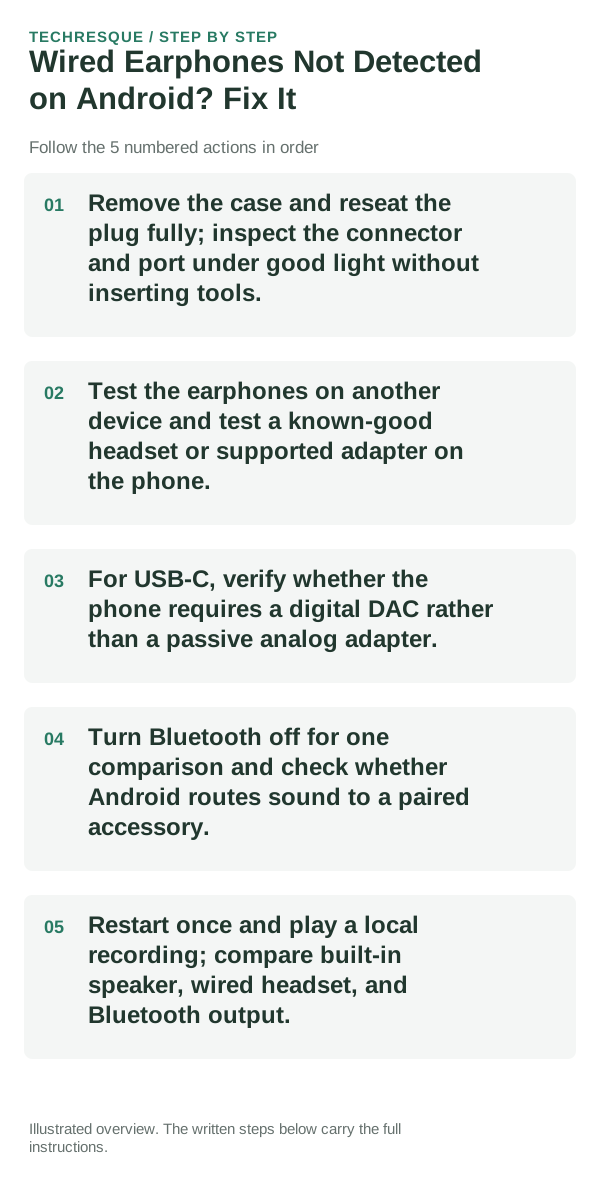
- Remove the case and reseat the plug fully; inspect the connector and port under good light without inserting tools.
- Test the earphones on another device and test a known-good headset or supported adapter on the phone.
- For USB-C, verify whether the phone requires a digital DAC rather than a passive analog adapter.
- Turn Bluetooth off for one comparison and check whether Android routes sound to a paired accessory.
- Restart once and play a local recording; compare built-in speaker, wired headset, and Bluetooth output.
Isolate the failing layer
The same headset failing on multiple devices points to the headset. Another headset working on the phone points to the accessory; all wired devices failing suggests port or compatibility.
What not to change first
Do not scrape the port, force a loose connector, or install an audio booster. Stop if the port is wet or visibly damaged.
Retest the original failure
Confirm the headset appears as the active output and plays a local recording, then unplug it and check that sound returns to the speaker.
When to use support or repair
If known-good compatible earphones are not detected, contact the phone maker with the model and connector type.
Frequently asked questions
Should I reset the whole device immediately?
Usually not. Check the active audio route, app permission and one known-good accessory before resetting the device.
How do I know when the fix is real?
Confirm the headset appears as the active output and plays a local recording, then unplug it and check that sound returns to the speaker.