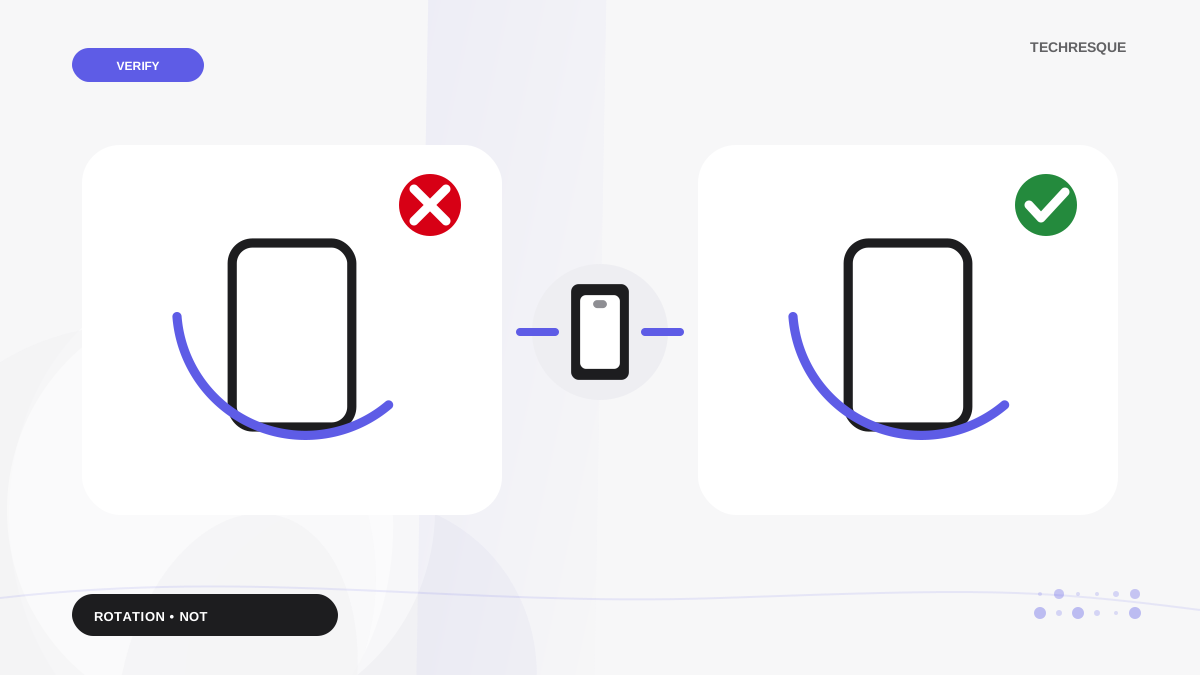
iPhone rotation depends on Orientation Lock, app support, and display mode. Some screens are designed to remain portrait even when the phone senses rotation. Turn off Portrait Orientation Lock in Control Center and test a known landscape-capable app. Check Settings or the app's own full-screen/video controls; not every screen rotates.
iOS and macOS menu names can change by release; use Settings search and confirm whether the issue affects one app, one contact, or the entire device.
Why this can happen
iPhone rotation depends on Orientation Lock, app support, and display mode. Some screens are designed to remain portrait even when the phone senses rotation.
- Portrait Orientation Lock is enabled.
- The app or current screen does not support landscape.
- Display Zoom or a connected display changes the layout.
- A temporary app state or iOS issue prevents redraw.
- The motion sensor is not responding after impact or service.
Work through these checks
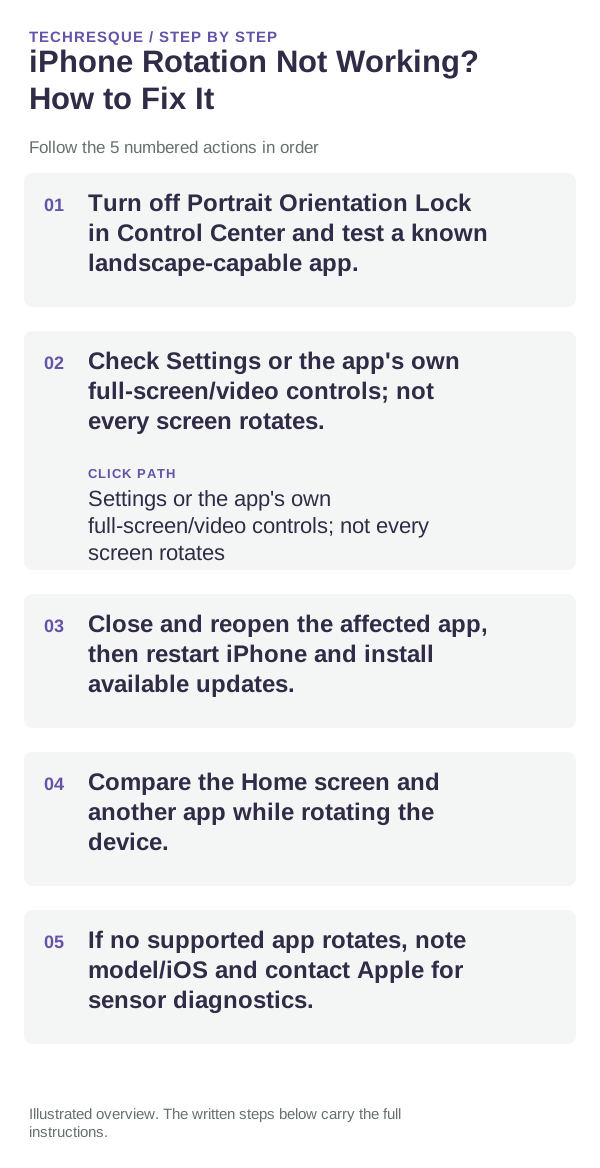
- Turn off Portrait Orientation Lock in Control Center and test a known landscape-capable app.
- Check Settings or the app's own full-screen/video controls; not every screen rotates.
- Close and reopen the affected app, then restart iPhone and install available updates.
- Compare the Home screen and another app while rotating the device.
- If no supported app rotates, note model/iOS and contact Apple for sensor diagnostics.
How to tell which cause applies
Test two apps known to support landscape; rotation lock and app design are common reasons one screen stays portrait.
Test two apps known to support landscape; rotation lock and app design are common reasons one screen stays portrait.
Changes to avoid until you know the cause
- Do not reset all settings because one app remains portrait.
- Keep orientation lock restored to your preference after testing.
How to confirm the fix
Test two apps known to support landscape; rotation lock and app design are common reasons one screen stays portrait.
When to use support or repair
If the issue persists across apps or networks after updates and model-specific checks, contact Apple Support with the model and iOS version.
Record iPhone model, iOS version, affected app or setting, exact message and whether it follows one network. Hide personal details in screenshots.
Frequently asked questions
What should I check first?
Turn off Portrait Orientation Lock in Control Center and test a known landscape-capable app. Check Settings or the app's own full-screen/video controls; not every screen rotates. Close and reopen the affected app, then restart iPhone and install available updates.
Should I reset the whole device immediately?
Usually not. Check the affected app, accessory or setting first. Reset All Settings or erase the phone only after a backup.
How do I know when the fix is real?
Test two apps known to support landscape; rotation lock and app design are common reasons one screen stays portrait.
Official sources and further reading
iPhone settings labels can move between iOS versions. Use Settings search if a path differs, and check whether the symptom affects one app or the whole device.