iPhone Auto-Brightness uses the ambient-light sensor, while True Tone and Night Shift change screen appearance for different reasons. Separate these settings before diagnosing a sensor problem. Open Settings > Accessibility > Display & Text Size and check Auto-Brightness near the bottom of that screen. Clean the top of the display and compare in steady bright and dim light, allowing a short adjustment interval.
iOS and macOS menu names can change by release; use Settings search and confirm whether the issue affects one app, one contact, or the entire device.
Why this can happen
iPhone Auto-Brightness uses the ambient-light sensor, while True Tone and Night Shift change screen appearance for different reasons. Separate these settings before diagnosing a sensor problem.
- Auto-Brightness is off or the sensor is blocked near the earpiece/notch.
- True Tone or Night Shift changes color temperature rather than brightness.
- Low Power Mode, heat, or a display-protection behavior limits brightness.
- Accessibility display settings such as Reduce White Point or Zoom filters dim the screen.
- A case or protector covers the sensor or the issue follows one app.
Troubleshoot from low-risk to high-risk
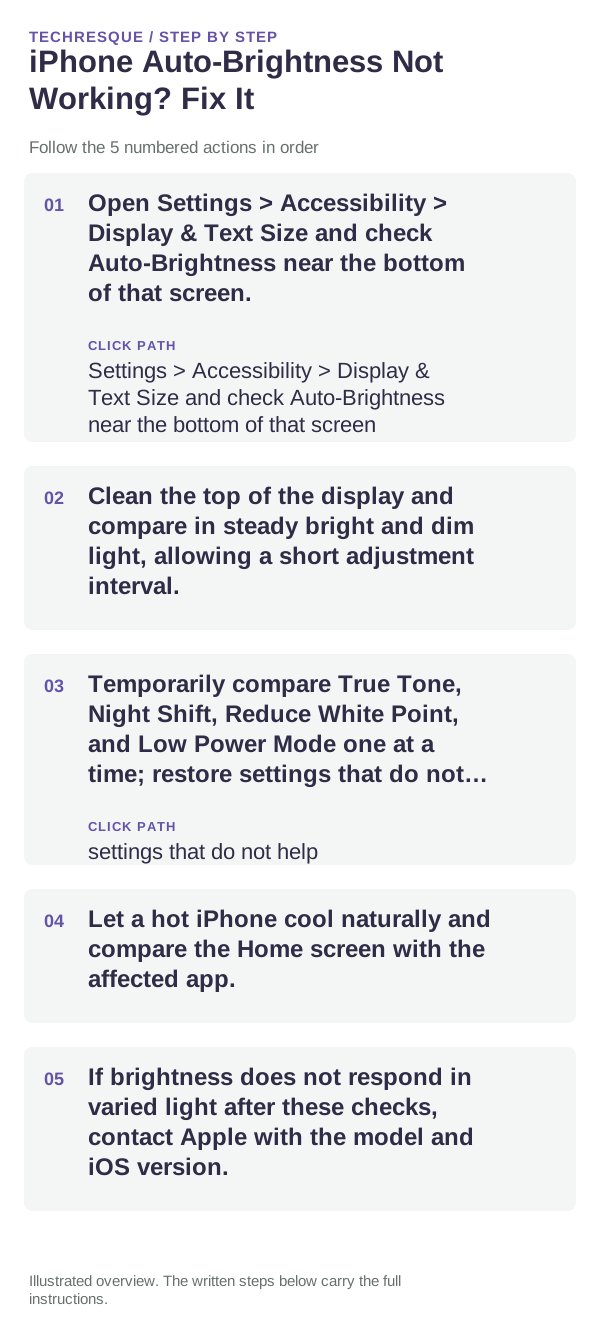
- Open Settings > Accessibility > Display & Text Size and check Auto-Brightness near the bottom of that screen.
- Clean the top of the display and compare in steady bright and dim light, allowing a short adjustment interval.
- Temporarily compare True Tone, Night Shift, Reduce White Point, and Low Power Mode one at a time; restore settings that do not help.
- Let a hot iPhone cool naturally and compare the Home screen with the affected app.
- If brightness does not respond in varied light after these checks, contact Apple with the model and iOS version.
What each result tells you
Compare the same screen in steady bright and dim environments, changing one display setting at a time. Auto-Brightness is in Accessibility settings.
Compare the same screen in steady bright and dim environments, changing one display setting at a time. Auto-Brightness is in Accessibility settings.
Do not make troubleshooting harder
- Do not confuse True Tone's color shift with brightness.
- Do not cool an iPhone with ice or a freezer.
How to confirm the fix
Compare the same screen in steady bright and dim environments, changing one display setting at a time. Auto-Brightness is in Accessibility settings.
When to use support or repair
If the issue persists across apps or networks after updates and model-specific checks, contact Apple Support with the model and iOS version.
Record iPhone model, iOS version, affected app or setting, exact message and whether it follows one network. Hide personal details in screenshots.
Frequently asked questions
What should I check first?
Open Settings > Accessibility > Display & Text Size and check Auto-Brightness near the bottom of that screen. Clean the top of the display and compare in steady bright and dim light, allowing a short adjustment interval. Temporarily compare True Tone, Night Shift, Reduce White Point, and Low Power Mode one at a time; restore settings that do not help.
Should I reset the whole device immediately?
Usually not. Check the affected app, accessory or setting first. Reset All Settings or erase the phone only after a backup.
How do I know when the fix is real?
Compare the same screen in steady bright and dim environments, changing one display setting at a time. Auto-Brightness is in Accessibility settings.
Official sources and further reading
iPhone settings labels can move between iOS versions. Use Settings search if a path differs, and check whether the symptom affects one app or the whole device.