
Face ID depends on the TrueDepth camera area, an enrolled appearance, and security prompts that sometimes require a passcode. An app may also disable Face ID independently. Enter the passcode once, clean the camera area, and remove anything covering the TrueDepth sensors. Test Face ID to unlock the iPhone, then separately check Settings > Face ID & Passcode for the affected feature.
iOS and macOS menu names can change by release; use Settings search and confirm whether the issue affects one app, one contact, or the entire device.
Why this can happen
Face ID depends on the TrueDepth camera area, an enrolled appearance, and security prompts that sometimes require a passcode. An app may also disable Face ID independently.
- The TrueDepth camera area is dirty, covered, or blocked by a case/protector.
- The phone requires a passcode after restart or repeated failed attempts.
- Face ID is not enabled for the specific feature or app.
- A mask, angle, or significant appearance change prevents recognition.
- The TrueDepth system has a hardware fault after damage or repair.
Troubleshoot from low-risk to high-risk
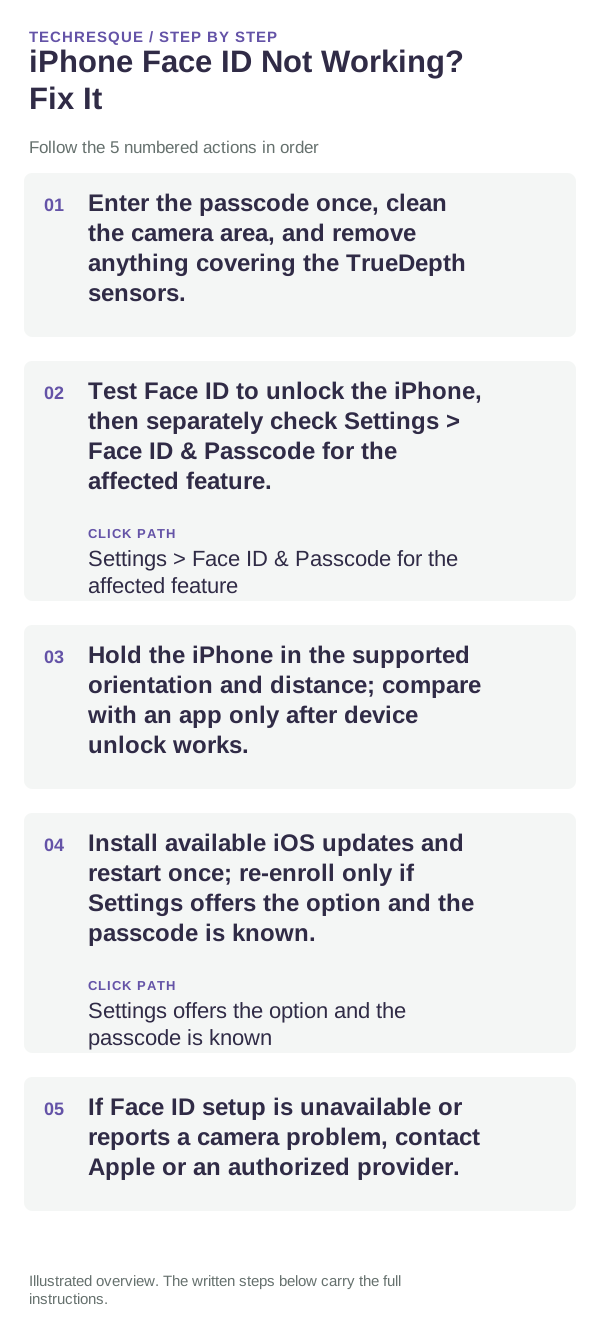
- Enter the passcode once, clean the camera area, and remove anything covering the TrueDepth sensors.
- Test Face ID to unlock the iPhone, then separately check Settings > Face ID & Passcode for the affected feature.
- Hold the iPhone in the supported orientation and distance; compare with an app only after device unlock works.
- Install available iOS updates and restart once; re-enroll only if Settings offers the option and the passcode is known.
- If Face ID setup is unavailable or reports a camera problem, contact Apple or an authorized provider.
A quick way to narrow it down
Compare device unlock with one enabled app; a passcode prompt after restart is normal security behavior.
Compare device unlock with one enabled app; a passcode prompt after restart is normal security behavior.
Avoid these common mistakes
- Do not share the passcode or remove all trusted sign-in methods.
- A persistent TrueDepth warning needs service, not an app permission.
Retest the original failure
Compare device unlock with one enabled app; a passcode prompt after restart is normal security behavior.
When to use support or repair
If the issue persists across apps or networks after updates and model-specific checks, contact Apple Support with the model and iOS version.
Record iPhone model, iOS version, affected app or setting, exact message and whether it follows one network. Hide personal details in screenshots.
Frequently asked questions
What should I check first?
Enter the passcode once, clean the camera area, and remove anything covering the TrueDepth sensors. Test Face ID to unlock the iPhone, then separately check Settings > Face ID & Passcode for the affected feature. Hold the iPhone in the supported orientation and distance; compare with an app only after device unlock works.
Should I reset the whole device immediately?
Usually not. Check the affected app, accessory or setting first. Reset All Settings or erase the phone only after a backup.
How do I know when the fix is real?
Compare device unlock with one enabled app; a passcode prompt after restart is normal security behavior.
Official sources and further reading
iPhone settings labels can move between iOS versions. Use Settings search if a path differs, and check whether the symptom affects one app or the whole device.