Close apps that may be using the camera, then reopen the camera app. Then check camera permission for the affected app.
On iPhone, prefer Apple’s built-in Settings and reset options; use “Reset All Settings” or a full erase only when a narrower fix has failed and you have a backup.
What this symptom usually means
- another app is holding the camera
- camera permission is disabled
- the camera app cache/state is corrupted
- the device is too hot and limits camera features
- a specific lens or camera module has a hardware fault
Work through these checks
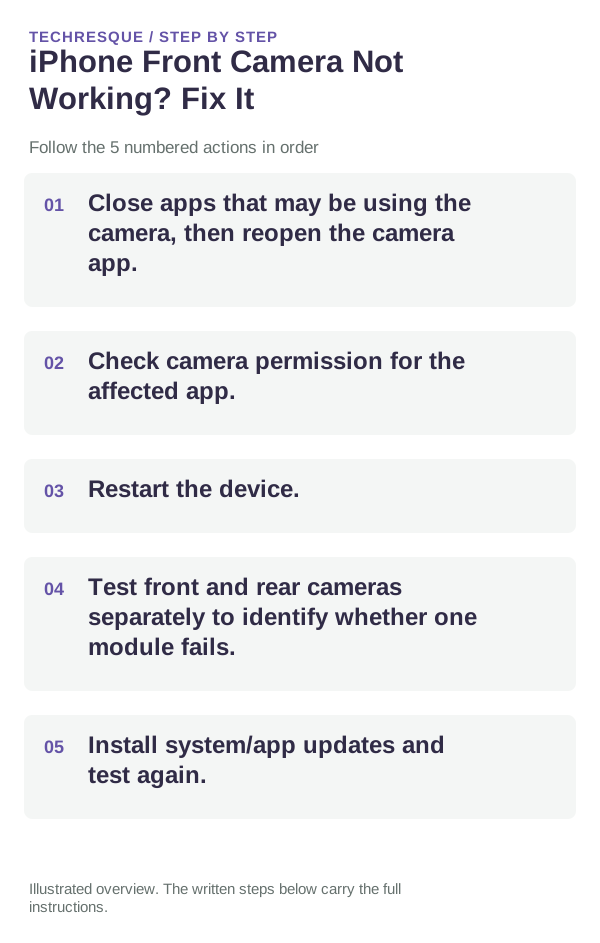
- Close apps that may be using the camera, then reopen the camera app.
- Check camera permission for the affected app.
- Restart the device.
- Test front and rear cameras separately to identify whether one module fails.
- Install system/app updates and test again.
A quick way to narrow it down
Test the built-in camera app and one second app. If both fail on the same lens, the issue is system-level or hardware. If only one app fails, its permission or local state is the better target.
Repeat the same action in the same iPhone app after one change. Check another app before resetting network or privacy settings.
Changes to avoid until you know the cause
Confirm that the problem is actually gone
Test photo, video and a second camera-using app; if only one lens fails everywhere, hardware becomes more likely.
When to use support or repair
If one physical camera module fails in every app after a restart and updates, service may be required—especially after impact, liquid exposure or a repair.
Record iPhone model, iOS version, affected app or setting, exact message and whether it follows one network. Hide personal details in screenshots.
Frequently asked questions
Should I reset the whole device immediately?
Usually not. Check the affected app, accessory or setting first. Reset All Settings or erase the phone only after a backup.
How do I know when the fix is real?
Test photo, video and a second camera-using app; if only one lens fails everywhere, hardware becomes more likely.
Official sources and further reading
iPhone settings labels can move between iOS versions. Use Settings search if a path differs, and check whether the symptom affects one app or the whole device.