The iPhone flashlight uses the rear LED and can be unavailable while Camera uses it or when the phone is too hot. Test Control Center and Camera flash separately. Close Camera and apps using the camera, then test the flashlight from Control Center. Let a hot iPhone cool naturally and retry after it returns to a normal temperature.
iOS and macOS menu names can change by release; use Settings search and confirm whether the issue affects one app, one contact, or the entire device.
Why this can happen
The iPhone flashlight uses the rear LED and can be unavailable while Camera uses it or when the phone is too hot. Test Control Center and Camera flash separately.
- Camera or another app is holding the rear flash.
- The iPhone is too hot and temporarily limits the LED.
- The Control Center flashlight control is hidden or disabled.
- A temporary iOS camera/flash process is stuck.
- The LED or camera hardware is damaged.
The practical troubleshooting sequence
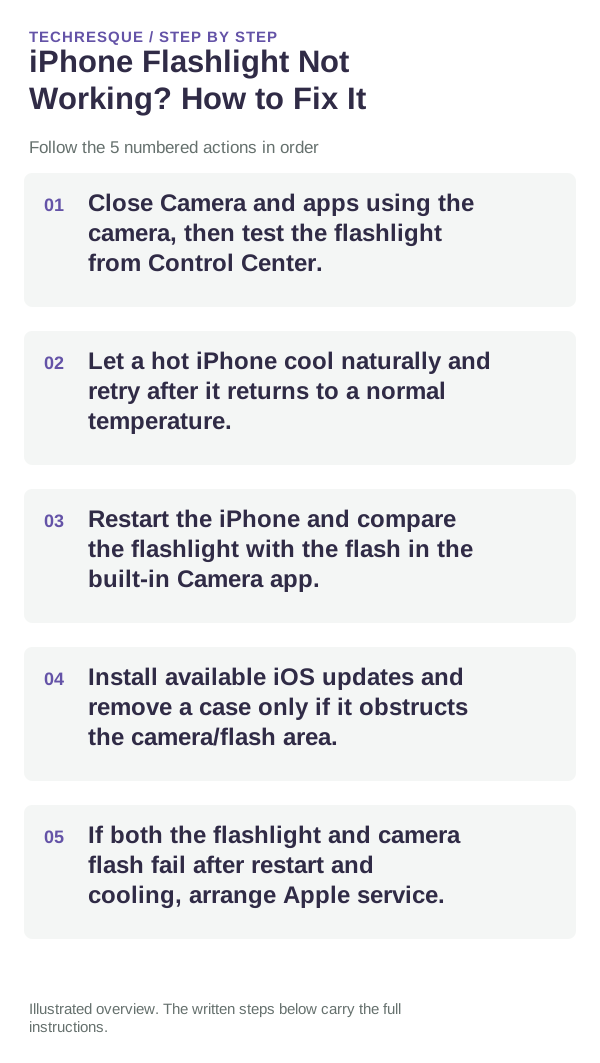
- Close Camera and apps using the camera, then test the flashlight from Control Center.
- Let a hot iPhone cool naturally and retry after it returns to a normal temperature.
- Restart the iPhone and compare the flashlight with the flash in the built-in Camera app.
- Install available iOS updates and remove a case only if it obstructs the camera/flash area.
- If both the flashlight and camera flash fail after restart and cooling, arrange Apple service.
What each result tells you
Test Control Center when the phone is cool, then compare the rear camera flash.
Test Control Center when the phone is cool, then compare the rear camera flash.
Changes to avoid until you know the cause
- Do not use a third-party flashlight app as proof the LED is healthy.
- Never cool the phone with ice or a freezer.
Retest the original failure
Test Control Center when the phone is cool, then compare the rear camera flash.
When to use support or repair
If the issue persists across apps or networks after updates and model-specific checks, contact Apple Support with the model and iOS version.
Record iPhone model, iOS version, affected app or setting, exact message and whether it follows one network. Hide personal details in screenshots.
Frequently asked questions
What should I check first?
Close Camera and apps using the camera, then test the flashlight from Control Center. Let a hot iPhone cool naturally and retry after it returns to a normal temperature. Restart the iPhone and compare the flashlight with the flash in the built-in Camera app.
Should I reset the whole device immediately?
Usually not. Check the affected app, accessory or setting first. Reset All Settings or erase the phone only after a backup.
How do I know when the fix is real?
Test Control Center when the phone is cool, then compare the rear camera flash.
Official sources and further reading
iPhone settings labels can move between iOS versions. Use Settings search if a path differs, and check whether the symptom affects one app or the whole device.