AirDrop depends on discoverability, nearby radios, contact matching, and enough free space for the transfer. A failure between two Apple devices is different from a transfer that starts but stalls. On both devices, turn Wi-Fi and Bluetooth on and bring them close together; do not join the same Wi-Fi network. Temporarily set AirDrop receiving to Everyone for 10 Minutes, or confirm the sender's Apple Account contact details match.
iOS and macOS menu names can change by release; use Settings search and confirm whether the issue affects one app, one contact, or the entire device.
Why this can happen
AirDrop depends on discoverability, nearby radios, contact matching, and enough free space for the transfer. A failure between two Apple devices is different from a transfer that starts but stalls.
- Receiving is set to Contacts Only while the sender is not recognized in Contacts.
- Wi-Fi or Bluetooth is off, or devices are too far apart.
- Personal Hotspot, a VPN, or a managed profile is interfering with peer discovery.
- The recipient device is locked, asleep, or has too little free storage.
- A large transfer is interrupted when either device leaves range or locks.
Fix it in this order
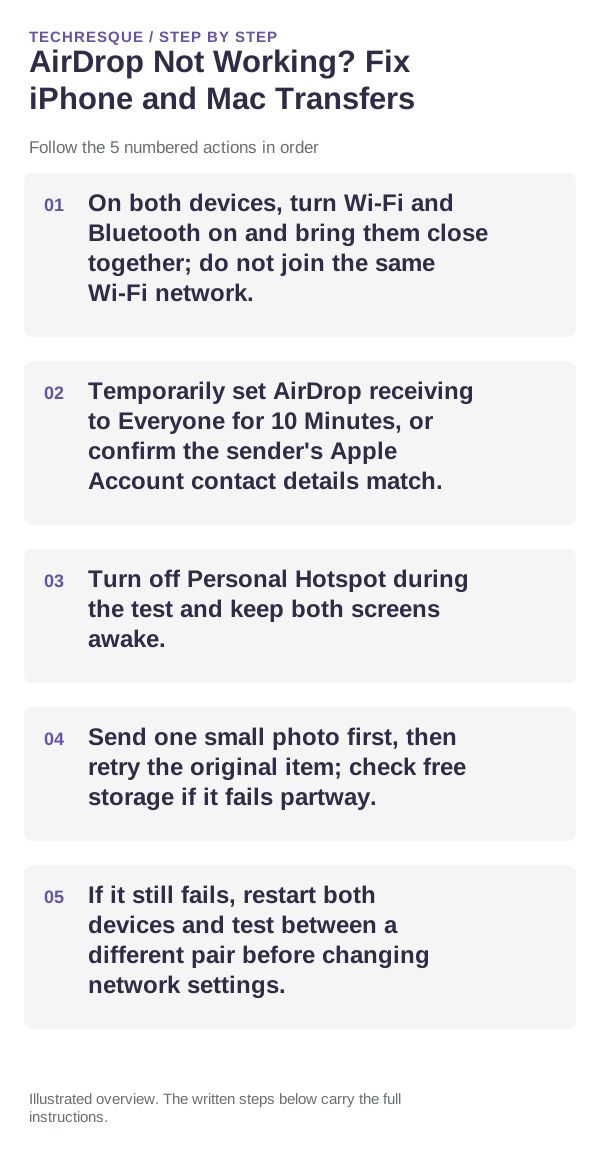
- On both devices, turn Wi-Fi and Bluetooth on and bring them close together; do not join the same Wi-Fi network.
- Temporarily set AirDrop receiving to Everyone for 10 Minutes, or confirm the sender's Apple Account contact details match.
- Turn off Personal Hotspot during the test and keep both screens awake.
- Send one small photo first, then retry the original item; check free storage if it fails partway.
- If it still fails, restart both devices and test between a different pair before changing network settings.
Use a clean A/B test
Test with a small file while both Apple devices are awake, nearby, and using the same receiving setting. AirDrop menus vary by iOS and macOS version.
Test with a small file while both Apple devices are awake, nearby, and using the same receiving setting. AirDrop menus vary by iOS and macOS version.
What not to change first
- Do not leave Everyone receiving enabled longer than needed.
- Do not reset network settings before a small-file cross-test.
Confirm that the problem is actually gone
Test with a small file while both Apple devices are awake, nearby, and using the same receiving setting. AirDrop menus vary by iOS and macOS version.
When to use support or repair
If the issue persists across apps or networks after updates and model-specific checks, contact Apple Support with the model and iOS version.
Record iPhone model, iOS version, affected app or setting, exact message and whether it follows one network. Hide personal details in screenshots.
Frequently asked questions
What should I check first?
On both devices, turn Wi-Fi and Bluetooth on and bring them close together; do not join the same Wi-Fi network. Temporarily set AirDrop receiving to Everyone for 10 Minutes, or confirm the sender's Apple Account contact details match. Turn off Personal Hotspot during the test and keep both screens awake.
Should I reset the whole device immediately?
Usually not. Check the affected app, accessory or setting first. Reset All Settings or erase the phone only after a backup.
How do I know when the fix is real?
Test with a small file while both Apple devices are awake, nearby, and using the same receiving setting. AirDrop menus vary by iOS and macOS version.
Official sources and further reading
iPhone settings labels can move between iOS versions. Use Settings search if a path differs, and check whether the symptom affects one app or the whole device.