Autocorrect depends on the active keyboard language, learned dictionary, and text field. Password, code, and app-specific fields may intentionally suppress suggestions. Open Settings > General > Keyboard and check Auto-Correction, Predictive Text, and the active keyboards. Test a plain sentence in Notes, then compare it with the app where correction fails.
iOS and macOS menu names can change by release; use Settings search and confirm whether the issue affects one app, one contact, or the entire device.
Where this problem usually comes from
Autocorrect depends on the active keyboard language, learned dictionary, and text field. Password, code, and app-specific fields may intentionally suppress suggestions.
- The active keyboard language does not match the text being typed.
- Auto-Correction or Predictive Text is turned off.
- Text Replacement or a learned dictionary entry changes a specific word.
- A third-party keyboard or app field behaves differently from Apple's keyboard.
- A recent keyboard setting update changed the behavior.
Use this order so you can identify the cause
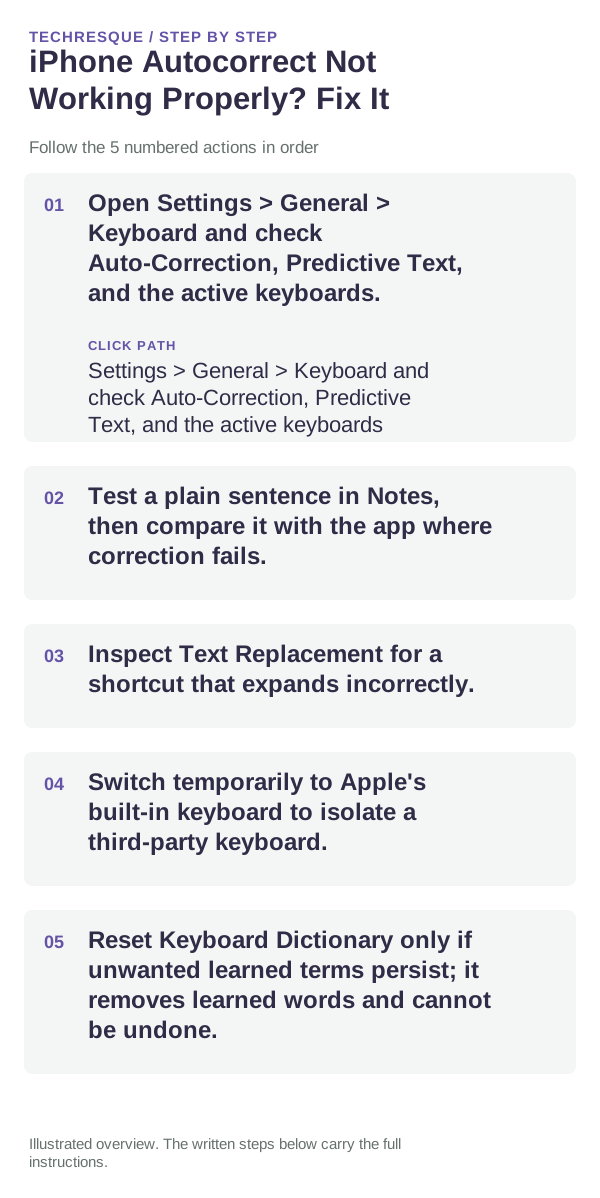
- Open Settings > General > Keyboard and check Auto-Correction, Predictive Text, and the active keyboards.
- Test a plain sentence in Notes, then compare it with the app where correction fails.
- Inspect Text Replacement for a shortcut that expands incorrectly.
- Switch temporarily to Apple's built-in keyboard to isolate a third-party keyboard.
- Reset Keyboard Dictionary only if unwanted learned terms persist; it removes learned words and cannot be undone.
Use a clean A/B test
Type the same short, non-sensitive sentence in Notes and the affected app; secure fields may intentionally skip autocorrection.
Type the same short, non-sensitive sentence in Notes and the affected app; secure fields may intentionally skip autocorrection.
Avoid these common mistakes
- Do not reset the keyboard dictionary as a first step; it erases learned typing history.
Confirm that the problem is actually gone
Type the same short, non-sensitive sentence in Notes and the affected app; secure fields may intentionally skip autocorrection.
When to use support or repair
If the issue persists across apps or networks after updates and model-specific checks, contact Apple Support with the model and iOS version.
Record iPhone model, iOS version, affected app or setting, exact message and whether it follows one network. Hide personal details in screenshots.
Frequently asked questions
What should I check first?
Open Settings > General > Keyboard and check Auto-Correction, Predictive Text, and the active keyboards. Test a plain sentence in Notes, then compare it with the app where correction fails. Inspect Text Replacement for a shortcut that expands incorrectly.
Should I reset the whole device immediately?
Usually not. Check the affected app, accessory or setting first. Reset All Settings or erase the phone only after a backup.
How do I know when the fix is real?
Type the same short, non-sensitive sentence in Notes and the affected app; secure fields may intentionally skip autocorrection.
Official sources and further reading
iPhone settings labels can move between iOS versions. Use Settings search if a path differs, and check whether the symptom affects one app or the whole device.