Motion discomfort in a moving vehicle can be reduced by changing what you look at and how the phone is mounted. The safest choice while driving is to let a passenger handle the phone or stop first. If driving, stop interacting with the phone; set navigation before moving or let a passenger operate it. As a passenger, look toward the horizon and place the phone higher and closer to the forward view.
These suggestions are for passengers and stopped vehicles. Drivers should not interact with a phone while moving; motion discomfort is not diagnosed by a display setting.
Before you start
If you are driving, do not handle or read the phone; set navigation before moving or ask a passenger. These tips are for passengers and stopped vehicles.
The cleanest method
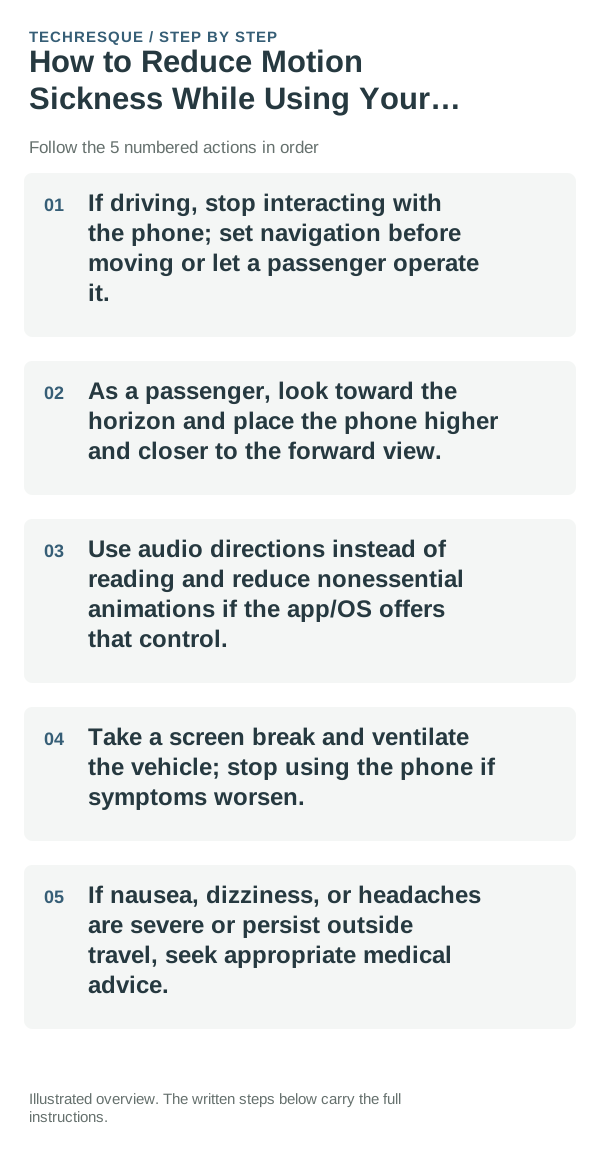
- If driving, stop interacting with the phone; set navigation before moving or let a passenger operate it.
- As a passenger, look toward the horizon and place the phone higher and closer to the forward view.
- Use audio directions instead of reading and reduce nonessential animations if the app/OS offers that control.
- Take a screen break and ventilate the vehicle; stop using the phone if symptoms worsen.
- If nausea, dizziness, or headaches are severe or persist outside travel, seek appropriate medical advice.
How to check the result
As a passenger, try audio directions, look toward a stable distant view, and take a screen break. Stop the activity if symptoms worsen; a phone setting is not a medical diagnosis.
If the option is missing
Motion-reduction controls and app support vary by Android/iOS version. If a named option is unavailable, use audio-only guidance, reduce close-up viewing, and stop using the screen when symptoms increase.
Keep the change easy to undo
Keep the change reversible: note any animation or display option you adjust, and restore it if the interface becomes harder to use. Do not experiment while driving.
What to do if it still fails
If nausea, dizziness, or headache is severe, persistent, or occurs away from the expected trigger, stop using the phone and seek appropriate medical advice.
Motion Relief
a Hysoft app intended for people who want visual assistance while using a phone in a moving vehicle. Availability and exact feature support can vary by device and current app version. Use it as one option alongside basic motion-sickness strategies such as looking farther ahead, reducing close-up reading and taking breaks.
Find Motion Relief on Google Play →Reduce the sensory trigger instead of only changing app settings
If symptoms are strong, persistent or occur without the expected trigger, stop the activity and seek medical advice rather than treating a phone setting as a diagnosis.
Motion sickness while using a phone in a moving vehicle is commonly linked to a mismatch between what your eyes see and what your balance system senses. Reducing close-up screen time and looking toward a stable distant reference can help.
For eye strain, brightness, viewing distance, text size and long uninterrupted sessions usually matter more than a single “eye comfort” toggle. Adjust the environment as well as the screen.
| What you observe | What it points to | Best next check |
|---|---|---|
| Eyes feel tired after long reading | Viewing distance, size, brightness, breaks | Increase text size and take regular breaks |
| Symptoms persist away from trigger | May not be a device-setting issue | Stop and seek appropriate medical guidance |
| Symptoms start only in moving vehicle | Visual/vestibular mismatch | Reduce screen use and look at stable distant reference |
Before you make a bigger change
Do not rely on an app or visual cue while driving. A passenger can adjust the display before travel; the driver should keep attention on the road and stop safely before interacting.
Frequently asked questions
Can a driver use these settings while moving?
No. Set up the phone before starting or have a passenger operate it. If you need to change navigation, stop in a safe place first.
What if the phone has no motion-reduction option?
Use audio directions, avoid close-up reading, and look toward the road or horizon as a passenger. Stop screen use if discomfort increases.
When should I stop and get help?
Stop the activity if symptoms worsen. Seek medical advice for severe or persistent symptoms, especially if they occur when you are not using a phone in a moving vehicle.