Motion cues may make phone use more comfortable for some passengers by adding a moving visual reference at the screen edge. Apple and Google describe built-in versions for supported devices, but neither says they work for everyone or replace basic motion-sickness precautions.
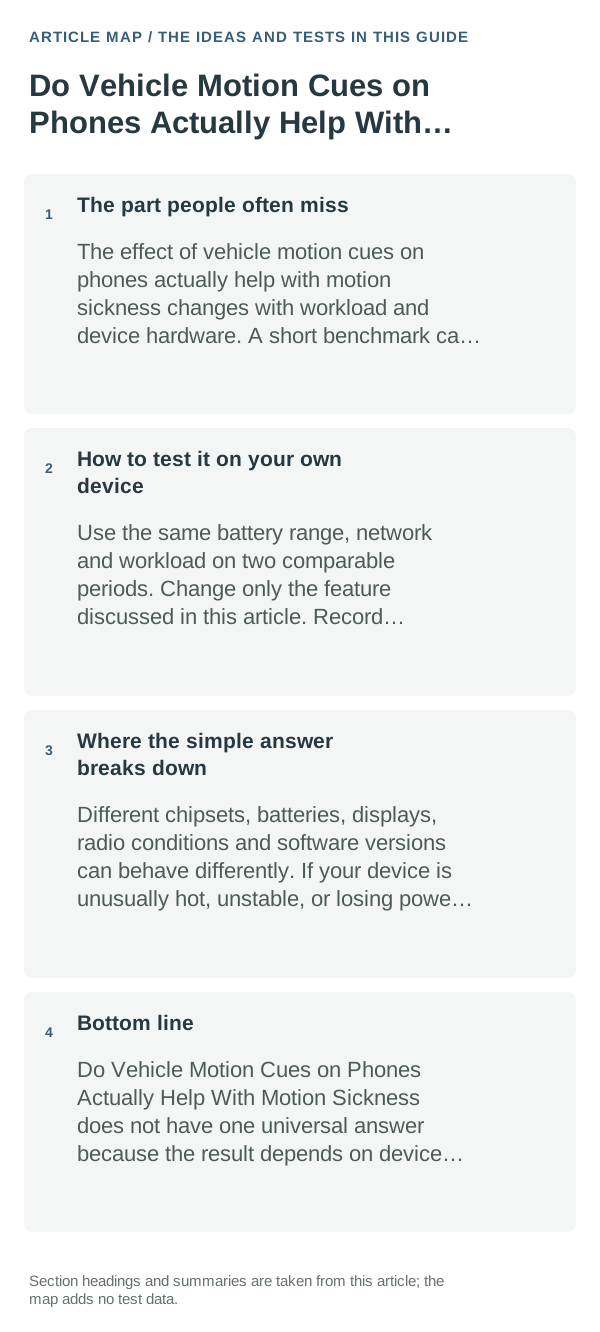
The part people often miss
A phone screen stays near your eyes while the vehicle turns or accelerates. That mismatch between nearby visual focus and sensed movement can contribute to discomfort. Cues attempt to make vehicle movement visible without covering the main content.
How to apply this without overthinking it
- On a supported Android 17 phone with current Google Play services, search Settings for Motion Assist. On iPhone, check Settings → Accessibility → Motion → Vehicle Motion Cues.
- Turn the feature on or adjust its appearance while parked, not while driving. Automatic detection can miss a trip, so supported phones may also offer a Quick Settings or Control Center control.
- If your device lacks the built-in feature, a dedicated app such as Hysoft’s Motion Relief is another Android option; compare its current price, permissions and compatibility first.
- Try the feature only as a passenger. Reduce close-up reading or stop using the screen if symptoms increase.
How to test it on your own device
On a short passenger trip, notice whether symptoms begin later or feel milder with cues. Keep the seat and screen use similar, stop if discomfort worsens, and do not interpret one trip as clinical evidence.
Where the simple answer breaks down
Android Motion Assist requires supported Android 17 hardware/software; feature availability can roll out by device. iPhone instructions vary by iOS version. Motion cues may not help every person, and no cue makes phone interaction safe for a driver.
Bottom line
Motion cues are a reasonable comfort feature to try as a passenger, not a guaranteed fix. Use the built-in option when available, consider a dedicated app only if it fits your device, and stop if it makes symptoms worse.
Motion Relief
a Hysoft app intended for people who want visual assistance while using a phone in a moving vehicle. Availability and exact feature support can vary by device and current app version. Use it as one option alongside basic motion-sickness strategies such as looking farther ahead, reducing close-up reading and taking breaks.
Find Motion Relief on Google Play →Reduce the sensory trigger instead of only changing app settings
If symptoms are strong, persistent or occur without the expected trigger, stop the activity and seek medical advice rather than treating a phone setting as a diagnosis.
Motion sickness while using a phone in a moving vehicle is commonly linked to a mismatch between what your eyes see and what your balance system senses. Reducing close-up screen time and looking toward a stable distant reference can help.
For eye strain, brightness, viewing distance, text size and long uninterrupted sessions usually matter more than a single “eye comfort” toggle. Adjust the environment as well as the screen.
| What you observe | What it points to | Best next check |
|---|---|---|
| Symptoms persist away from trigger | May not be a device-setting issue | Stop and seek appropriate medical guidance |
| Symptoms start only in moving vehicle | Visual/vestibular mismatch | Reduce screen use and look at stable distant reference |
| Eyes feel tired after long reading | Viewing distance, size, brightness, breaks | Increase text size and take regular breaks |
Frequently asked questions
Do motion cues work for every passenger?
No. They are an optional comfort aid, not a guaranteed fix. Try them on a short trip as a passenger and stop using the screen if discomfort increases.
Are vehicle motion cues safe for a driver to watch?
No. A driver should not look at or adjust a phone while driving. Configure the feature while parked and leave the phone out of view when you drive.
Official sources and further reading
- Android Help — Use Motion Assist
- Apple Support — Use iPhone more comfortably while riding in a vehicle
- Motion Relief — Google Play listing
Platform guidance uses cautious “may help” language. This article is a practical explainer, not a medical evaluation or independent effectiveness study.